 IT Playbook
Account
Settings
Settings is one page with eight sections. This page walks through them in the order they appear, with every control's choices and its default, and says which choices follow your account and which stay on the device you made them on.
Opening Settings
Settings needs an account. Signed in, open the menu under your name at the top right of any page and choose Settings, or use the Settings link in the footer. Signed out, the address takes you to the home page instead.
The page is titled Account & settings and holds these sections, top to bottom:
- Profile: your name, email, sign-in methods and deleting the account.
- Learning profile: your daily goal and the topics you want to learn.
- Subscription & billing: your access and where it is billed.
- Appearance: light or dark, and the size of the text you read.
- Audio playback defaults: voices, speed, pause, highlighting and narration behaviour.
- Flashcards: how the flashcard trainer asks, reads and listens.
- Notifications: study reminders and when they arrive.
- Privacy: analytics and ad measurement.
There is no side menu: scroll down to the section you want. Every change is saved the moment you make it, and for most of them a short message at the bottom of the screen confirms it, such as Theme set to light. The display name is the one field with a Save button. The sun or moon button in the page header switches the theme here too, and a Sign out button sits at the very bottom of the page.
Profile
Subtitled "Your account identity." At the top are your picture or initials, your name and your email address, then three rows.
Display name
Shows your name, or Not set. This is the name printed on your course certificates, including ones you have already earned.
- Press Edit next to the name.
- Type the name you want, up to 60 characters.
- Press Save or Enter. Escape cancels.
The page confirms with Display name updated., or says Couldn't update name. if it did not save.
Without a name, the hint under the row reads "Needed before you can claim a certificate", and a certificate is refused until you set one. A certificate you already hold takes the new name when you click its medal again: see Certificates.
The address of the Google or Apple account you signed in with, marked Verified or Not verified. It cannot be changed here. Every email IT Playbook sends goes to this address: see Emails you always get.
Sign-in methods
Shows which ways open this account: Google, Apple, or Google and Apple. IT Playbook has no passwords; you always sign in with one of these two.
While only one is linked, a button offers the other, with the note "Add a second way into this account. Both then open the same progress and the same subscription, here and in the apps."
- Press Add Google or Add Apple.
- Sign in with that Google or Apple account in the window that opens.
- The row now lists both, and the page says, for example, Apple now opens this account too.
If the account you picked, or its email, is already on a different IT Playbook account, nothing is linked, and the page says which of two cases it is and the way out:
- "That Apple account already has its own IT Playbook account." The Apple (or Google) account you picked opens the other account itself. If that one is empty: sign out, sign in with that same Apple (or Google) account, delete it in Settings, then sign in your usual way and add the method again.
- "The email on that Apple account already has its own IT Playbook account, opened with Google." The other account was opened with the other method under the same email. If that one is empty: sign out, sign in with Google using that email, delete it in Settings, then sign in your usual way and add Apple. Adding Google works the same way round.
- Either way, if the other account holds progress or a subscription, write to support@itplaybook.org.
Deleting your account
Under the Profile rows: "Delete your account? Delete it yourself, or contact support." The first link opens the deletion page; the second writes an email to support@itplaybook.org.
- Open Delete it yourself. If you are not signed in, sign in with the account you want deleted: it is the only way to prove it is yours.
- Read the list of what is removed and check the address after Signed in as.
- Type DELETE in the box under Type DELETE to confirm. The button stays disabled until the word is right.
- Press Delete my account. If you signed in more than five minutes ago, you are asked to sign in again first.
Deleting removes, on every device:
- Your progress, streak and flashcard schedule.
- Any certificates you have been issued, and the links to them.
- Your support messages and anything queued to be emailed to you.
- The account itself. Signing in again with the same Google or Apple account starts a new, empty account.
When it is done the page says The account is gone. Your customer record with the payment processor goes too; only the transaction records the law requires are kept. A course downloaded in an app is removed by the app the next time it opens.
Learning profile
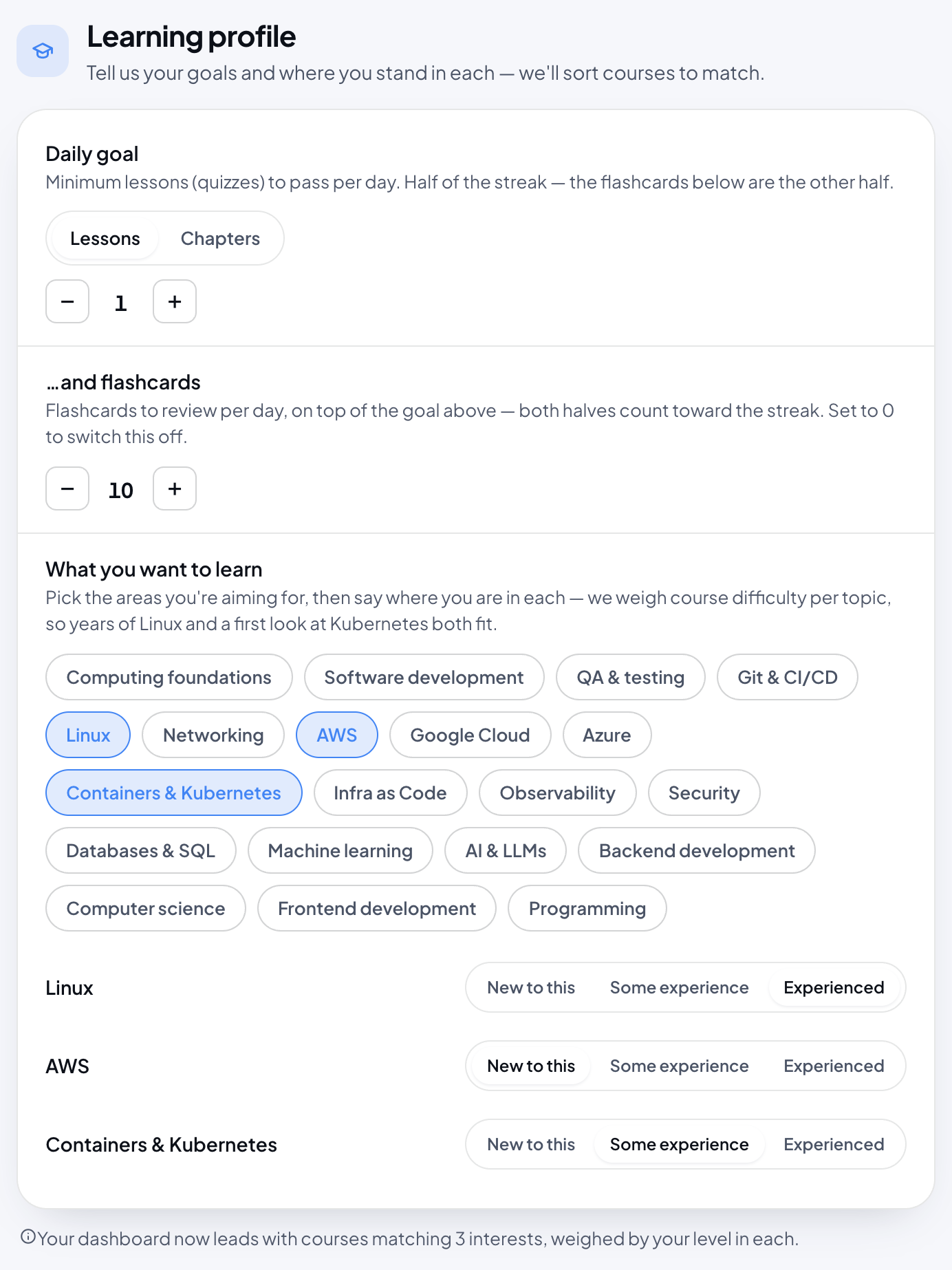
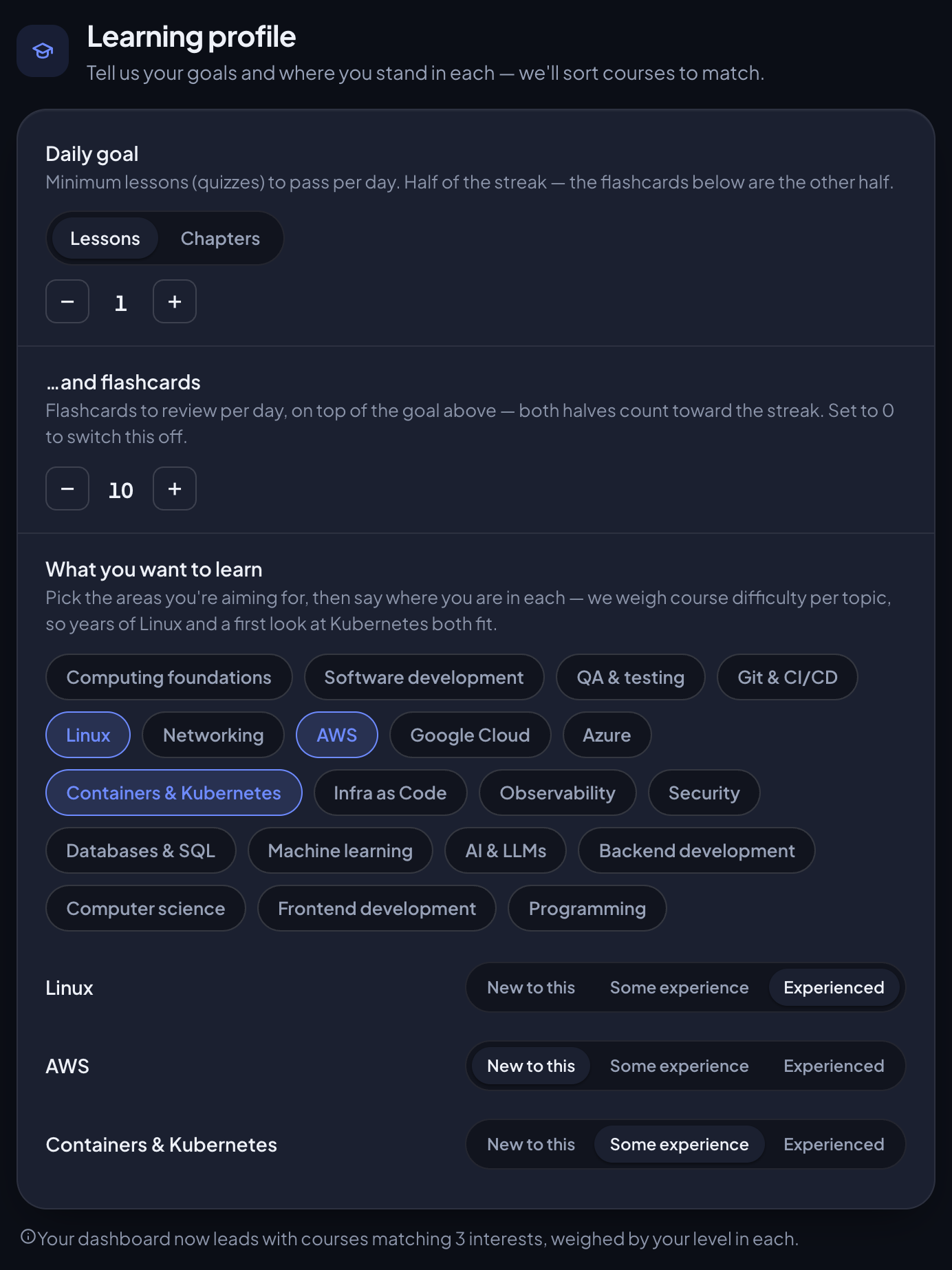
Subtitled "Tell us your goals and where you stand in each". It holds your daily goal and the topics you are aiming for.
Daily goal
Your goal has two halves, and a day counts toward your streak when both are met.
- Daily goal: choose Lessons or Chapters, then set the number with − and +. Lessons counts lessons whose quiz you pass that day, from 1 to 10. Chapters counts chapters you complete, from 1 to 5. The default is 1 in both, and each keeps its own number when you switch.
- …and flashcards: the number of flashcards to review a day, on top of the goal above, from 0 to 50. The default is 10. The buttons step by 1 below 10 and by 5 from 10 up. Set it to 0 to switch this half off; the page then says Flashcards no longer count toward your streak.
Each change is confirmed, for example Daily goal: 2 lessons a day. A new goal applies from that day on; earlier days keep the goal they had, so changing it does not rewrite your streak. How the goal, the streak and the flame work is on Daily goal and Streak.
What you want to learn
Pick the topics you are aiming for. There are 20: Computing foundations, Software development, QA & testing, Git & CI/CD, Linux, Networking, AWS, Google Cloud, Azure, Containers & Kubernetes, Infra as Code, Observability, Security, Databases & SQL, Machine learning, AI & LLMs, Backend development, Computer science, Frontend development and Programming. Pick as many as you like; press a picked one again to remove it.
Each picked topic gets a row underneath where you say where you stand:
- New to this: little or no prior experience.
- Some experience: comfortable with the basics. A topic starts here when you pick it.
- Experienced: working in the field already.
Your levels are weighed per topic, so years of Linux and a first look at Kubernetes both fit. Once you pick a topic, a line under the section confirms it, for example "Your dashboard now leads with courses matching 3 interests, weighed by your level in each."
What it changes:
- On your dashboard, All courses can be sorted by Recommended, which puts courses in your topics and at your level first: see All courses.
- Paths uses your levels to leave out beginner courses in topics where you already have some experience: see Paths.
Subscription & billing
Subtitled "Manage your plan and payments." This section shows what access your account has and where it is billed. It reads one of these:
- No active plan: the account is on the free tier. See What is free.
- You have free access to all courses: complimentary access. Every course is unlocked, with no subscription and nothing to manage.
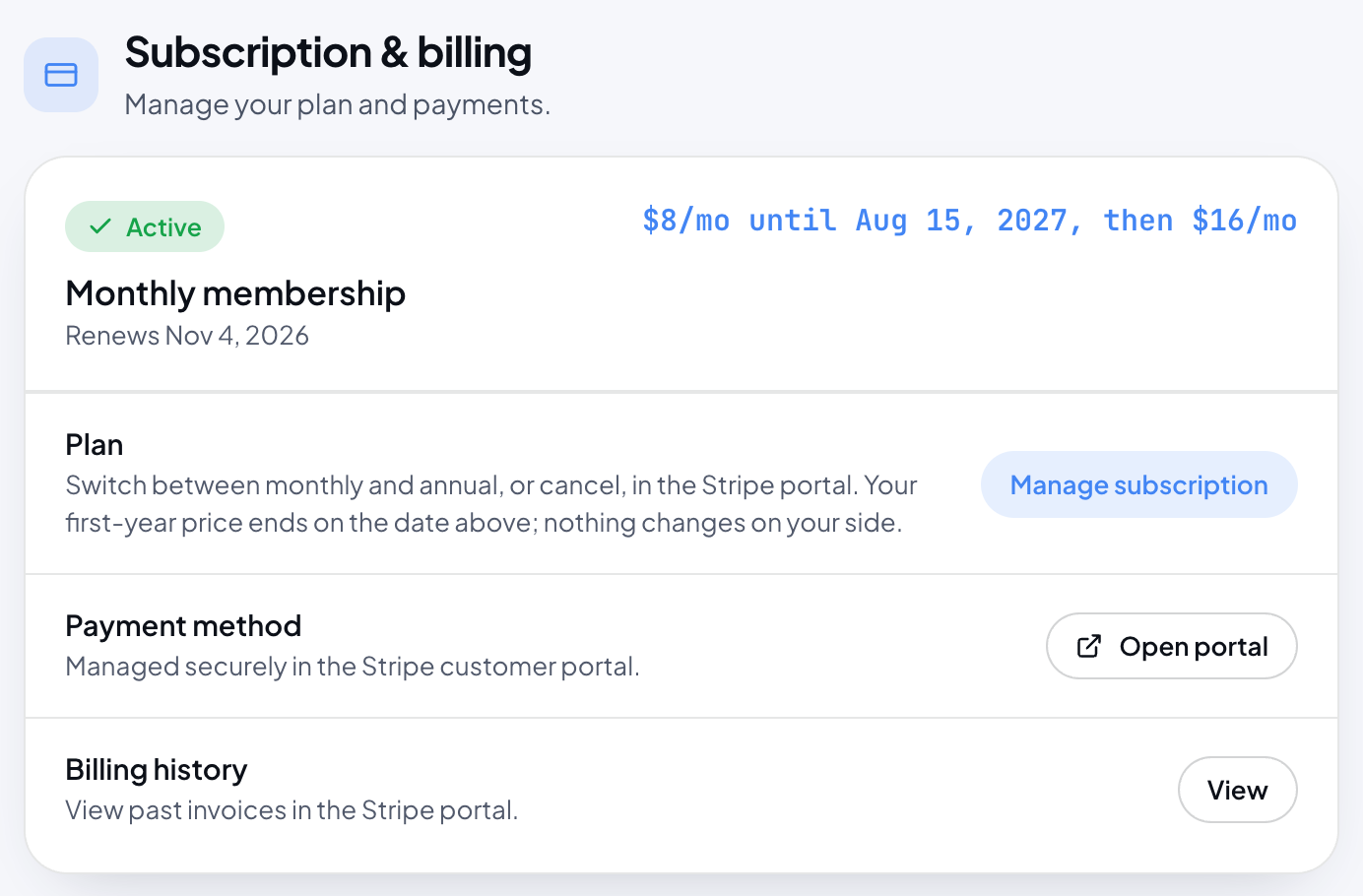
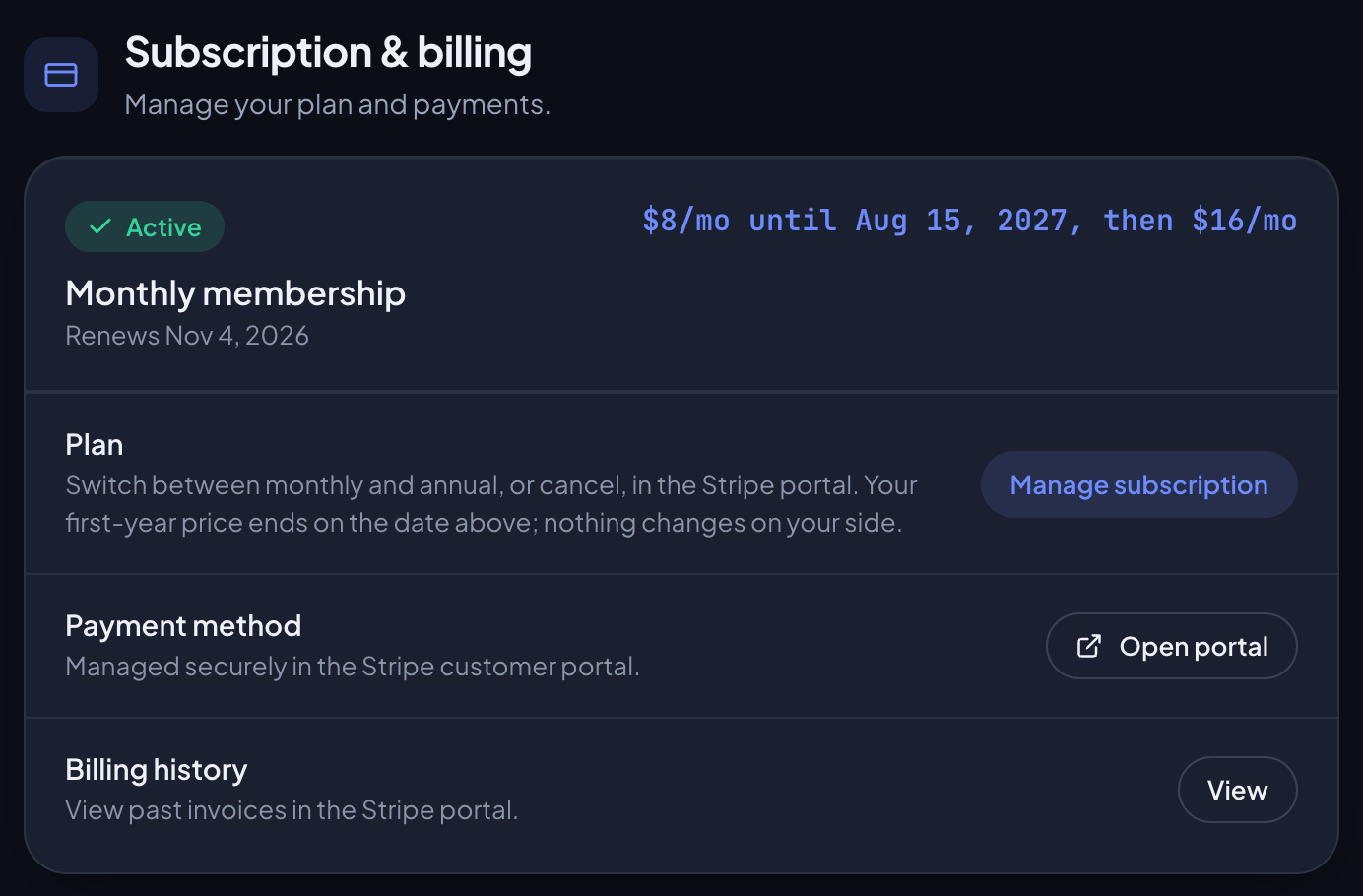
- Monthly membership or Annual membership with an Active tag: a subscription bought on the website. Under it, Renews and the date of the next renewal, or Access ends and a date once you have cancelled.
- App Store membership or Google Play membership: a subscription bought in an app, with Renews or Access ends and a date. Price, payment method, invoices and cancellation are managed by Apple or Google, on the device you subscribed with. The button Manage in App Store or Manage in Google Play opens the store's subscriptions page.
- Payment problem: a payment for a website subscription did not go through. See Payment problems.
If the account is billed by more than one subscription at once, a More than one subscription row says how many and gives the support address: write to us and we cancel and refund the duplicate.
If the section cannot read your subscription, for example while you are offline, it says Couldn't check your subscription with Try again, and offers no plans: it does not know yet whether you already pay. Complimentary access still shows.
On the free tier the section has a Subscribe button, which opens the membership card on the home page, and a Plan row with the full prices, Monthly $16 and Annual $120. After checkout you come back to Settings, where the new membership shows.
A website membership shows what you pay and until when. During the first year that reads, for example, $8/mo until Aug 23, 2027, then $16/mo. Three rows below it open the Stripe customer portal, where your card and invoices are kept:
- Plan, with Manage subscription: switch between monthly and annual, or cancel.
- Payment method, with Open portal: change the card.
- Billing history, with View: past invoices.
The button reads Opening… while the portal loads. If it fails, the page says Couldn't open the billing portal.
Plans, cancelling, refunds and payment problems are covered in full on Plans and billing.
Appearance
Subtitled "How IT Playbook looks."
- Theme: Light or Dark. The default is Dark. It applies to every page of the site, and the sun or moon button in the header of any page switches the same setting. See Light and dark.
- Text size: A−, A or A+, which set the reading size to 90%, 100% or 140%. The default is A. It scales what you read, the lesson text, the side boxes and the quiz, and leaves menus and buttons alone. The line under the row shows the current size, and a Preview paragraph under the section shows it at once. It is the same setting as Text size in the audio bar's Player settings: see Text size.
Both follow your account.
Audio playback defaults
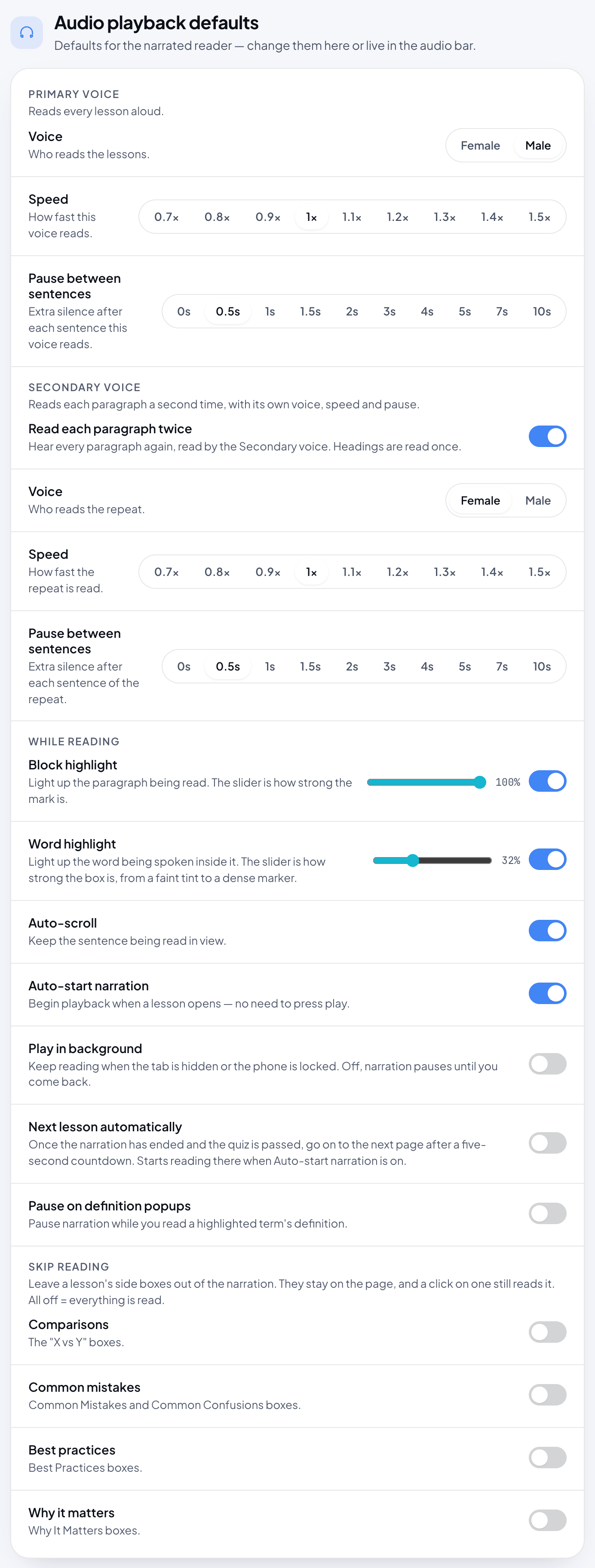
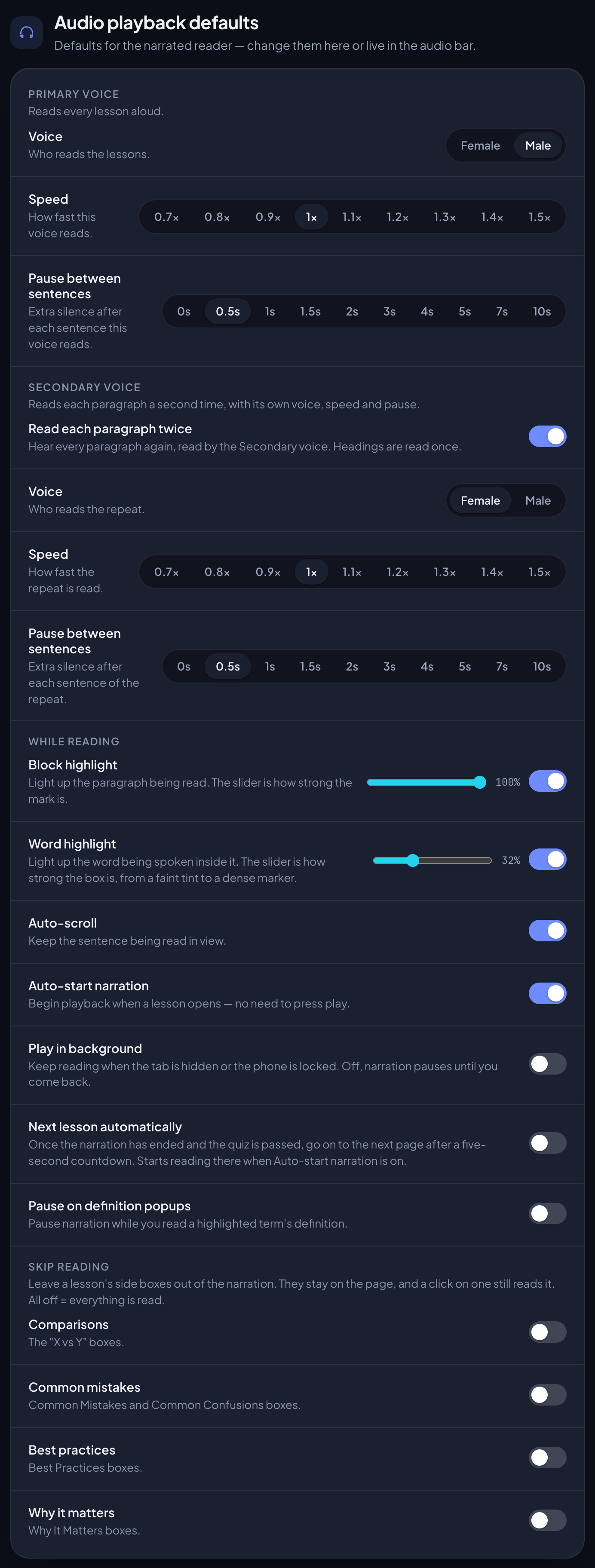
Subtitled "Defaults for the narrated reader". These are the same settings as Player settings in the audio bar: change one in either place and the other shows it. Everything here follows your account. What each one does while you listen is on Listening; this section lists the rows, their choices and their defaults. There are four groups.
Primary voice
"Reads every lesson aloud."
- Voice: Female or Male. The default is Male.
- Speed: 0.7×, 0.8×, 0.9×, 1×, 1.1×, 1.2×, 1.3×, 1.4× or 1.5×. The default is 1×.
- Pause between sentences: 0s, 0.5s, 1s, 1.5s, 2s, 3s, 4s, 5s, 7s or 10s of extra silence after each sentence. The default is 0.5s.
Secondary voice
"Reads each paragraph a second time, with its own voice, speed and pause."
- Read each paragraph twice: off by default. When it is on, every paragraph is read again by the Secondary voice; headings are read once.
- While it is on, three more rows appear: Voice, Speed and Pause between sentences, with the same choices as above. Until you choose, the repeat uses the other voice from your Primary one, at 1× with a 0.5s pause.
See Read twice.
While reading
- Block highlight: on by default. Lights up the paragraph being read. Its slider sets the strength from 10% to 100%; the default is 100%.
- Word highlight: on by default. Lights up the word being spoken inside that paragraph. Its slider runs from 10% to 80%; the default is 32%.
- Auto-scroll: on by default. Keeps the sentence being read in view. The audio bar calls it Autoscroll.
- Auto-start narration: on by default. Starts the narration when a lesson opens, so you do not need to press Play. The audio bar calls it Autoplay. See Autoplay.
- Play in background: off by default. Keeps reading when the tab is hidden or the phone is locked; off, the narration pauses until you come back. See Play in background.
- Next lesson automatically: off by default. Once the narration has ended and the quiz is passed, goes on to the next page after a five-second countdown. See Next lesson automatically.
- Pause on definition popups: off by default. Pauses the narration while you read a highlighted term's definition. The audio bar's Player settings has it too, as Pause on definitions. See Pausing for definitions.
Skip reading
Leaves a lesson's side boxes out of the narration. The boxes stay on the page, and a click on one still reads it. All four switches are off by default, so everything is read.
- Comparisons: the "X vs Y" boxes.
- Common mistakes: Common Mistakes and Common Confusions boxes.
- Best practices: Best Practices boxes.
- Why it matters: Why It Matters boxes.
See Skip reading.
Flashcards
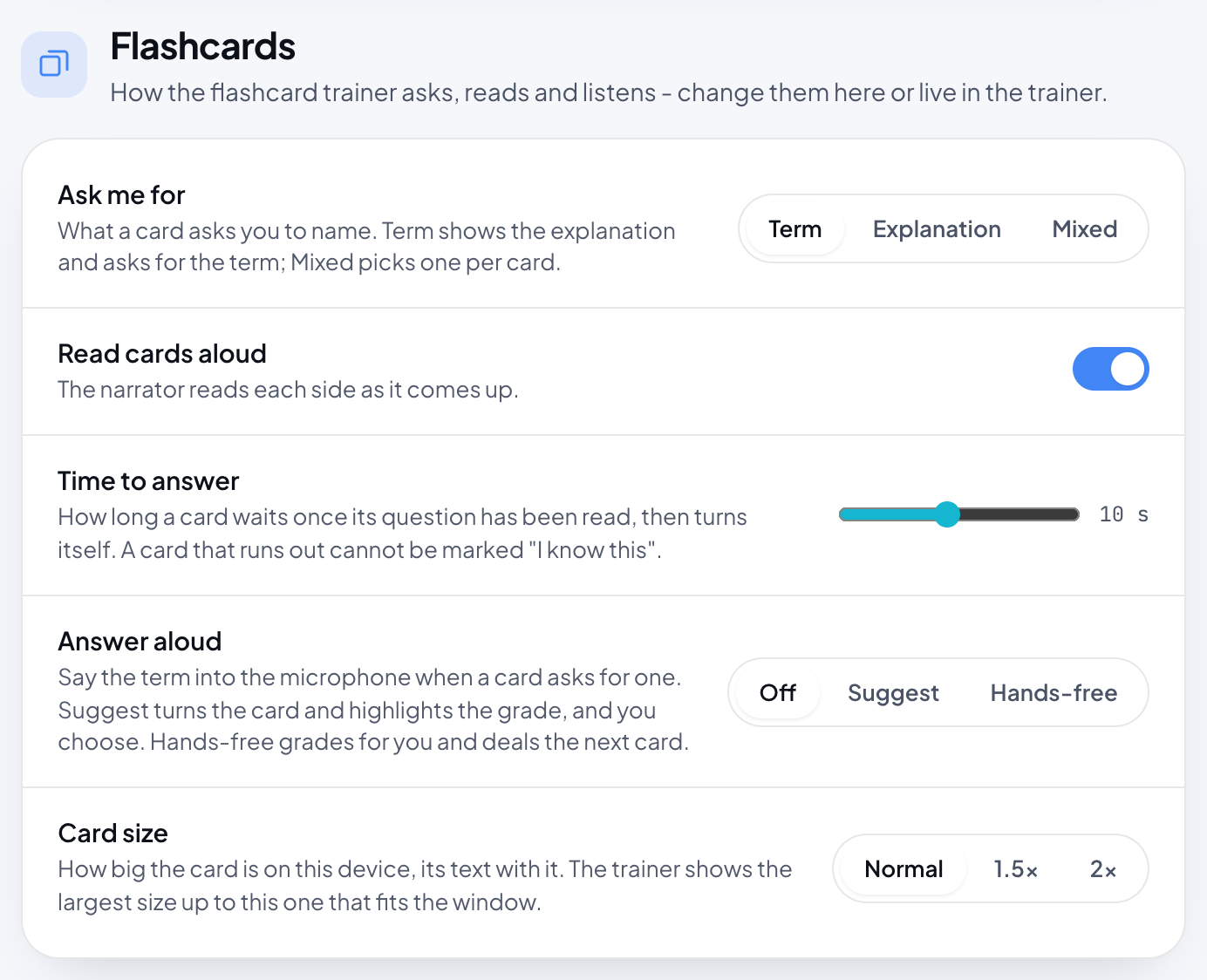
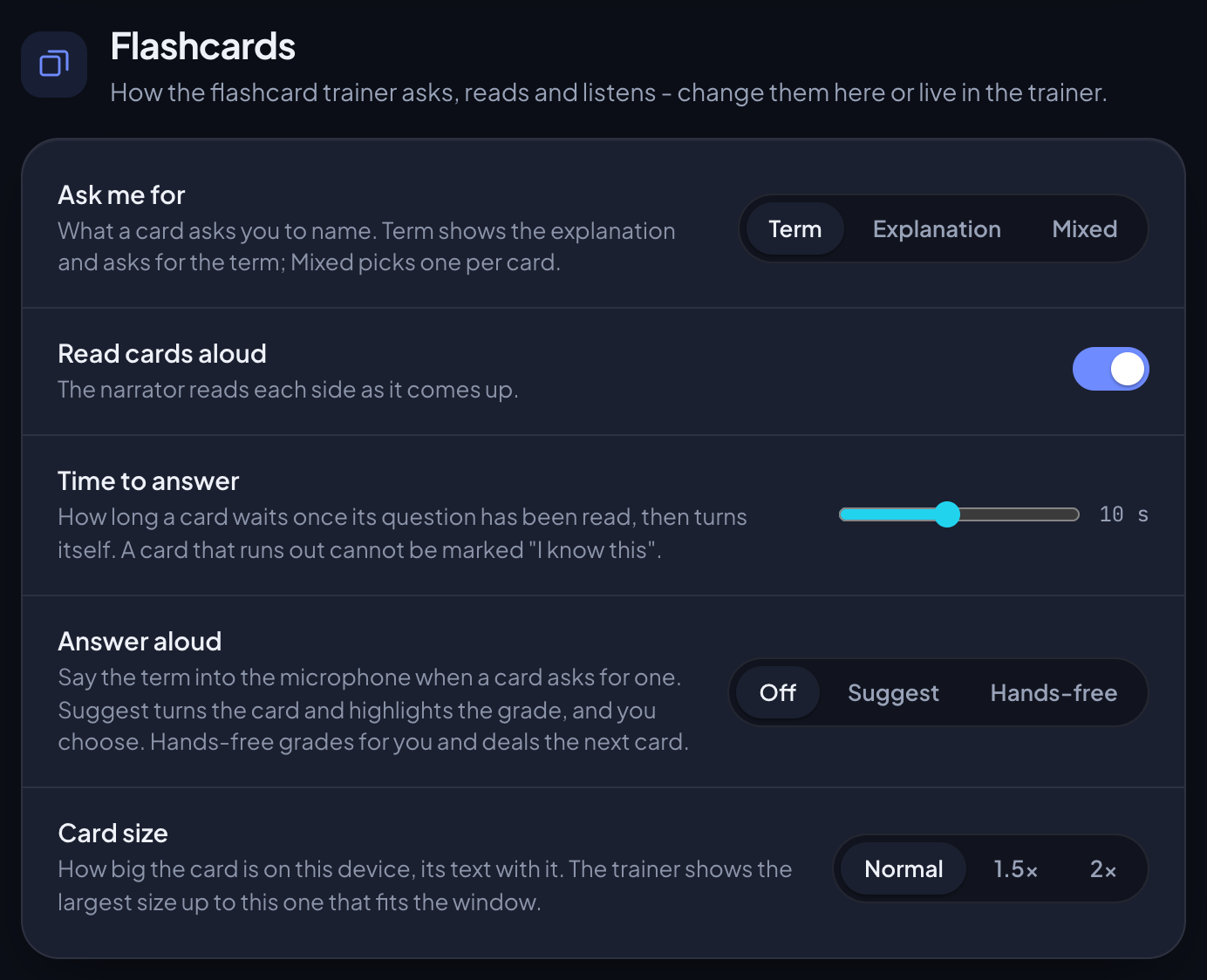
Subtitled "How the flashcard trainer asks, reads and listens". The same settings are in the trainer's own Player settings; change them in either place. How the trainer works is on Flashcards.
- Ask me for: Term, Explanation or Mixed. The default is Term: the card shows the explanation and asks you for the term. Mixed picks one per card. See Ask me for.
- Read cards aloud: the narrator reads each side as it comes up. Until you set it, it follows Auto-start narration, which is on by default. See Cards read aloud.
- Time to answer: a slider from 3 to 20 seconds, how long a card waits once its question has been read before it turns itself. The notch left of 3 s reads No timeout. The default is 10 s. A card that runs out cannot be marked "I know this". See Time to answer.
- Answer aloud: Off, Suggest or Hands-free. The default is Off. You say the term into the microphone when a card asks for one. Suggest turns the card and highlights the grade, and you choose; Hands-free grades for you and deals the next card. See Answer aloud.
- Microphone: appears only while Answer aloud is on and the device has more than one microphone. Choose System default or a named microphone. Chrome uses the one picked here; other browsers use the system default. See Microphones and headphones.
- Card size: Normal, 1.5x or 2x. The default is Normal. It only appears on a screen whose shorter side is at least 600 pixels, so not on phones. The trainer shows the largest size up to your choice that fits the window. See Card size.
Answer aloud has a few more things to know:
- Choosing Suggest or Hands-free asks for the microphone right away. If you refuse, the page says Microphone blocked. Allow it for this site to answer aloud. and the switch goes back to what it was.
- Answer aloud only listens on cards that ask for the term. With Ask me for set to Explanation it is dimmed, with the note "Listens on cards that ask for the term: none with Explanation"; with Mixed it listens on about half the cards.
- While it is on, a note says where the speech is recognised: your browser turns it into text, on the device where it can and otherwise through its own speech service. IT Playbook keeps nothing you say. See Privacy.
- In a browser that cannot recognise speech, such as Firefox, the row reads "This browser cannot recognise speech. Chrome, Edge and Safari can."
Ask me for, Read cards aloud, Time to answer and Answer aloud follow your account. Microphone and Card size stay on the device you set them on.
Notifications
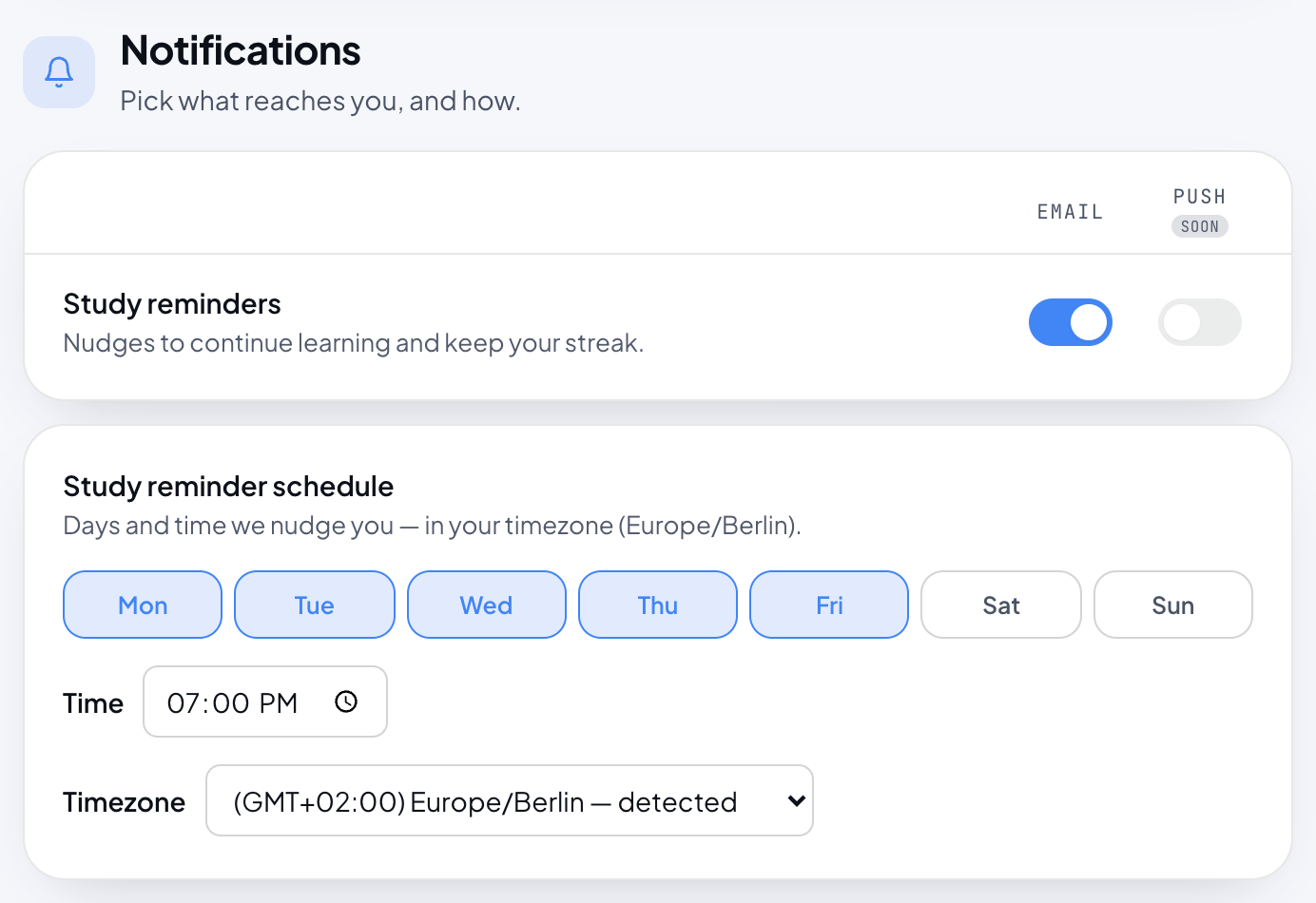
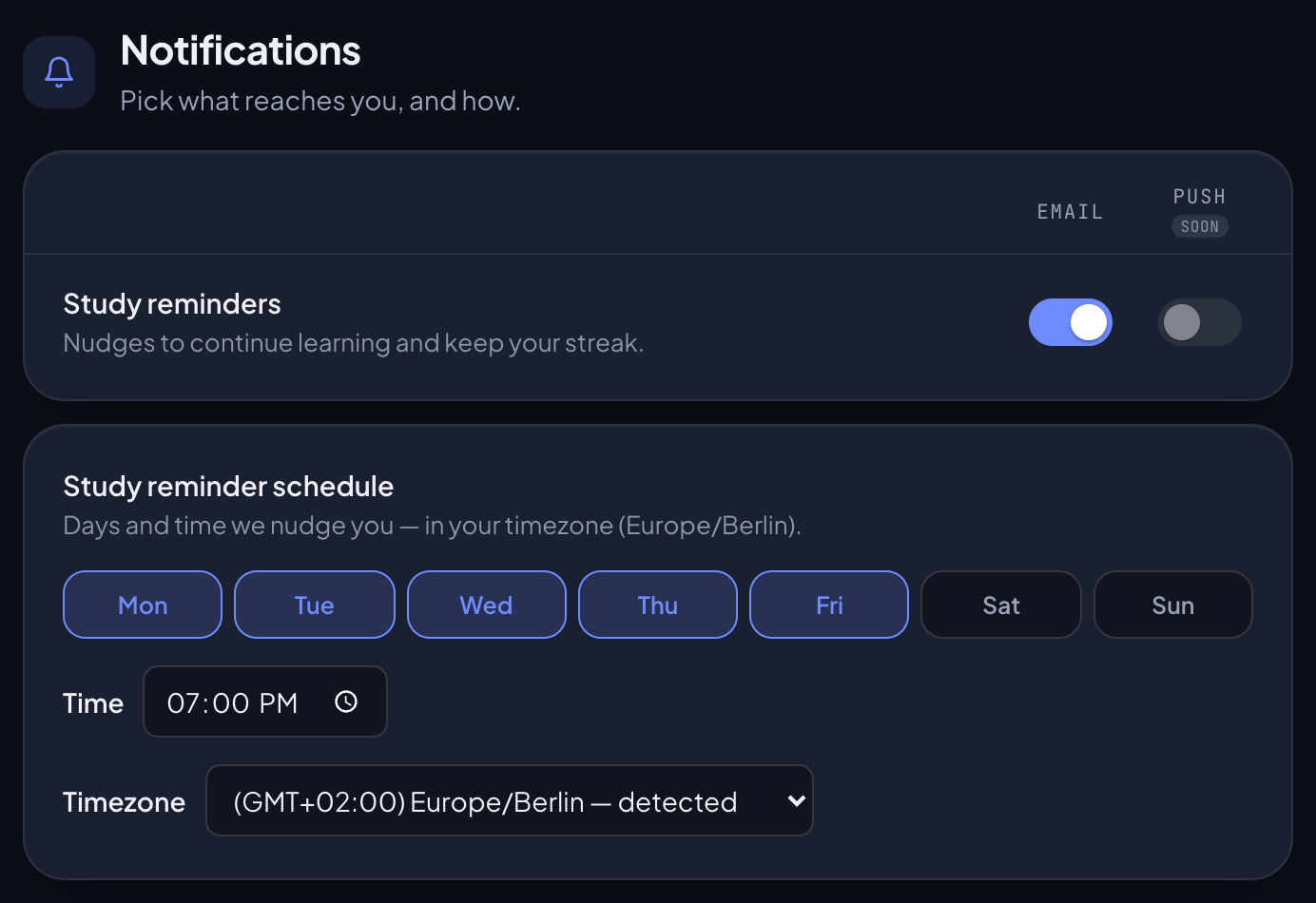
Subtitled "Pick what reaches you, and how." The switches sit in two columns, Email and Push, in one row: study reminders are the only messages you choose here.
- Study reminders, "Nudges to continue learning and keep your streak.", is off by default in both columns. Switch on Email to get them by email.
- Push is greyed out on the website, marked soon: the website cannot send push notifications yet. Push is switched on in the iPhone, iPad and Android apps, separately on each device: see Push reminders.
Study reminder schedule
"Days and time we nudge you", followed by the timezone they are counted in.
- Days: Mon to Sun, each a chip you switch on or off. All seven are on by default.
- Time: the local time the reminder is sent. The default is 18:00.
- Timezone: every timezone, ordered by its offset from GMT, with the one your browser reports marked detected. Until you pick one by hand, the zone is set to the detected one each time you open Settings, so after a move, opening Settings once is enough. Pick a zone yourself and it stays; Use detected then appears next to the list to switch back.
A reminder is sent on the days you chose, within a quarter of an hour of your time, at most once a day. It is skipped on a day you have already met your daily goal, both halves. It points you back to where you left off and, once you have one, mentions your streak.
Emails you always get
A few emails are part of having an account and have no switch:
- Welcome to IT Playbook, once, when your account is created. It lists what you can use for free. If you subscribe within the first 15 minutes it is not sent, because the subscription email welcomes you instead.
- A welcome email saying your subscription is active, when a subscription starts, on the website or in an app. It says where to manage it.
- Your IT Playbook subscription is canceled, when you cancel. It gives the date your access ends and how to turn the subscription back on before then.
- You've completed and the course name, the first time a certificate is issued for that course, with a link to the certificate.
Study reminders are the only regular email, and only when you switch them on. Every reminder ends with "Not useful? Turn reminders off any time in your settings." and a link to Settings. There is no one-click unsubscribe link: to stop reminders, switch off Study reminders, Email here.
Privacy
Subtitled "Control the usage data we collect."
- Analytics & ad measurement: lets IT Playbook measure how the courses are used, to improve them, and whether its ads brought you here. It is off until you agree, and you can turn it off at any time.
On your first visit to itplaybook.org a small card in the bottom right corner asks the same question, with Decline and Accept. Product analytics and ad measurement start only after Accept. This switch and that card set the same choice, which is kept in this browser rather than in your account, so another browser or device asks again. A cookieless count of page visits runs either way.
Details are in the Privacy Policy.
What follows your account
Signed in, almost every setting is stored with your account and reaches your other devices, the apps included. A lesson open on another device switches over without a reload, and an open Settings page redraws its rows.
- Follows your account: everything in Audio playback defaults; Theme and Text size; Ask me for, Read cards aloud, Time to answer and Answer aloud; your daily goal, topics and levels; the Study reminders Email switch, the reminder days, time and timezone. Your progress, streak and flashcard schedule follow it too: see Progress and certificates.
- Stays on each device: Card size; the Microphone choice; whether you dismissed the Answer aloud offer in the trainer; whether the audio bar is hidden and the sidebar and On this page are collapsed; Push, which each app device chooses for itself; the Analytics & ad measurement choice, which each browser keeps.
- Signed out: the reading and flashcard settings are kept in this browser only. The first time you sign in on a device, your account's settings win; an account that has none yet takes this browser's.
The same rules from the listening side are on Where your choices are kept, and from the trainer's side on What follows your account.
Settings in the apps
In the iPhone, iPad and Android apps, open the Account tab and tap Settings. The settings are the same ones and follow the same account, but the screen is laid out for a phone.
The iPhone and iPad app, top to bottom: Profile, Sign-in methods, Daily goal, …and flashcards, What you want to learn, Subscription, Appearance, Primary voice, Secondary voice, While reading, Skip reading, Flashcards, Downloads, Notifications and Legal.
The Android app: Profile, Daily goal, What you want to learn, Subscription, Appearance, Primary voice, Secondary voice, While reading, Skip reading, Flashcards, Downloads, Notifications and Legal.
How the website's names map to the apps:
- Learning profile is Daily goal plus What you want to learn.
- Subscription & billing is Subscription.
- Audio playback defaults is Primary voice, Secondary voice, While reading and Skip reading.
- Auto-scroll is Follow along, Auto-start narration is Start automatically, and Pause on definition popups is Pause on definitions.
- Sign-in methods is its own section under Profile on the iPhone and iPad. On Android, a second sign-in is added on the Account screen with Also sign in with Google or Apple.
What differs:
- Downloads is app only: how long downloaded courses are kept. See Offline downloads.
- Theme adds System, which follows the device.
- The Android app's Flashcards has no Answer aloud yet.
- Card size, Microphone and the Privacy section are website only.
- Push for study reminders is switched on in the app, per device: see Push reminders.
More on the apps in The apps.