 IT Playbook
Learning
Listening and the audio bar
Every page of a course is narrated. This page covers the audio bar, every control in Player settings, the keyboard and media keys, and what counts as having listened to a lesson.
How narration works
Each course is narrated sentence by sentence: the Introduction, every chapter Overview and every lesson, and the flashcard deck is read aloud as you practise. The lesson title, the section headings and the headings of the side boxes are read too. Code blocks are shown on the page but not read aloud.
Every course has two voices, one female and one male. Until you choose, you hear the male voice at 1× with a 0.5s pause after each sentence.
The voices are AI voices; what makes them right for IT is the preparation behind them. Every command, acronym, file name and symbol the narrator says has an explicit reading, so kubectl, nginx, YAML and rm *.log come out the way an engineer says them, and a check stops a course from being narrated while any symbol lacks one. New terms are tested by ear before a course is voiced. If you still hear a slip, tell us through Support and it is fixed in the next narration pass.
A lesson shows how long its narration runs next to its tags: a headphone icon and a time such as 7:42.
The audio bar
The bar runs along the bottom of every narrated page. It has three parts:
- Left: the state of the player, and under it a readout of your current settings and progress.
- Middle: one round button, Play or Pause.
- Right: the settings button (a sliders icon), which opens Player settings.
There is no Previous, Next or Restart button. You move through the narration by clicking a paragraph or with the keyboard: see Moving around a page.


The state
- Ready: nothing is playing. The bar also returns to Ready when the narration reaches the end of the page.
- Playing and Paused: what they say.
- Tap to start: the browser blocked sound until you touch the page. The first tap, click or key press anywhere starts the narration.
- Audio missing on this page: three sentences in a row failed to load, so the narration stopped.
- Ready (some audio was missing): the page was read to the end, but one or more sentences had no audio and were skipped.
The readout
The line under the state reads like this: Speed 1× · Pause 0.5 s · Lesson 37% · Knowledge Check 2/4.
- Speed and Pause belong to the voice reading right now. While Read twice repeats a paragraph, they show the Secondary voice's values.
- Lesson is how much of the page you have heard to the end, counted across all your visits on this device. At 100% the page counts as listened in full.
- Knowledge Check appears only on pages with a quiz and counts your correct answers as you go.
Hiding the bar
A small tab with ▼ sits above the middle of the bar. Click it and the bar slides off the screen; the tab stays at the bottom edge with ▲ to bring it back. The narration and the keyboard shortcuts keep working while the bar is hidden. The choice is kept on this device only.
Starting and pausing
Press Play in the bar or Space on the keyboard. Press either again to pause. A paused page keeps its highlight where you stopped, so you can see where you were, and Play carries on from the word it stopped at. Paused between two sentences, it goes on to whatever was coming next, the repeat included when Read twice is on.
A page always opens at its first sentence, at the top of the page. The percentage you have heard is remembered; your place inside the page is not.
When narration starts by itself
With Autoplay on, which is the default, the narration starts as soon as a page opens. On a page you have not unlocked it never starts: see Locked pages.
Tap to start on phones
Phones and tablets do not let a web page play sound until you have touched it, and some desktop browsers do the same. When that happens the bar reads Tap to start, and your first tap anywhere on the page starts the narration. Nothing needs to be changed in your settings.
Moving around a page
Jump to any paragraph
Click or tap any narrated paragraph, list item or heading, and the narration moves to its first sentence. If the player was paused and Autoplay is on, it starts reading there. With Autoplay off, only the highlight moves; press Play to start from that point.
Clicks on links, buttons, quiz options and highlighted terms do not move the narration, and neither does selecting text.
Sentence by sentence
← and → step to the previous or next sentence; with Shift held they step a whole paragraph. They work while paused too: the highlight moves and nothing plays until you press Play. The previous and next track buttons on headphones and keyboards do the same as ← and →: see Media keys.
Starting a page again
There is no Restart button. Click the title or the first paragraph and the narration moves back to the top, as in Jump to any paragraph. When the narration reaches the end of a page, the player goes back to the first sentence on its own, so the next Play starts over.
Highlighting and scrolling
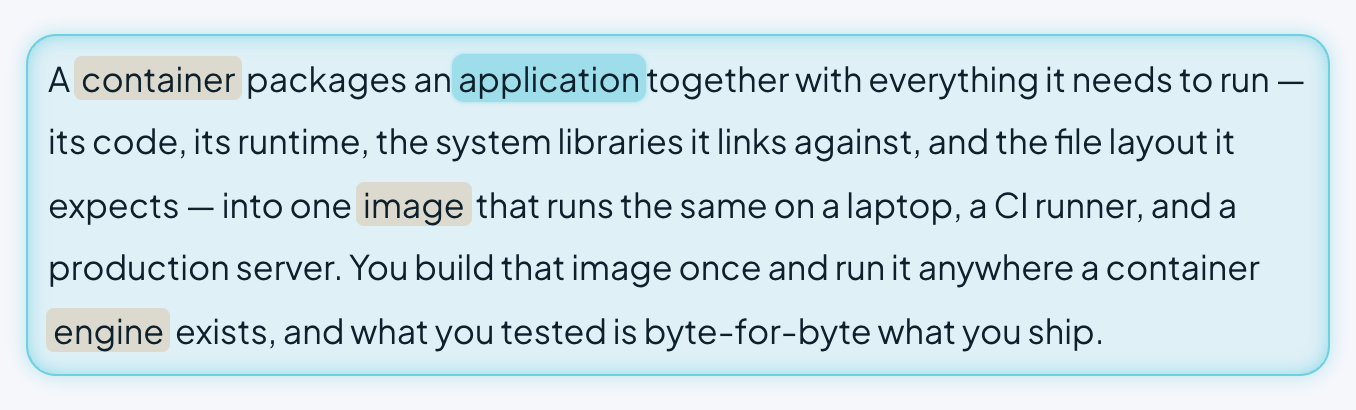
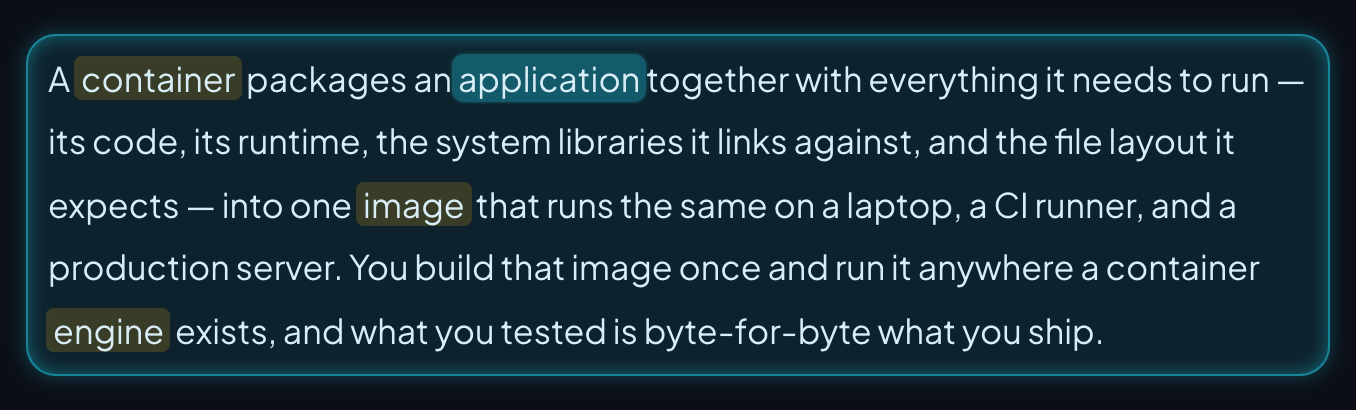
Two marks show where the narration is, and Autoscroll keeps them in view. All three are on by default and are switched in Player settings or in Settings.
Block highlight
The paragraph being read gets a tint that moves on with the narration. The slider beside the switch sets how strong it is, from 10 to 100. The default is 100.
Word highlight
Inside that paragraph, the word being spoken gets its own box. The slider sets its strength from 10 (a faint tint) to 80 (a dense marker); the default is 32. It needs timing data for the page, so a page without it shows the paragraph tint only.
Autoscroll
Keeps the paragraph being read in the middle of the screen. A paragraph taller than the screen is walked down as the narration works through it. Turn it off if you want to scroll freely while you listen. Settings calls it Auto-scroll.
Player settings
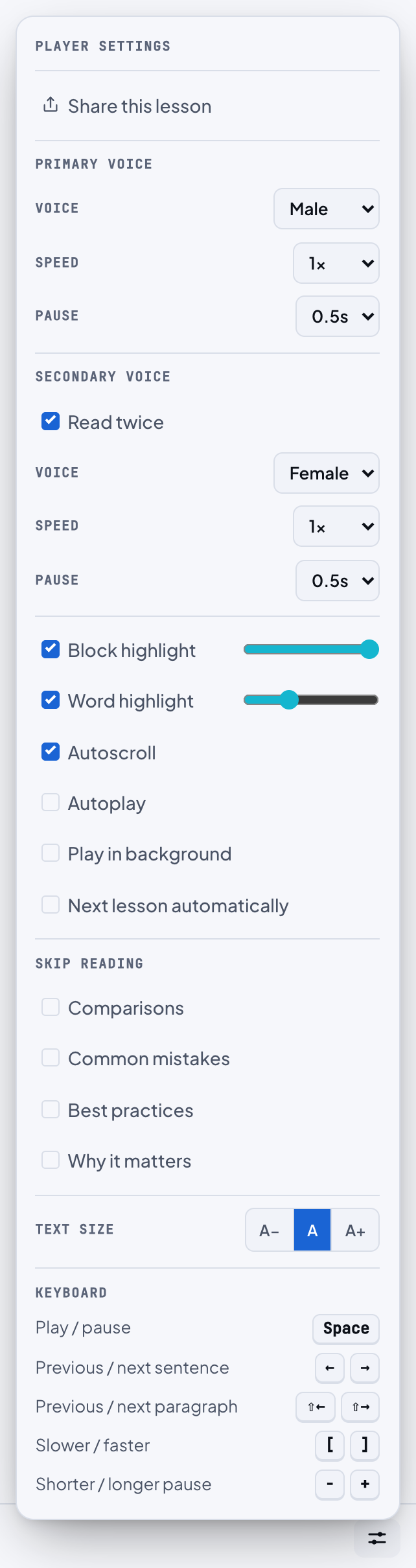
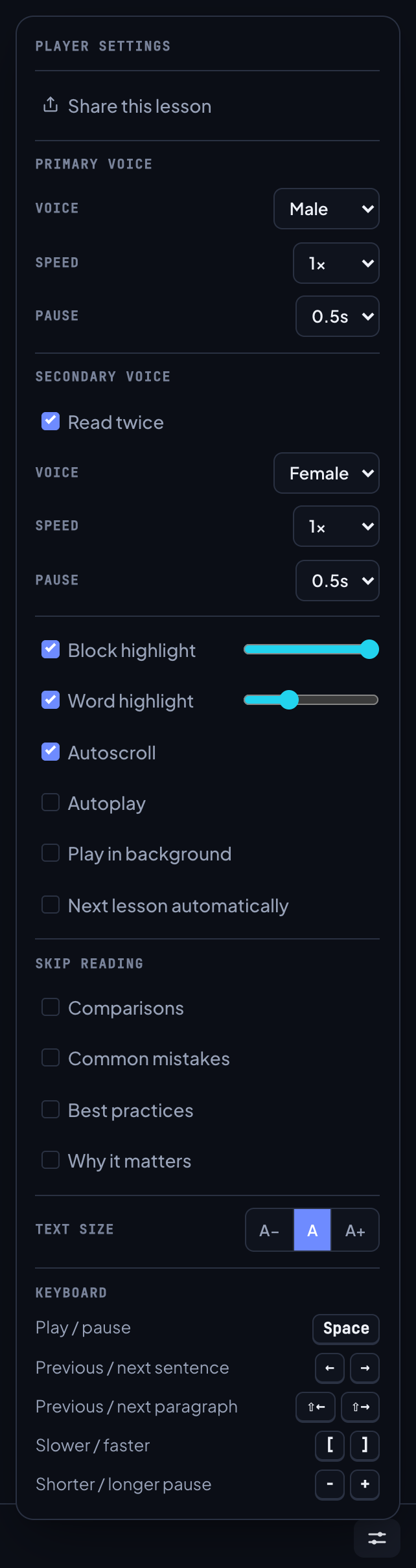
Click the settings button at the right end of the bar to open Player settings; click anywhere outside the panel to close it. Every change takes effect at once and is saved: see Where your choices are kept. From top to bottom the panel holds:
- Share this lesson: opens your device's share sheet, or copies the page's address and says Link copied. See Sharing a lesson.
- Primary voice: Voice, Speed and Pause. See Voice, speed and pause.
- Secondary voice: the Read twice switch and, while it is on, its own Voice, Speed and Pause. See Read twice.
- Block highlight and Word highlight, each with a strength slider, and Autoscroll.
- Autoplay, Play in background, Next lesson automatically and Pause on definitions. See Pausing for definitions.
- Skip reading: Comparisons, Common mistakes, Best practices, Why it matters.
- Text size: A−, A, A+.
- Keyboard: the list of shortcuts. It is left out on phones.
On the Flashcards page the panel holds the trainer's own settings instead: see Cards read aloud.
Voice, speed and pause
The Primary voice reads every page. Its three settings are the ones you will touch most.
Voice
Female or Male. The default is Male. Switch in the middle of a sentence and that sentence starts again in the new voice. Your choice applies to every course and to the flashcard trainer.
Speed
From 0.7× to 1.5× in steps of 0.1. The default is 1×. The keys [ and ] step it down and up without opening the panel.
Pause
Extra silence after each sentence: 0s, 0.5s, 1s, 1.5s, 2s, 3s, 4s, 5s, 7s or 10s. The default is 0.5s. A longer pause is a study aid: time to repeat a sentence back, or to think about it, before the next one starts. The keys - and + step it down and up. Settings calls it Pause between sentences.
Read twice
Switch on Read twice under Secondary voice and every paragraph is read a second time before the narration moves on. Headings are read once. The repeat has its own Voice, Speed and Pause, so the two readings can differ: the female voice at 1.2× first and the male voice at 0.9× for the repeat, for example, or the same voice slower the second time.
- Until you choose, the repeat uses the other voice at 1× with a 0.5s pause.
- Switching Read twice on or off takes effect at the next paragraph.
- The speed and pause keys change the voice that is reading at that moment, so during a repeat they adjust the Secondary voice.
- Clicking a paragraph always starts it from the top, in your Primary voice.
Settings calls the switch Read each paragraph twice.
Autoplay
On by default. Settings calls it Auto-start narration. It decides three things:
- Whether the narration starts by itself when a page opens.
- Whether clicking a paragraph while paused starts reading there, or only moves the highlight.
- Whether the flashcard trainer reads cards aloud, until you set Read cards yourself.
With Autoplay off nothing plays until you press Play.
Play in background
Off by default. While it is off, the narration pauses when you switch to another tab, minimise the window or lock your phone, and it stays paused when you come back. You pick up where you stopped instead of three paragraphs later. Switch it on to keep listening with the page out of sight.
Next lesson automatically
Off by default. When it is on, the player moves you to the next page once the current one is finished. A page is finished when both are true:
- The narration has played to the end of the page on this visit.
- The page's Knowledge Check is passed, now or on an earlier visit. A page without a quiz, such as the Introduction or a chapter Overview, needs the narration only.
The order is the course's own: Introduction, the Chapter 1 Overview, its lessons, the Chapter 2 Overview, and so on. If you pass the quiz after the narration has ended, the countdown starts then.


A chip above the bar names the next page and counts down from 5, with a Cancel button. At zero the next page opens, and it starts reading if Autoplay is on. Pressing Play again or leaving the page also cancels the countdown.
Pausing for definitions
Important terms are highlighted in the text, and you can open their definition while you listen: see Term tooltips. By default the narration keeps going while a definition is open.
To have it wait, switch on Pause on definitions in Player settings, or Pause on definition popups in Settings, Audio playback defaults. It is off by default. When it is on, the narration holds while a definition is pinned open (clicked, tapped or opened from the keyboard) and carries on with the same sentence when you close it. Hovering over a term never pauses it.
Skip reading
Lessons carry side boxes next to the main text. Skip reading leaves chosen kinds out of the narration. The boxes stay on the page; they are only not read. All four switches are off by default, so everything is read.
- Comparisons: the boxes headed "X vs Y".
- Common mistakes: the Common Mistakes boxes, called Common Confusions in beginner courses.
- Best practices: the Best Practices boxes.
- Why it matters: the Why It Matters boxes.
Click into a skipped box and that box is read once; after it, the narration skips as before. The ← and → keys step over skipped boxes. A skipped box does not count against listened in full.
Text size
A−, A and A+ set the reading size to 90%, 100% or 140%. It scales what you read, the lesson text, the side boxes and the quiz, and leaves the page's menus and buttons alone. It is the same setting as Settings, Appearance, Text size, and it follows your account.
Keyboard and media keys
On lesson, Introduction and Overview pages:
- Space Play or pause
- ← → Previous or next sentence
- Shift ← → Previous or next paragraph
- [ ] Slower or faster, one step
- - + Shorter or longer pause, one step
A short bubble above the Play button shows the new value, such as 1.1× or Pause 2 s, so you know the key worked. Speed stops at 0.7× and 1.5×. = works as +, so you do not need Shift.
The keys work wherever the focus is, with three exceptions: while you type in a field or use a dropdown; on a quiz option, where Space or Enter picks the answer; and on the bar's own buttons, where Space presses the button. Any combination with Cmd, Ctrl or Alt is left to the browser.
The Flashcards page has its own keys: see Flashcards, keyboard and touch.
Media keys, headphones and the lock screen
The page tells your system what is playing: the lesson as the title and the course as the artist. Wherever your browser supports it, the play and pause buttons on a keyboard, on headphones or on a phone's lock screen control the narration, and the previous and next track buttons step one sentence back or forward.
Listened in full
A page counts as listened in full when every sentence on it has played to its end at least once. The order does not matter and it can take several visits; the Lesson percentage in the readout shows how far you are. Sentences in boxes you skip with Skip reading are not counted.
When a page is listened in full:
- Its row in the sidebar gets an amber headphone, unless its quiz is already passed, which shows a green tick instead.
- A lesson counts toward Learned on your dashboard.
- Signed in, the mark follows your account to your other devices.
The percentage before that point is kept on this device only. If a page is narrated again with a different number of sentences, its percentage starts over. Reading a page without playing it is not tracked. The full picture is on Progress and certificates.
Where your choices are kept
Player settings and Settings, Audio playback defaults are two views of the same settings. Change speed in the bar and Settings shows the new speed; change it in Settings and the next page plays at it.
- Signed in: every setting on this page follows your account. Another device picks the change up, and a lesson already open there switches over without a reload.
- Signed out: they are kept in this browser. The first time you sign in on a device, your account's settings win; an account that has none yet takes this browser's.
- Always per device: whether the audio bar is hidden, and whether the sidebar and On this page are collapsed.
The full list is in What follows your account.
When the narration does not play
- Audio for this page is not yet available. The page has no narration yet, and the bar shows only this line. Read it as text; the narration arrives later.
- Tap to start. The browser is waiting for a touch: tap or click anywhere on the page.
- Audio missing on this page. Three sentences failed to load in a row. Check your connection and reload. A single sentence that cannot be found is skipped and counted as heard, and a sentence that fails over the network is tried once more before it counts as missing.
- It stopped when I switched tabs. That is Play in background being off. Press Play, or switch it on.
- Nothing plays on a locked page. Narration is off on pages you have not unlocked: see Locked pages.
Listening in the apps
The iPhone, iPad and Android apps show the same lessons and use the same settings, which follow your account. The player around them is the app's own.
- The reader bar. Five icons along the bottom. iPhone and iPad: Lesson list, Flashcards, Play, Reader settings, Account. Android: Contents, Flashcards, Play, Settings, Account. A thin line along the bar's bottom edge shows the narration's progress through the page.
- Moving around. Tap a paragraph to move the narration there.
- Reader settings. Share this lesson first, then Primary voice, Secondary voice with Read twice, While reading (ending with Pause on definitions), Skip reading, then Text size and Appearance, and the course download.
- Different names. Autoscroll is Follow along, Autoplay is Start automatically, and Pause on definition popups is Pause on definitions.
- Lock screen and headphones. The narration plays through your phone's own media controls, so the lock screen and headphone buttons play and pause it.
- Offline. A downloaded course reads and plays with no connection: see Offline downloads.
More on the apps in The apps.