 IT Playbook
Account
The apps
IT Playbook runs in any modern browser, and there are apps for the iPhone, the iPad and Android. This page covers where to get them, how they are laid out, offline downloads, push reminders, buying in the app, and what differs from the website.
Getting the apps
- iPhone and iPad: one app for both, on the App Store.
- Android phones and tablets: the app is coming to Google Play. It is not available there yet.
- A computer: use the website, itplaybook.org, in any modern browser.
The apps use the same account as the website. Sign in with the same Google or Apple account you use there, and your progress, streak, flashcard schedule, settings and membership are all waiting. If you are not sure which one you used, linking both in Settings means either works: see Sign-in methods.
Buying a membership in an app needs you to be signed in, so that the membership belongs to your account and opens on every device.
Finding your way
Four tabs run along the bottom of the screen:
- Courses: the catalogue. Tap a course to open its course screen. Pull down to refresh the list.
- Dashboard: Continue learning, the courses you have started or added, each with its progress. A course can be removed from here; your progress stays.
- Progress: your streak, the Activity graph and your Achievements, with the medals for finished courses.
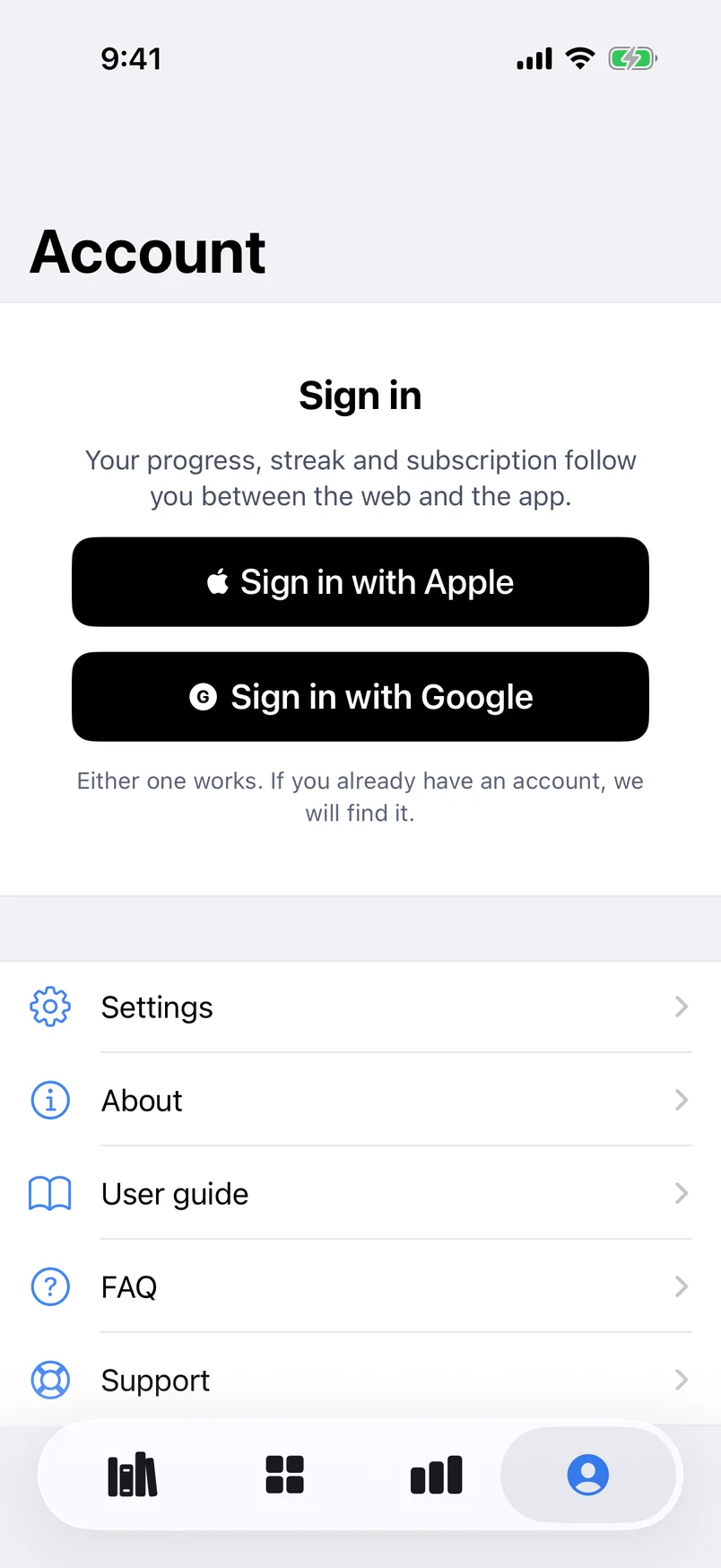
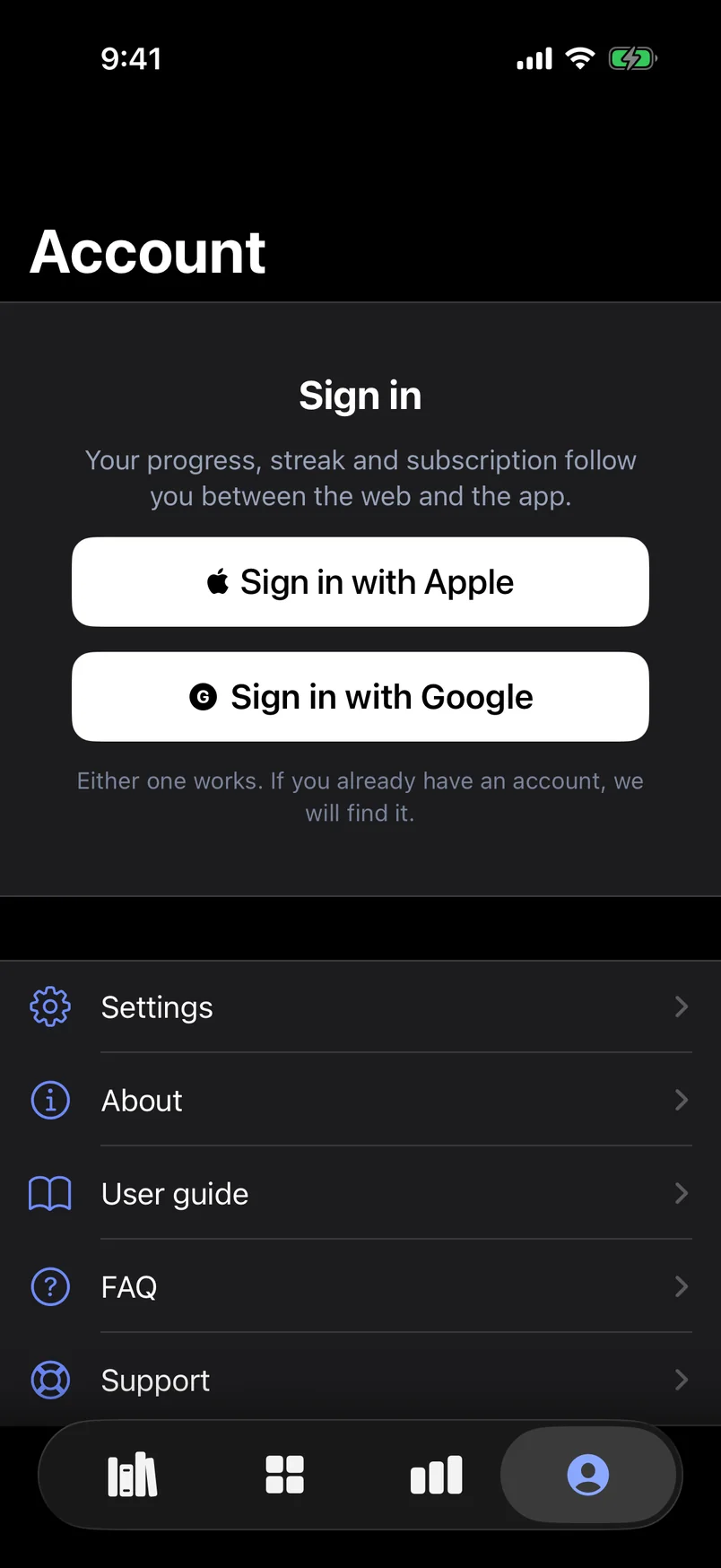
- Account: who you are signed in as, Settings, and the help pages About, User guide, FAQ and Support. On the iPhone and iPad it also has Subscribe while you have no membership and Subscription once you have one. Sign out is here too.
When you start the app, it opens on Dashboard if there are courses on it, and on Courses if there are none. Switching back to the app while it is still open takes you to where you were.
The website's single dashboard page is split between the Dashboard and Progress tabs, and the apps have no Resume card at the top. More on both in Your dashboard and Progress and certificates.
The course screen
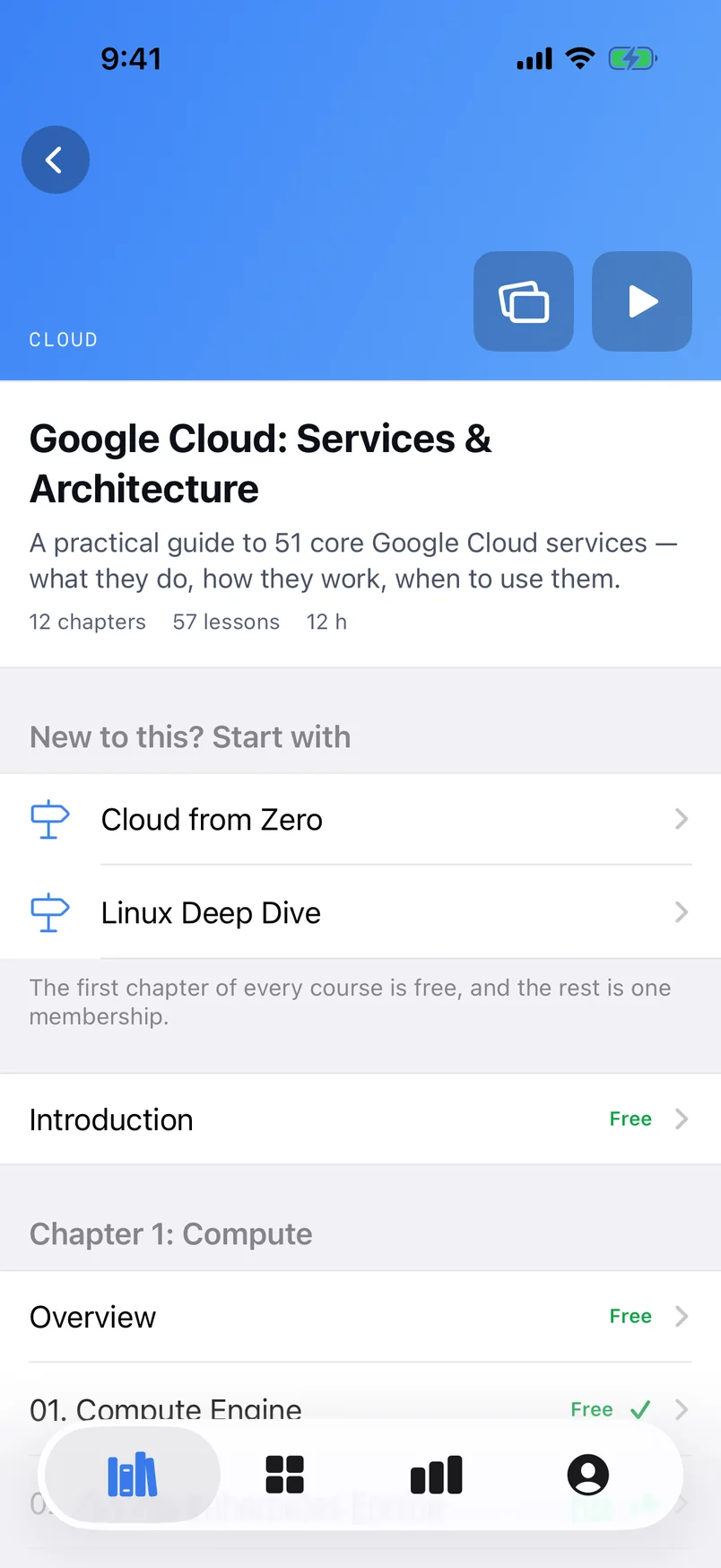
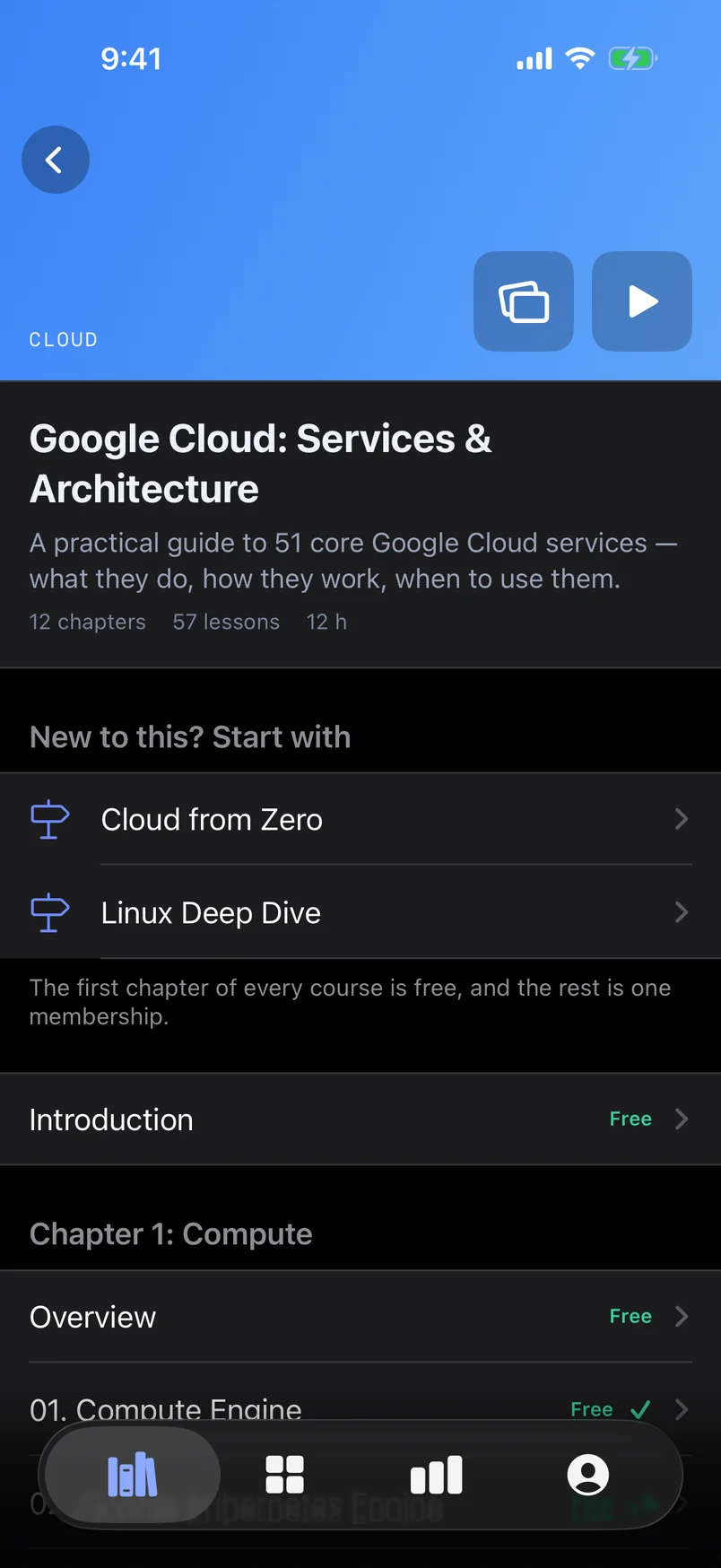
Where the website opens a course's Introduction page, the apps open a course screen:
- A coloured header with the number of chapters and lessons and the hours, and a tile that starts the course or carries on where you are.
- Practice flashcards, while the deck has cards to learn.
- New to this? Start with and a course name, on courses that suggest one to take first.
- The chapters and their lessons, with locks, Free marks and your progress marks.
- Download for offline, on courses you have full access to: see Offline downloads.
- Reset progress, to start the course again: see Starting a course again.
Help in the app
About, User guide and FAQ are these Help pages, shown in the app. They need the network the first time; after that they are kept on the device. Without the network and without a kept copy, a page says Cannot load this page. The pictures on the website's Help pages are not shown in the app, and a link to another Help page or to the website opens the website: in a browser sheet inside the app on the iPhone and iPad, in your browser on Android. Support is a form in the app that reaches us the same way as the website's.
Reading and listening
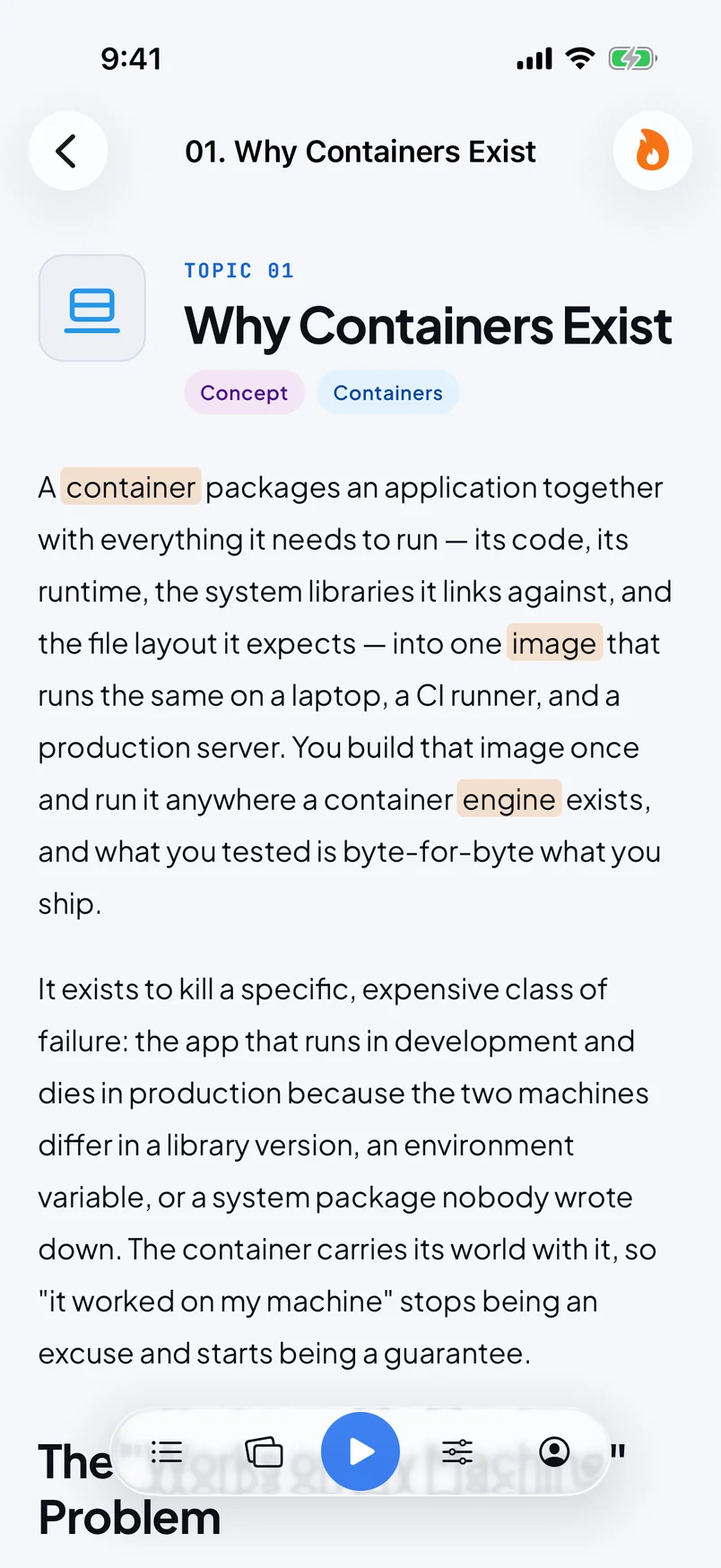
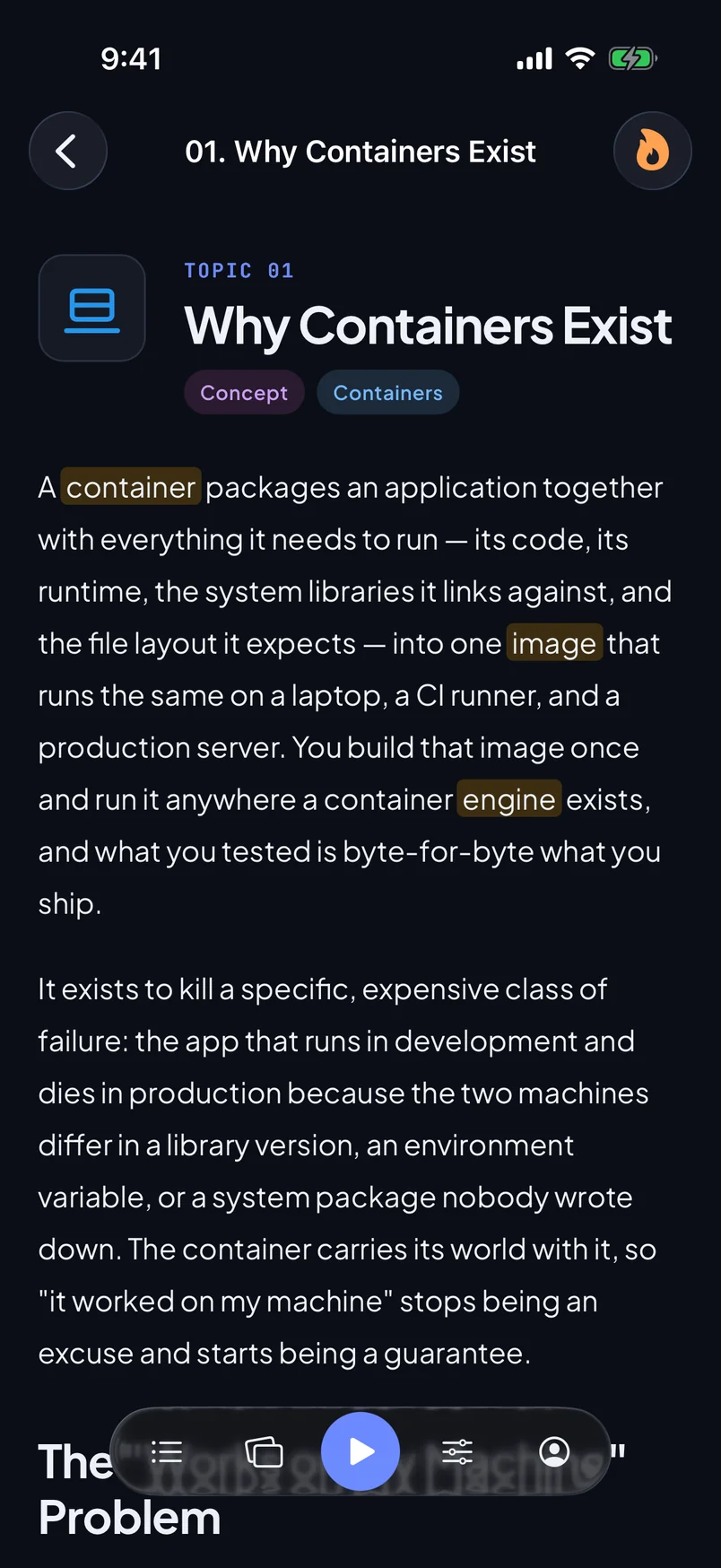
Lessons, quizzes, term tooltips, figures and the flashcard trainer are the same as on the website. Around them, the app has its own controls.
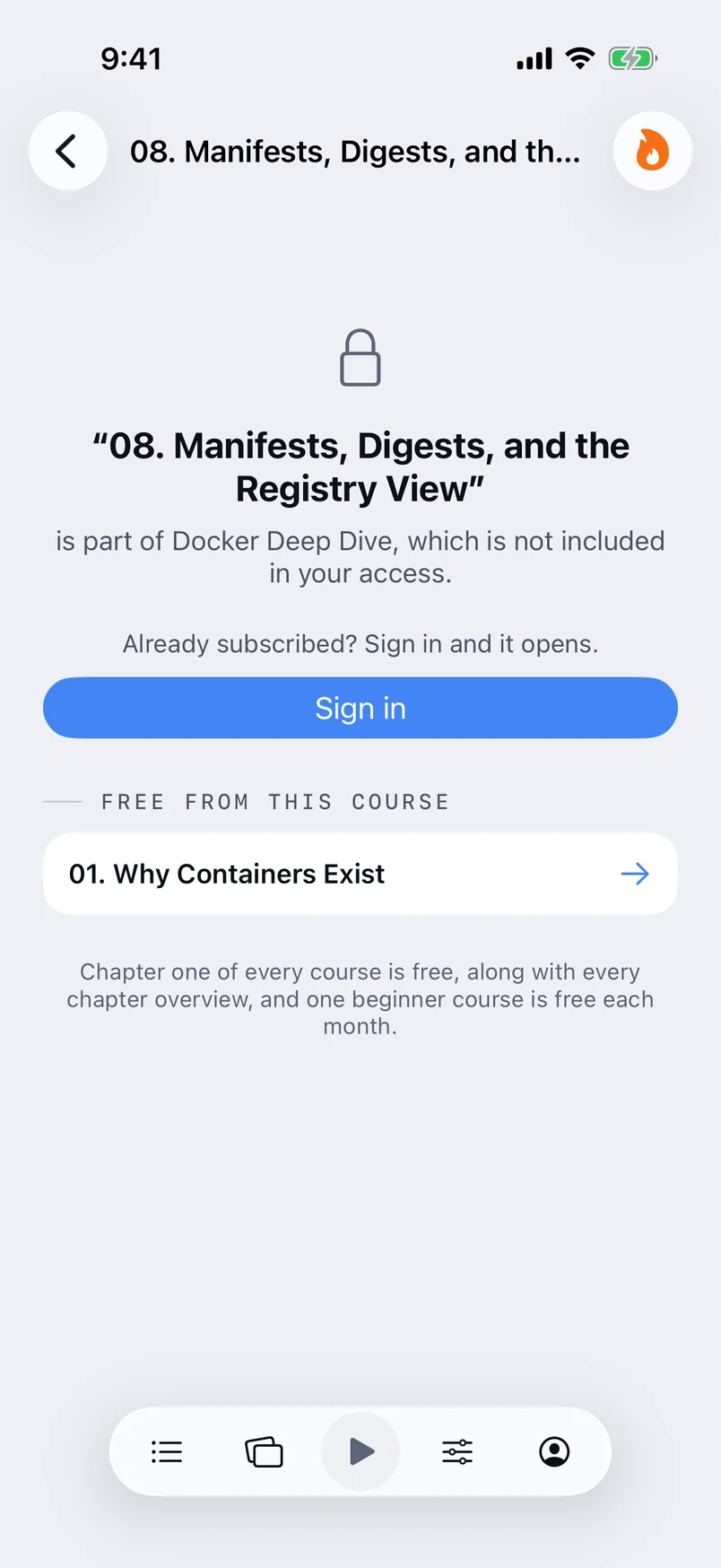
- The reader bar, five icons along the bottom. iPhone and iPad: Lesson list, Flashcards, Play, Reader settings, Account. Android: Contents, Flashcards, Play, Settings, Account. A thin line along the bar shows how far the narration is through the page.
- Moving around: tap a paragraph and the narration moves there. The lesson list or contents sheet takes you to any page of the course.
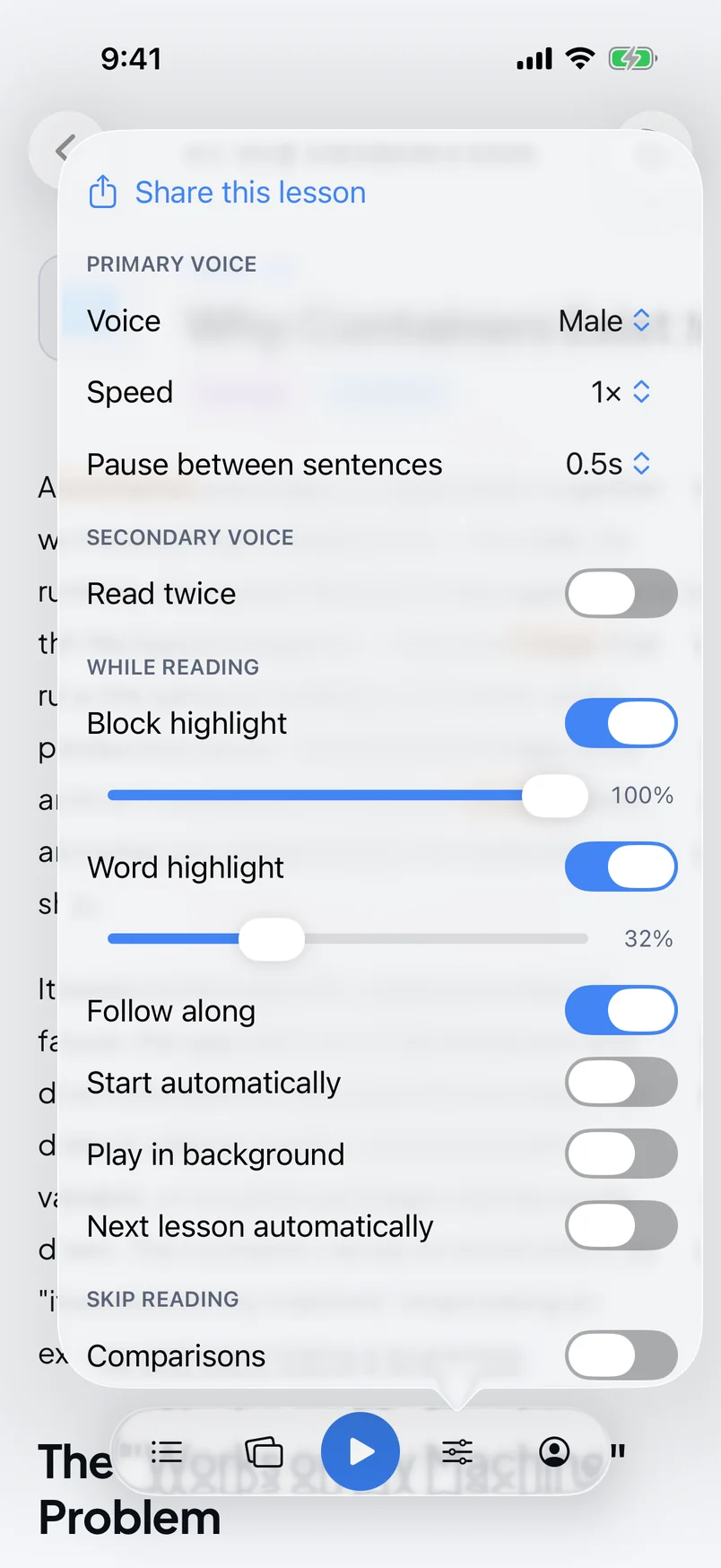
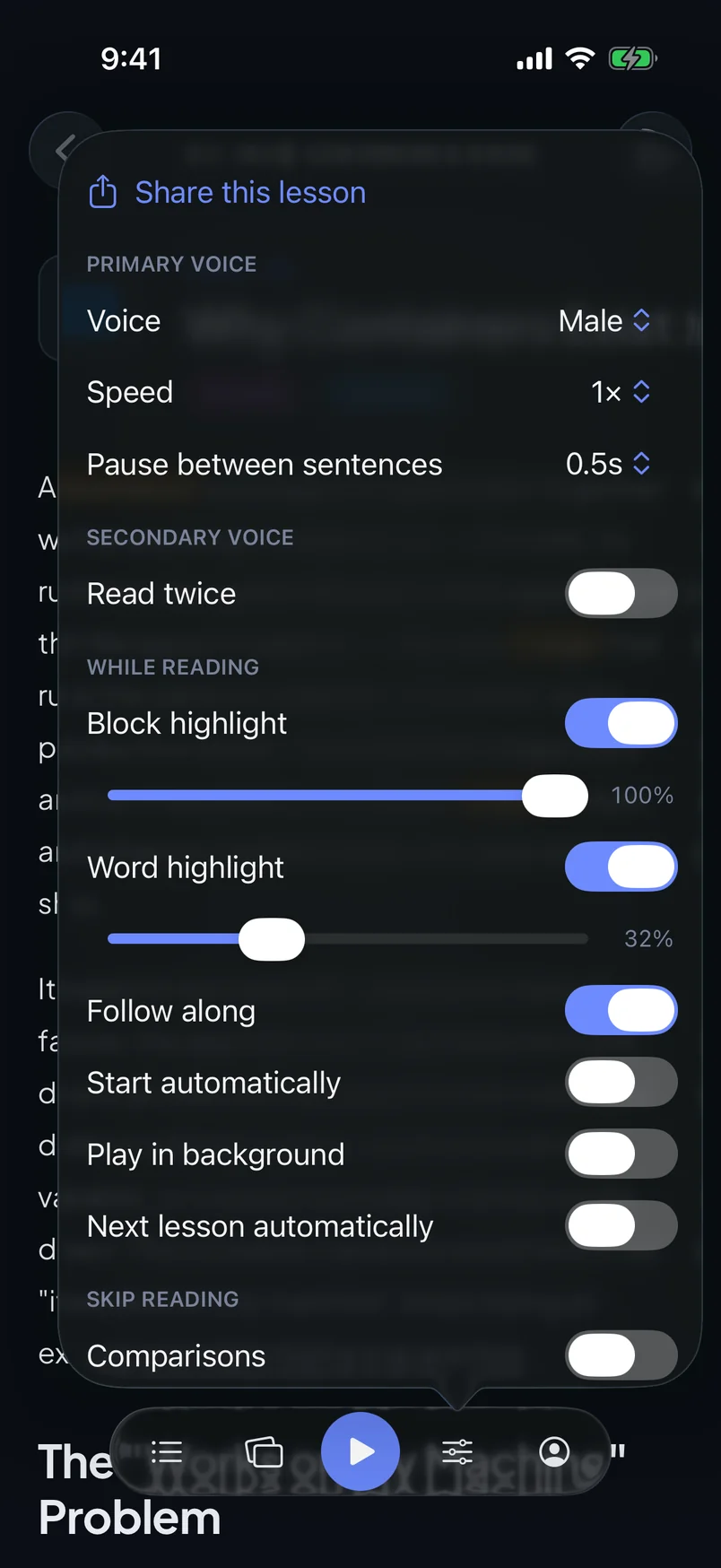
- Reader settings: Share this lesson first, then the voices, Read twice, the highlights and Skip reading, Text size and Appearance, and the course download.
- Lock screen and headphones: the narration plays through your device's media controls. Switch on Play in background to keep listening with the screen locked or in another app.
- Zoom: pinch to zoom on a lesson or flashcard page.
- The flame: a flame lights in the reader's top bar once today's goal is met.
- Links: with the app installed, an itplaybook.org lesson link opens in the app.
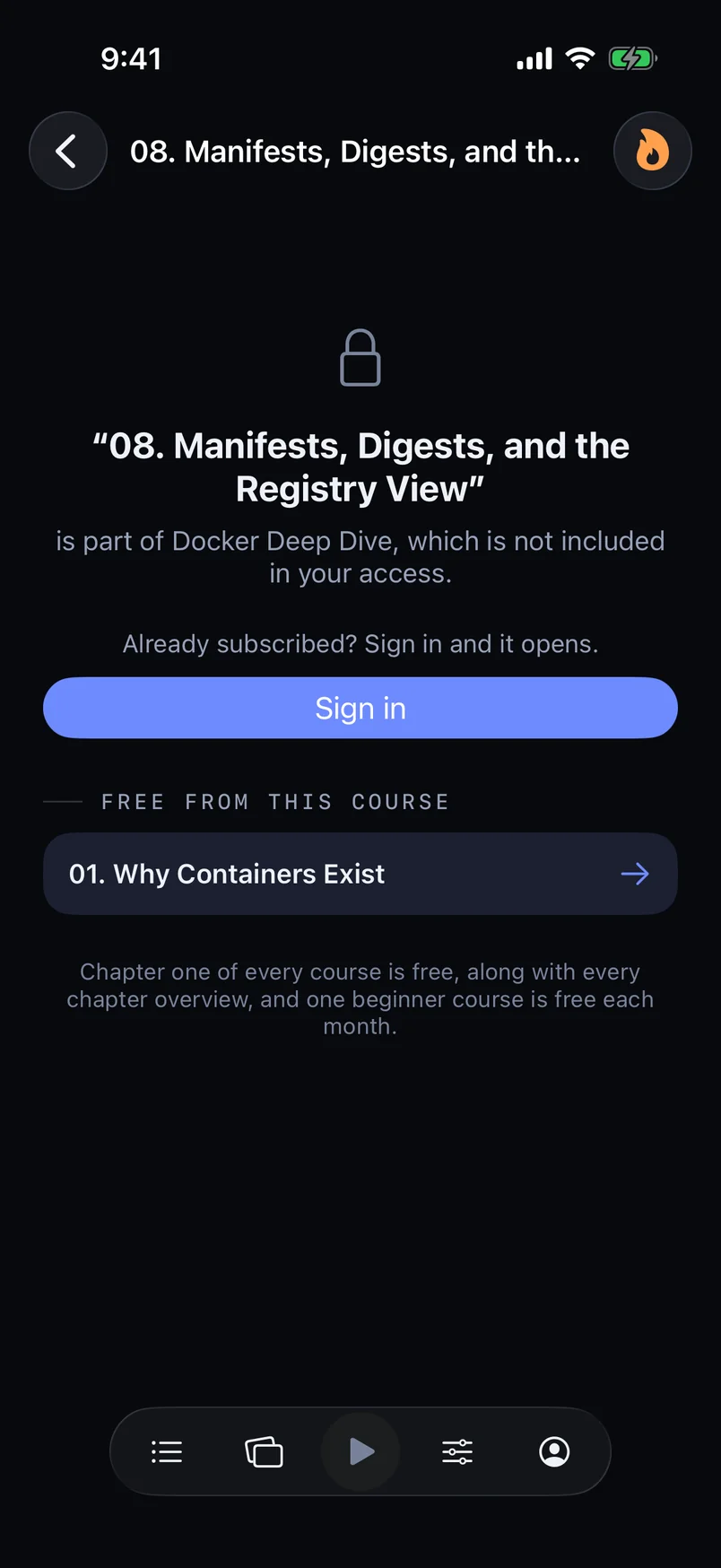
- Locked lessons show their own screen with the plans, or Sign in if you are signed out.
The details are on Lessons in the apps, Listening in the apps and Flashcards in the apps.
Offline downloads
A downloaded course reads and plays with no connection at all: its pages and their narration are kept on this device.
Which courses you can download
Only courses you have full access to: every course with a membership or complimentary access, and the free course of the month. On the free tier, a paid course has no download button.
Downloading a course
- Open the course screen and tap Download for offline. In a lesson, the same is Download course: on the iPhone and iPad in Reader settings or the lesson list, on Android in the reader bar's menu.
- Wait while the course comes down. The iPhone and iPad show Downloading with a count of files and a Cancel button; Android shows the progress with a button to stop the download.
- When it is done, the course screen says Downloaded, with the size on the iPhone and iPad.
Which voices are downloaded
The download holds the voice you listen in, your Primary voice, and also the Secondary voice if Read twice is on when you download. A voice you switch to later plays while you have a connection.
How long downloads are kept
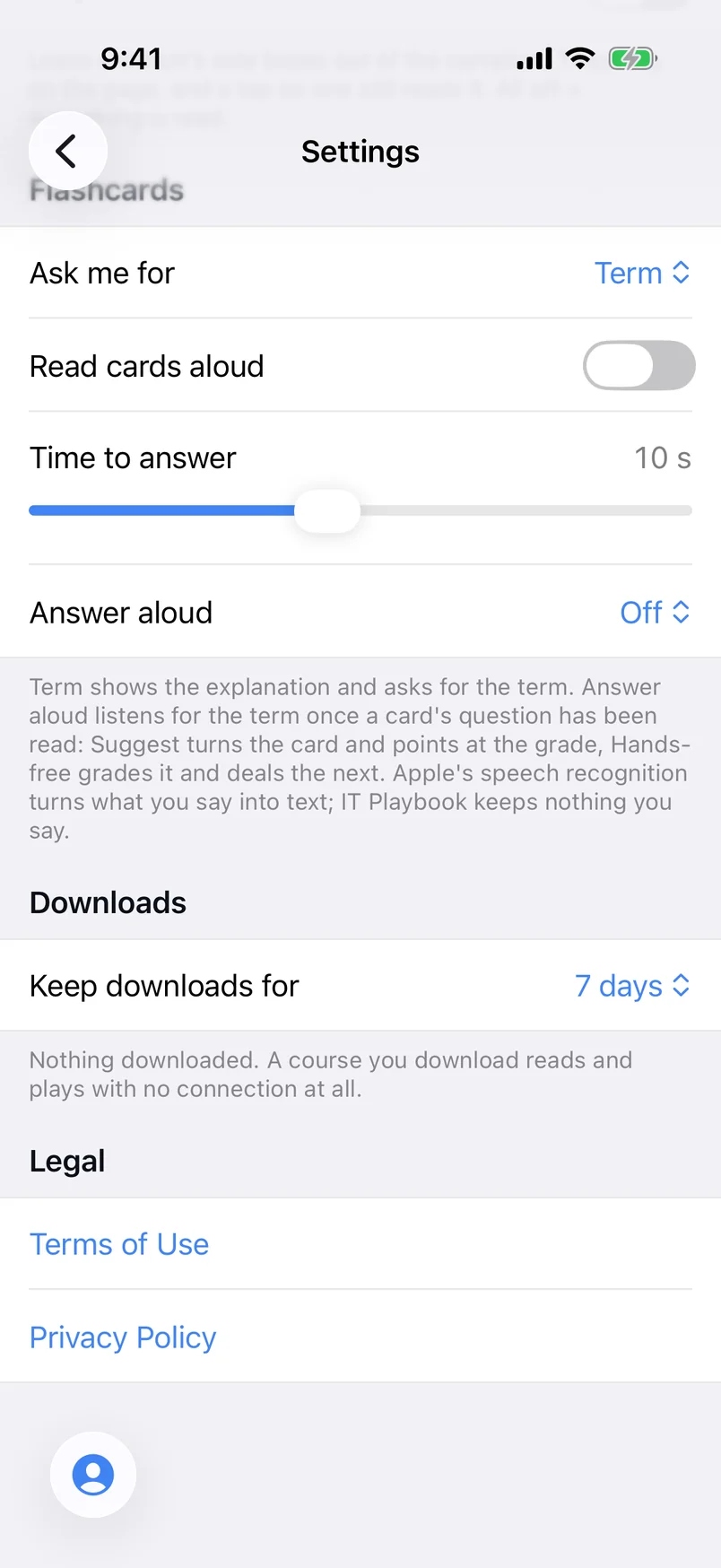
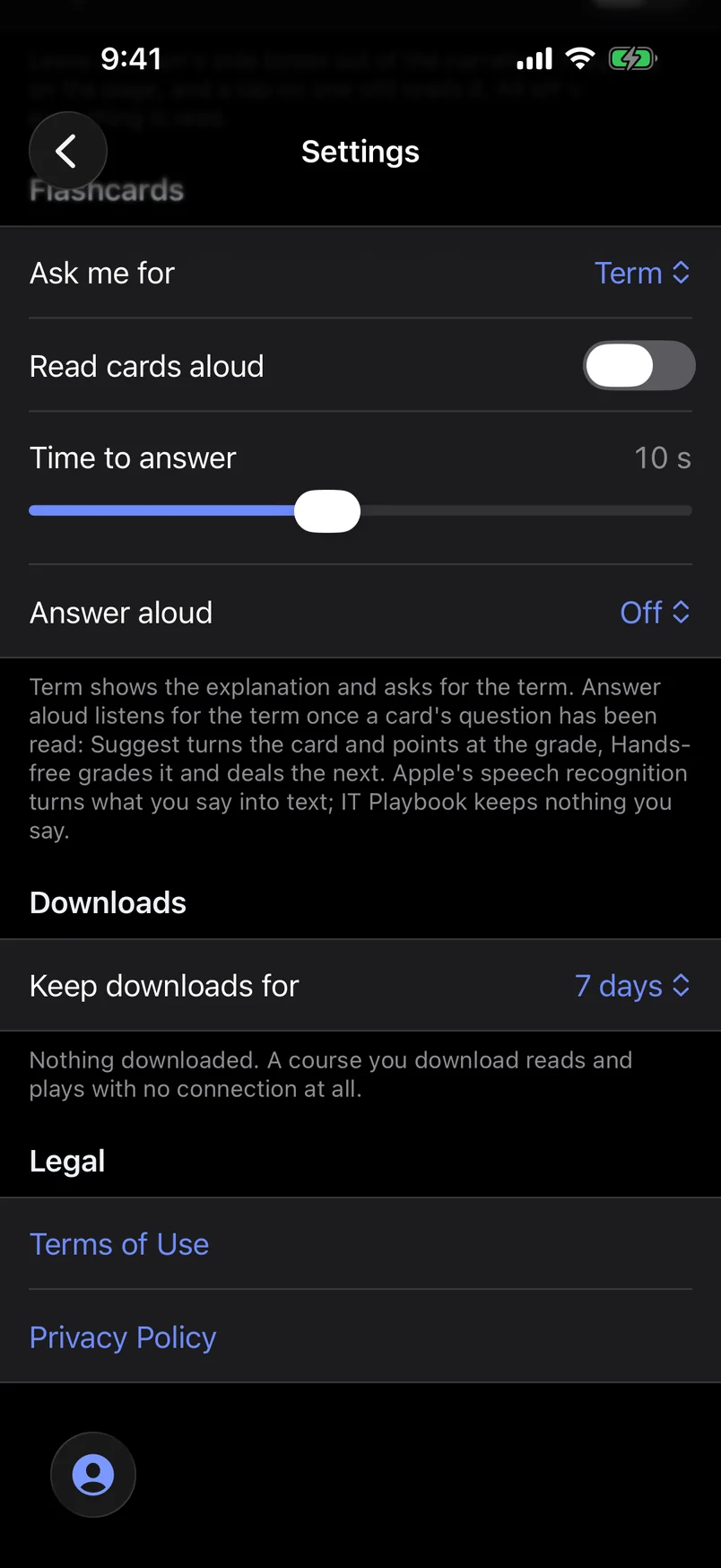
Downloads remove themselves when a course has not been opened for a while, so they do not fill your phone. Set how long in Settings, under Downloads:
- The setting is Keep downloads for on the iPhone and iPad and Keep for on Android.
- Choose 3 days, 7 days, 15 days, 30 days, 60 days or 90 days. The default is 7 days.
- The days are counted from the last time you opened the course, and the count starts again every time you open it. A course you keep reading is never removed.
The same section lists every downloaded course with its size. The iPhone and iPad show the total; Android shows the pages, the size and the days left for each.
Removing a download
- iPhone and iPad: Remove download on the course screen, or Offload course in Reader settings or the lesson list.
- Android: Remove on the course screen or next to the course in Settings, Downloads, or Remove download in the reader bar's menu.
- Everything at once: Remove all downloads in Settings, Downloads.
Your progress is not part of the download, so removing one never touches it.
Push reminders
The apps can send your study reminders as push notifications. Study reminders are the only push notifications IT Playbook sends.
- Open the Account tab, then Settings, and scroll to Notifications.
- Under Study reminders, switch on Push.
- The first time, the device asks whether IT Playbook may send notifications. Allow it.
- Set the Days and Time. They are the same days and time as your email reminders.
Push is chosen on each device: switch it on on your phone and your tablet stays quiet until you switch it on there too. The email switch, the days, the time and the timezone follow your account. Reminders skip a day on which you have already met your daily goal: see Study reminder schedule.
Buying and restoring in the app
- iPhone and iPad: tap Subscribe on a locked lesson or on the Account tab, choose a plan and confirm with Apple. The membership is managed in your Apple account: Account, Subscription, Manage subscription.
- Android: the plans are on a locked lesson and in Settings, under Subscription. Confirm with Google Play; manage it with Manage in Google Play.
- Restore: Restore purchases on the iPhone and iPad Subscription screen, which Already subscribed? Restore on a locked lesson also opens, and Already subscribed? Restore on Android find a store purchase again after a reinstall or on a new device.
- Bought elsewhere: a membership bought on the website or in the other store opens every course in the app too. The app shows where it is billed, for example "Full access, billed on the website", and says it is managed there.
- Couldn't check: when the iPhone and iPad app cannot reach your account to read your membership, for example offline just after it opens, a locked lesson and the Subscription screen say Couldn't check your subscription with Try again, and nothing is offered for sale until it has an answer. It also asks again by itself when the connection comes back.
The store shows the price before you confirm. Everything about plans, cancelling and refunds is on Plans and billing, in particular Managing or cancelling and Restoring a purchase.
What differs from the website
- No site header, sidebar or On this page panel: the reader bar, the lesson list and the course screen take their place.
- No sentence keys in the bar: tap a paragraph to move the narration.
- Several settings have other names: Autoscroll is Follow along, Autoplay is Start automatically, Pause on definition popups is Pause on definitions. See Settings in the apps.
- Theme has a System choice that follows the device.
- Answer aloud works in the iPhone, iPad and Android apps. The play button on the reader bar is the microphone.
- The flashcard trainer's settings, Time to answer among them, are in Settings, Flashcards. The Android app also has them in the reader's settings panel under the trainer, after Voice and Speed for the card narrator; the iPhone and iPad app has them in Settings only.
- Card size and the Microphone choice are website only.
- Offline downloads and push reminders are app only.
- Links in the help pages open the website.
- Come back to the app after more than a minute away and it reloads your progress and the catalogue, so a lesson finished on your computer shows straight away.
On the iPad
The iPad uses the iPhone app, laid out for the larger screen:
- Settings, the help pages and other screens open full screen instead of as a sheet from the bottom.
- The lesson list opens as a sheet over the lesson.
- Lessons keep a comfortable reading width instead of stretching across the screen.
- Answer aloud works in the flashcard trainer, as on the iPhone. Card size is not offered.