 IT Playbook
Account
Plans and billing
One membership unlocks every course. This page covers what it includes, how to subscribe, where to manage or cancel it, what happens after you cancel, payment problems, restoring a purchase in the apps, and refunds.
One membership
There is one membership, billed monthly or yearly, and it unlocks everything:
- Every lesson of every course, with narration in both voices.
- The Knowledge Check on every lesson, and the flashcard trainer for every course.
- New courses as they launch, at no extra cost. There is nothing to buy per course.
The membership belongs to your account, not to a device. Bought on the website, in the iPhone or iPad app or in the Android app, it opens every course wherever you sign in with that account. There is no free trial; the free part of every course is how you try it first.
In the apps, the App Store or Google Play shows you the price before you confirm.
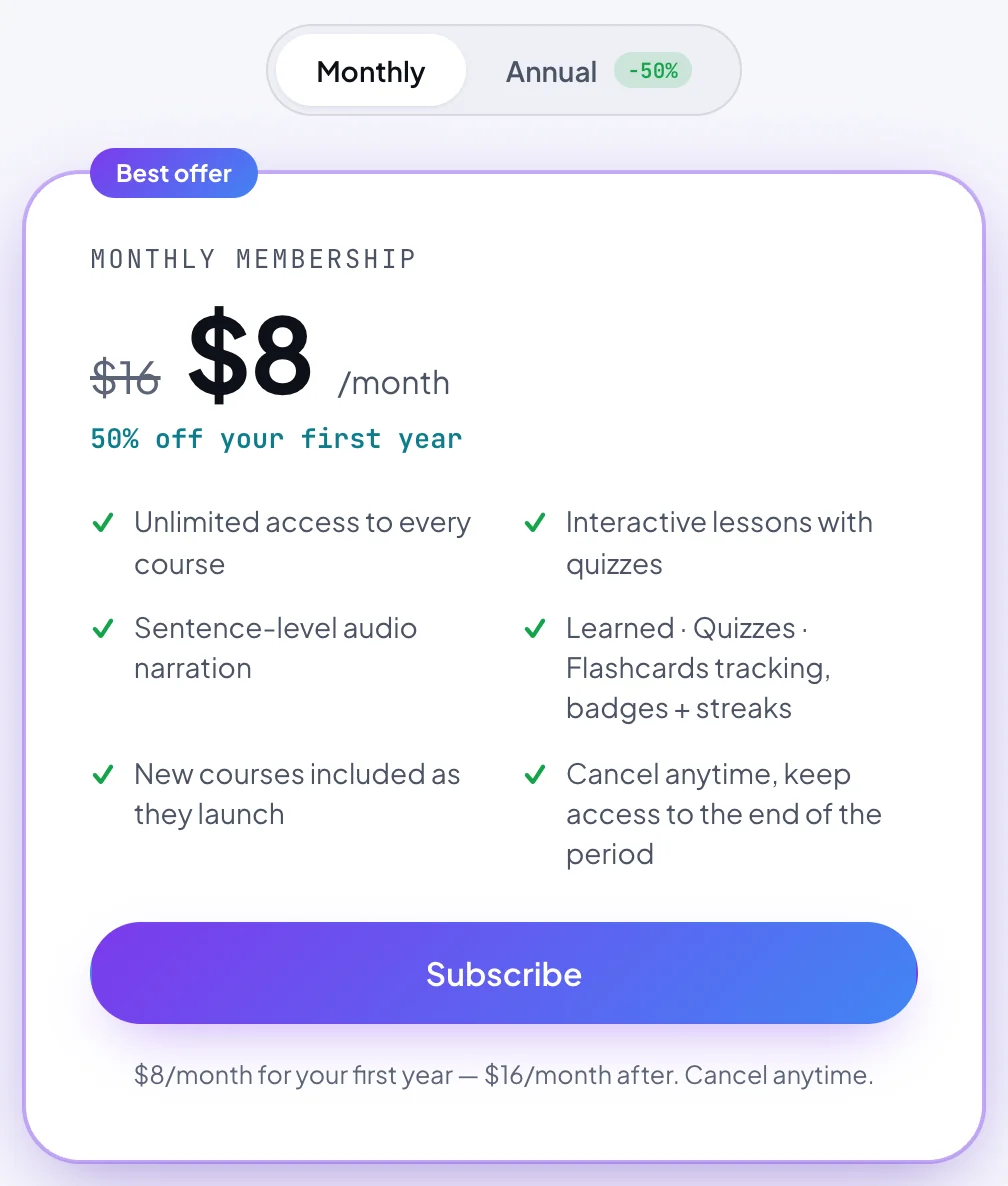
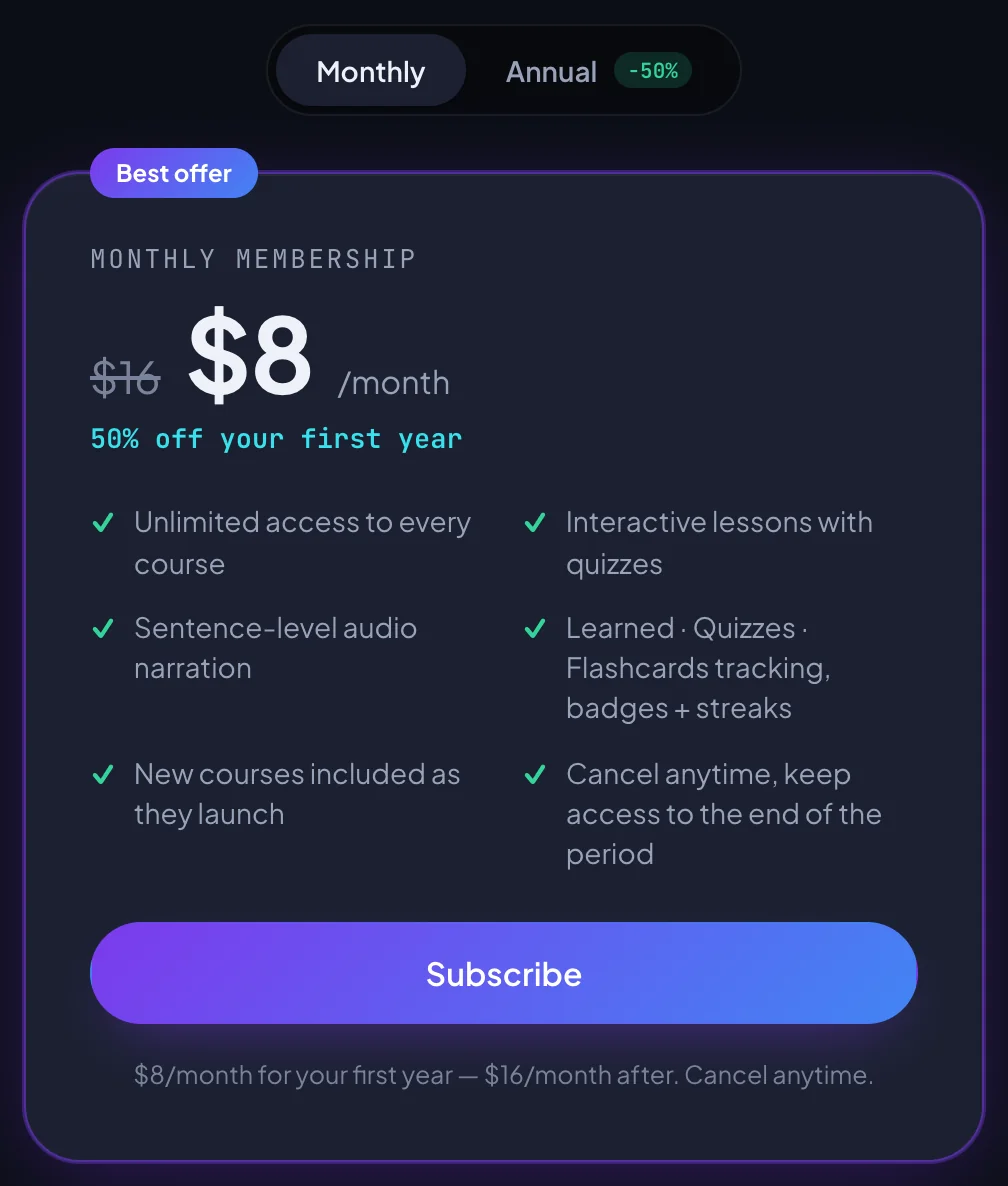
On the website the membership costs $16 a month or $120 a year. For your first year it is half price, $8 a month or $60 a year, applied automatically at checkout with no code to enter. After twelve months the full price applies, with nothing to do on your side. Prices are in US dollars; taxes may apply.
While the first-year price runs, Settings shows both prices and the date the lower one ends, for example $8/mo until Aug 23, 2027, then $16/mo.
Without a membership
You can learn a good deal without paying. Every course opens its Introduction, all of chapter 1, every chapter Overview, and the first lesson of chapters 2 and 3, with narration and quizzes. With an account, one beginner course is free in full each month. The flashcard trainer is part of the membership, except in that month's free course.
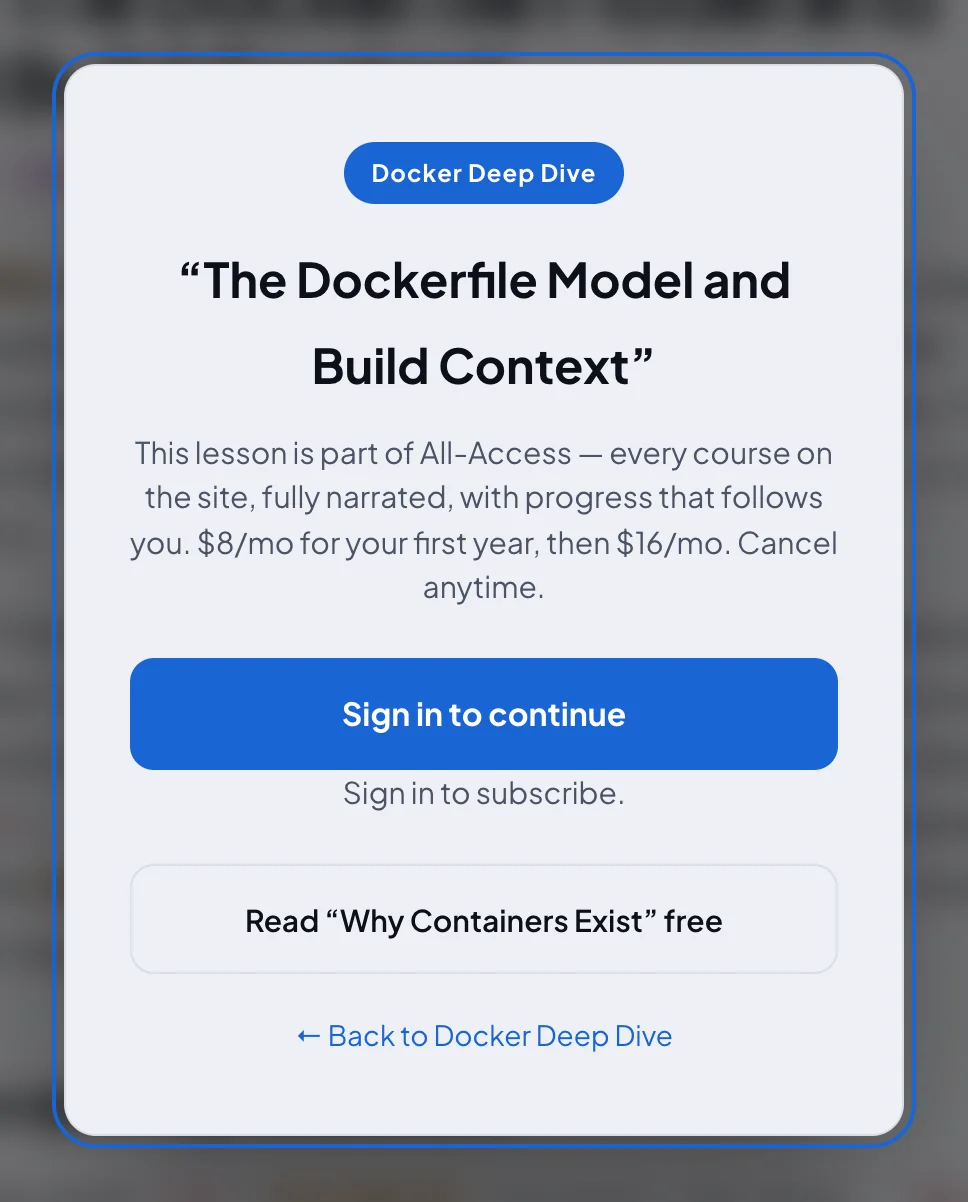
The details, and how locked pages look, are on What is free and Locked pages.
Subscribing
Sign in first, so the subscription belongs to your account. One subscription covers the account everywhere, so you only ever need one.
On the website
You can start from any of these:
- The membership card on the home page: pick Monthly or Annual and press Subscribe.
- The You're on the free preview banner on your dashboard, whose Subscribe scrolls down to the same membership card on the dashboard itself.
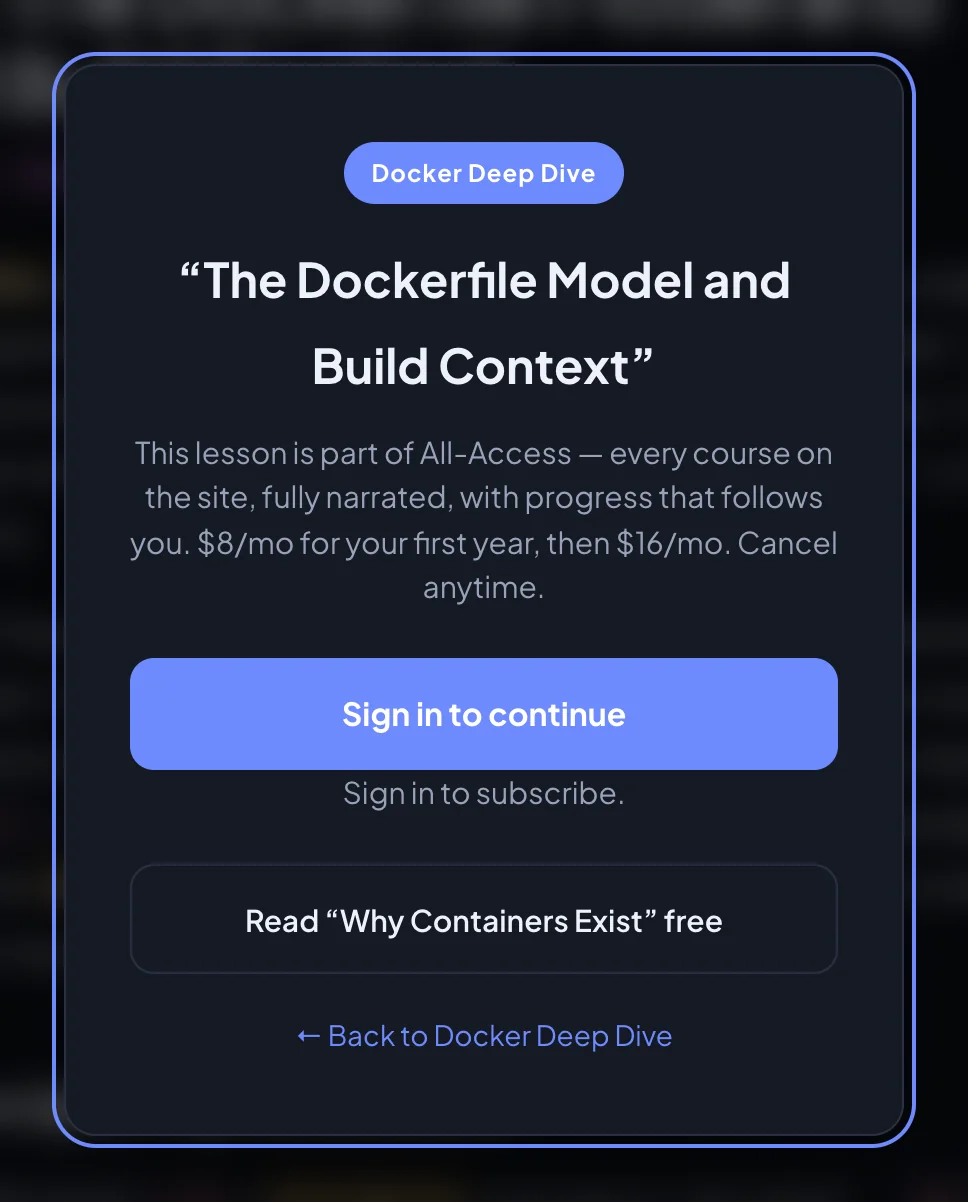
- A locked lesson: pick a plan and press Subscribe.
- Settings, Subscription & billing: Subscribe.
- Pick Monthly or Annual and press Subscribe. If you are not signed in, choose Google or Apple first; checkout carries on after you sign in.
- Pay on the Stripe checkout page. The first-year price is already applied.
- You come back to where you started: the lesson you were reading, Settings, or otherwise your dashboard.
In the apps
- iPhone and iPad: tap Subscribe on a locked lesson, or on the Account tab, where it shows while you are signed in without a membership. Pick a plan on the Subscription screen and confirm with Apple.
- Android: the plans are on a locked lesson and in Settings, under Subscription. Pick one, tap Subscribe and confirm with Google Play.
The purchase reaches your account straight away, so the website and your other devices open every course too. More on Buying and restoring in the app.
If you already have one
While your account has a subscription, the website and the apps do not sell it a second one; they show the one you have. If an account ever ends up billed twice, Settings says so, and we cancel and refund the duplicate: write to support@itplaybook.org.
Managing or cancelling
A subscription is managed where you bought it. Changing the plan, the payment method, or cancelling all happen in that one place.
Bought on the website
On the website, open Settings and go to Subscription & billing. A website subscription cannot be managed in the apps; they show it and say it is managed on the website.
- Open Settings, Subscription & billing.
- Press Manage subscription to switch between monthly and annual or to cancel, Open portal to change your card, or View for past invoices.
- Each opens the Stripe customer portal. Make the change there and use its link back to return to Settings.
Bought in the iPhone or iPad app
Apple manages it. On the iPhone or iPad you subscribed with, open Settings, tap your name, then Subscriptions. In the app, Account, Subscription, Manage subscription leads to the same place: "Cancelling and changing plan happen in your Apple Account." On the website, Settings shows it as App Store membership with a Manage in App Store button.
Bought in the Android app
Google Play manages it. On the device you subscribed with, open the Play Store app, tap your profile, then Payments and subscriptions. In the app, Settings, Subscription, Manage in Google Play leads there. On the website, Settings shows it as Google Play membership with a Manage in Google Play button.
After you cancel
You get an email, Your IT Playbook subscription is canceled, saying you will not be charged again and the date your access ends. In Settings the membership then reads Access ends and that date.
- Until that date: full access, exactly as before.
- After it: the account switches to the free tier: the first chapter of every course, every chapter Overview, and the free beginner course of the month. See Without a membership.
- What you keep: your progress, streak, flashcard schedule, medals and certificates stay with the account.
Changed your mind before the end date? For a website subscription, the email has a Reactivate subscription button. For an App Store or Google Play subscription, turn auto-renew back on in the store's subscriptions. After the end date, subscribe again at any time and your progress is where you left it.
Payment problems
If a payment for a website subscription fails, Settings marks the subscription Payment problem and says what went wrong, and your dashboard shows a banner. While a failed renewal is being retried, you keep your access. The website does not sell you a new subscription on top of the failing one: the fix is always in the existing one.
What Settings says, and the button that fixes it, depends on the state:
- There's a problem with your payment: your last renewal did not go through and Stripe is retrying. Press Update payment and change the card. Access continues meanwhile.
- Your subscription is unpaid: payments stopped after repeated failures. Press Open billing portal and pay the open invoice to get access back.
- Your first payment was not completed: checkout did not finish, so nothing is active yet. Complete it in the billing portal; if it has expired there, contact support and we start you over.
Every button opens the Stripe customer portal, where your card, open invoices and cancellation are kept.
For an App Store or Google Play subscription, the payment method is managed by Apple or Google: fix it in the store's subscriptions, as in Managing or cancelling.
Restoring a purchase in the apps
Your membership is stored with your account, so signing in with the same Google or Apple account is normally all it takes on a new device. Restore is for a store purchase that does not show up, for example after reinstalling the app or on a new phone.
- iPhone and iPad: tap Already subscribed? Restore on a locked lesson, or Subscribe on the Account tab. Both open the Subscription screen, where you tap Restore purchases. The app checks with Apple and opens everything if it finds the subscription.
- Android: tap Already subscribed? Restore under the plans. It reads Checking… while it asks Google Play.
- Subscribed on the website: there is nothing to restore. Sign in to the app with the same account; a locked lesson says "Already subscribed? Sign in and it opens."
A store purchase belongs to the IT Playbook account that was signed in when it was bought, not to the phone or to everyone who signs in on it. Signed in with a different account, the app says "That purchase belongs to another account. Sign in with the account you bought it on."
Refunds
The Terms of Service set the rule: except where required by law, payments are non-refundable and partial periods are not pro-rated. Cancelling stops future renewals, and you keep access to the end of the period you paid for.
- Bought in an app: Apple or Google took the payment, under their own terms, so a refund request goes to them through the App Store or Google Play.
- Billed twice: if your account has more than one subscription at the same time, write to support@itplaybook.org and we cancel and refund the duplicate.
- Anything else about a charge: use the Support form with the topic Billing & subscription, or write to support@itplaybook.org.
Deleting your account while subscribed
An account cannot be deleted while its subscription can still charge you, because after deletion you could no longer sign in to stop the payments. The deletion page refuses and says where to cancel.
- Cancel the subscription where you bought it: see Managing or cancelling. For an App Store subscription, open the app once afterwards so it can tell us.
- Delete the account: see Deleting your account. A subscription that is already set to end no longer blocks it.