 IT Playbook
Your progress
Your dashboard
Your dashboard is your home page once you are signed in. This page goes through it from top to bottom: the Resume card, Continue learning, the streak column, Paths and All courses.
Opening your dashboard
The dashboard needs an account: signed out, its address sends you to the IT Playbook home page. Signed in, you reach it in several ways:
- The IT Playbook logo in the top bar of a course page.
- Dashboard in the menu under your name, and in the footer of these Help pages.
- The home page itself: signed in, it takes you straight to your dashboard.
On a computer the page has a main column and a narrower column on the right with your streak, Activity and Achievements. Below both come Paths and All courses. In a window narrower than 980 pixels the right column moves under the main one.
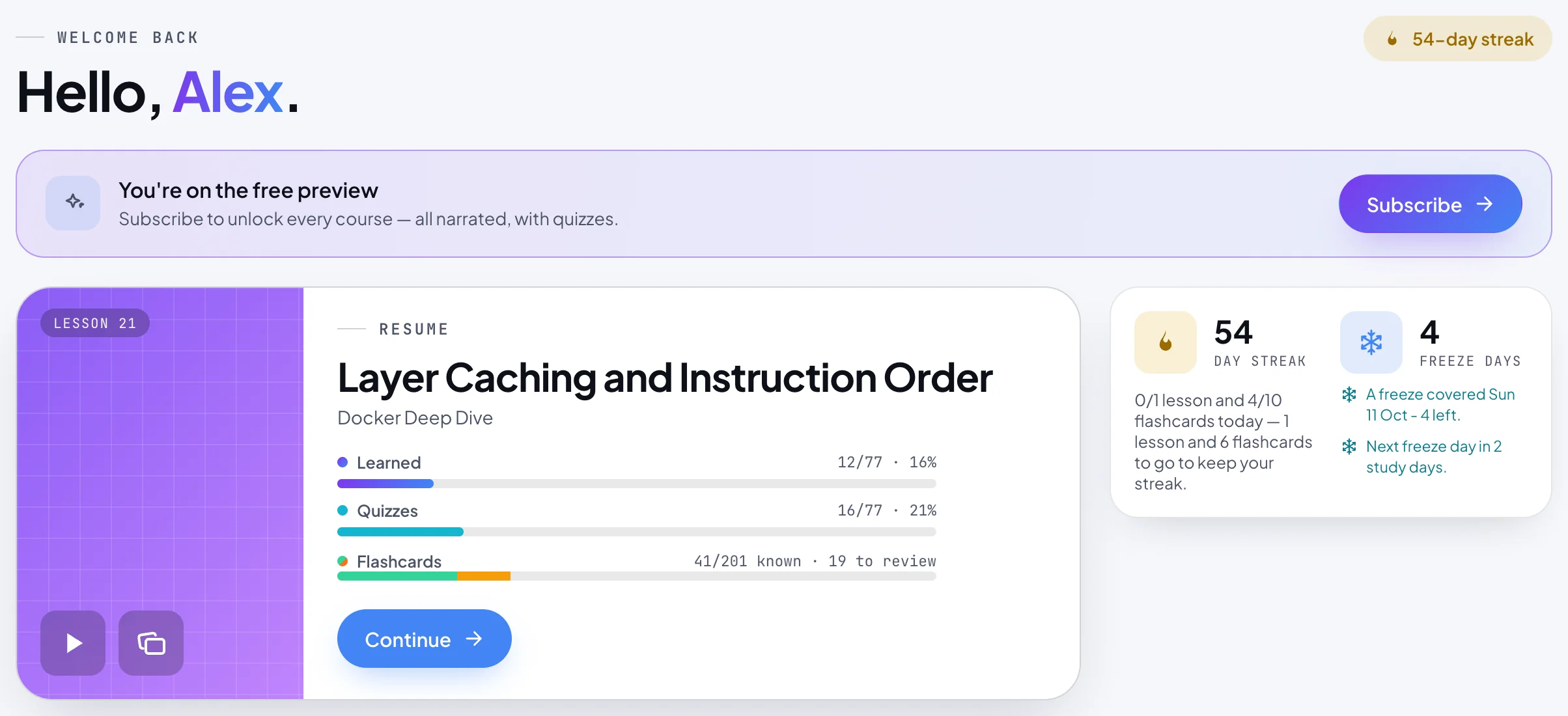
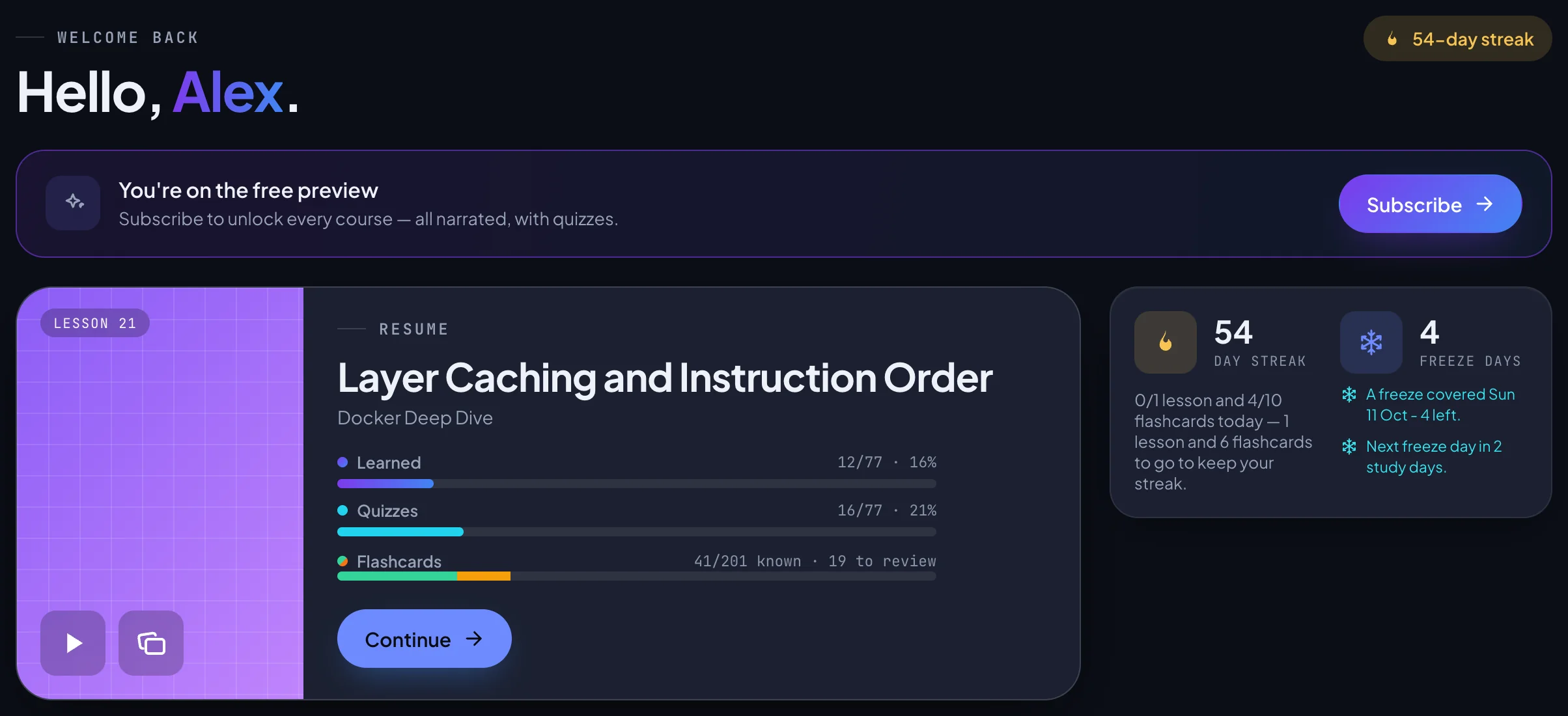
The greeting and the streak chip
The page opens with Welcome back and Hello, followed by your first name, taken from the display name in Settings, Profile. Without a display name it uses the part of your email address before the @, or says Hello, there.
Next to it, a chip with a flame, such as 12-day streak, shows your current streak. It is hidden while your streak is 0. See Streak.
Resume
The large card at the top of the main column is the course you were active in most recently. Click anywhere on it, or on Continue, to go straight to the next thing to do.
- The coloured picture carries a badge with where Continue takes you, such as Lesson 07 or Chapter 3, and a play button.
- Resume or Up next above the title. Resume means you are going back to a lesson you have not finished; Up next means the last one is done and the card has moved on.
- The lesson title, and the course title under it.
- Three bars: Learned and Quizzes, such as 12/62 · 19%, and Flashcards, such as 41/236 known · 12 to review, or practice vocabulary before you open the deck. Click the Flashcards row to open the trainer. What each bar counts: Learned, Quizzes and Flashcards.
- A certificate hint under the bars when you are one half away from finishing, such as Every quiz passed. followed by how many flashcards are left. See Hints on the Resume card.
- The cards button on the picture, with the tooltip Practice flashcards, opens the course's trainer. It shows while the course still has cards you do not know.
- The × in the corner removes the course from your dashboard: see Removing a course.
Where Continue takes you
Continue opens the first lesson whose quiz you have not passed, counting from the last page where you passed a quiz or listened to the end. A lesson counts as finished when its quiz is passed.
- If that last lesson is not finished yet, you go back to it.
- If it is finished, you go to the next unfinished lesson. If you skipped ahead, lessons you left behind come next once the rest of the course is done.
- When the next lesson is in a new chapter, Continue opens that chapter's Overview first, and the badge reads Chapter with its number. Once you have opened that Overview, Continue goes on to the chapter's first unfinished lesson.
The card disappears when no course on your dashboard has been started; courses you added and have not started wait in Continue learning with Start course. A course counts as started once you pass one of its quizzes or listen to one of its pages in full; opening a page is not enough.
Continue learning
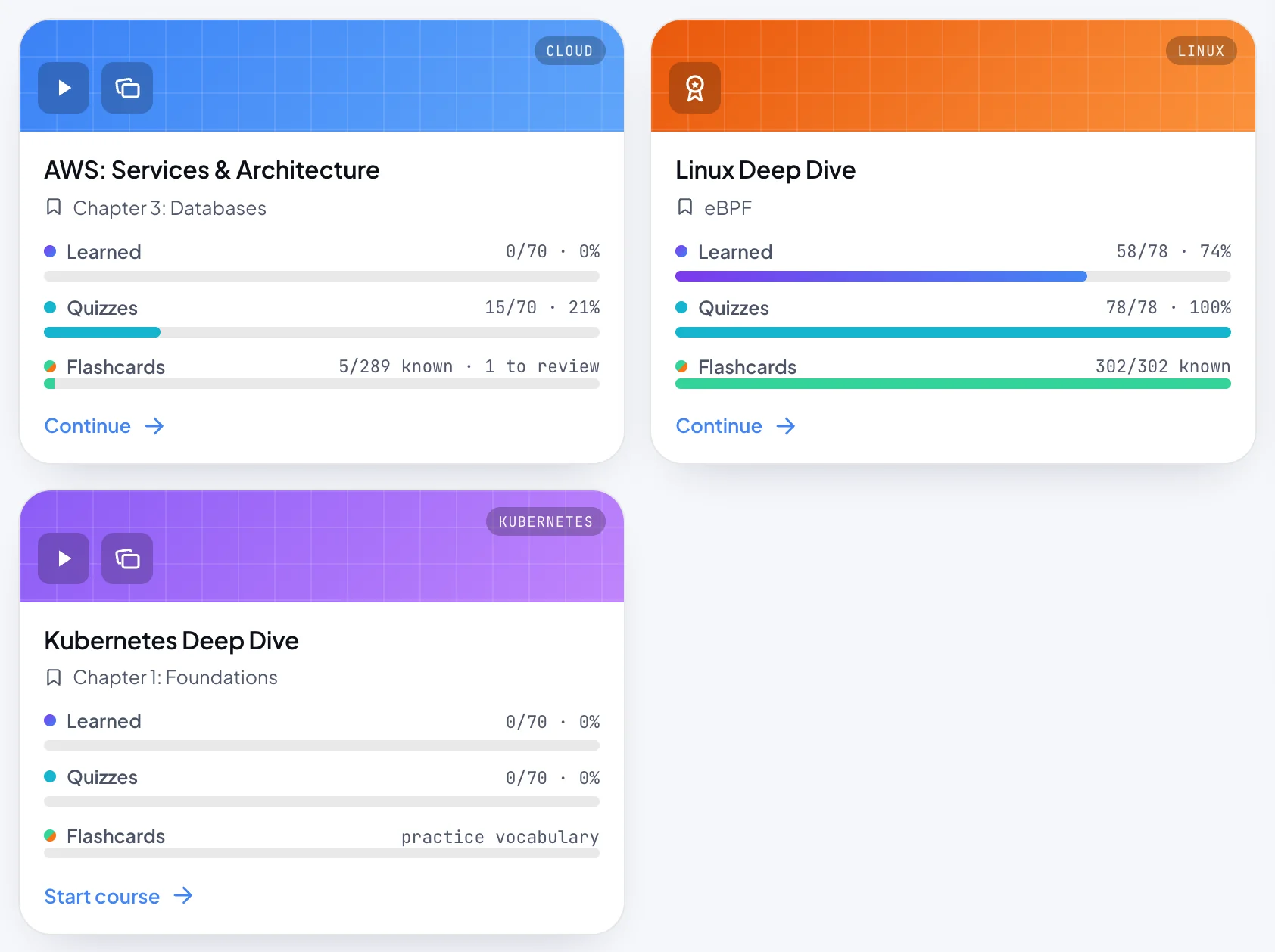
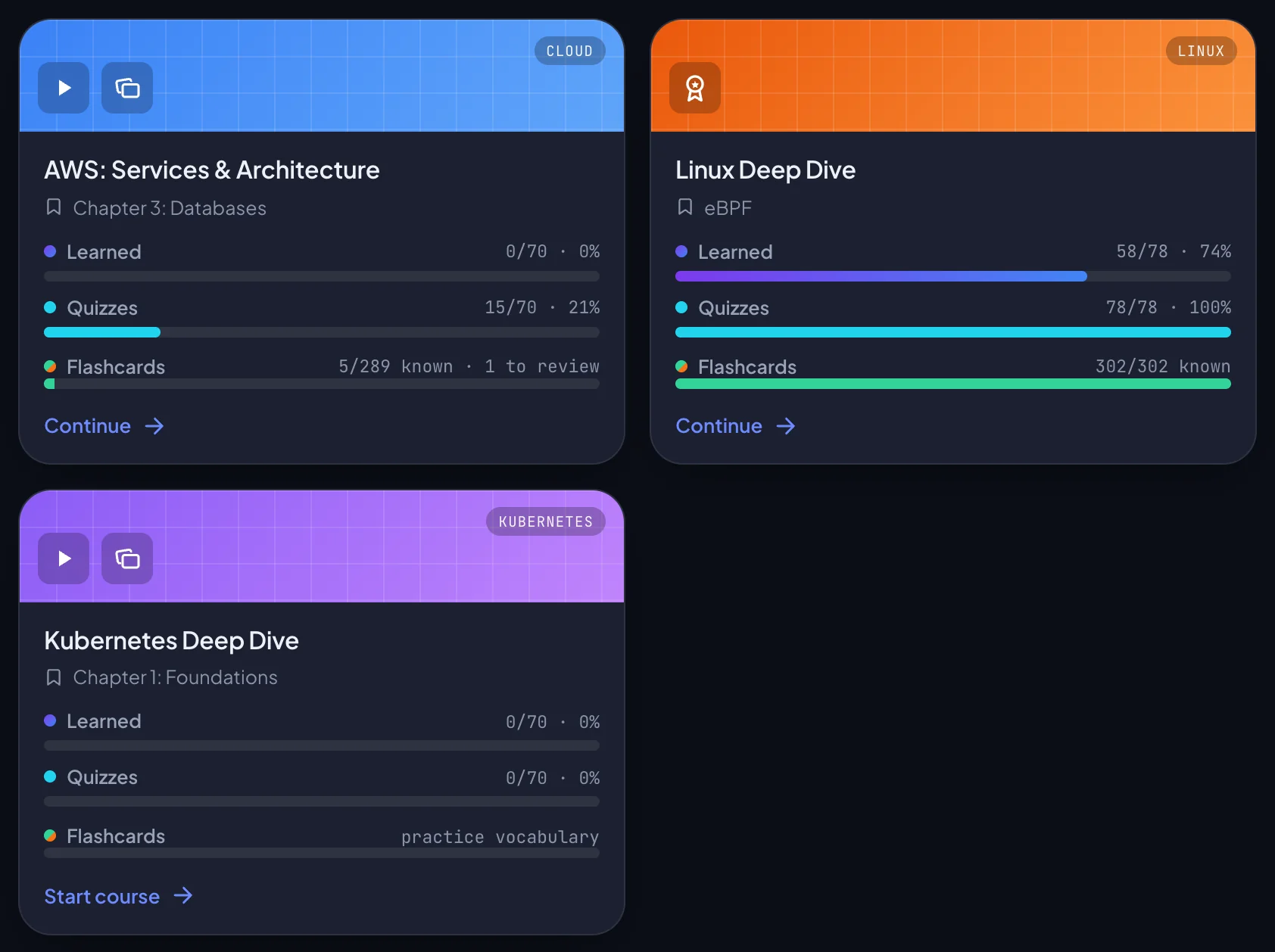
Under the Resume card, Continue learning lists the other courses on your dashboard. The note beside the heading counts them, such as 3 courses · sorted by recent, 1 not started. The most recently active come first; courses you added from Paths and have not started come last, in the order you added them.
A course is on your dashboard when you have made progress in it and have not removed it, or when you added it from Paths. There is no button on a course card to add a course here: Paths is the way to add one before you start it.
Each card shows:
- A coloured cap with the course's topic and a play icon. A finished course shows its medal in place of the play icon.
- The course title, and with a bookmark icon the title of the lesson Continue opens.
- The same three bars as the Resume card.
- Continue, or Start course for a course you added and have not started.
- The cards button for flashcards and the × to remove the course, as on the Resume card.
When the Resume card is the only course on your dashboard, the Continue learning heading is hidden.
An empty dashboard
Before you start any course the section reads Start your first lesson: You haven't started a course yet. Pick one and the first narrated lesson takes about ten minutes. The whole catalogue is further down the same page, under All courses.
If it does not load
Couldn't load your progress means the dashboard could not reach your learning data. Check your connection and press Try again, which reloads the page. Nothing is lost: your progress is still in your account.
Removing a course
To take a course off your dashboard, click the × on its card. A dialog asks Remove followed by the course name and from your dashboard?, and adds Your progress and streak are kept. It comes back when you study it again (pass a quiz, listen to a lesson to the end or review its flashcards) or add it from Paths.
- Remove takes the card away and confirms with a short message. Keep leaves it.
- Nothing is deleted. Your bars, ticks, flashcards, streak and medal stay as they were.
- The course comes back by itself as soon as you make progress in it again: pass a quiz, listen to a page to the end, or grade its flashcards. Adding it from Paths brings it back too. Opening the course alone does not.
- If the change cannot be saved, a message says Couldn't remove it - check your connection and try again.
The dashboard list follows your account, so a course you remove is gone from the dashboard on every device.
Streak, Activity and Achievements
The right column holds three cards. Each has its own section on Progress and certificates:
- The streak card: your streak, what is left of today's goal, and your freeze days. See Streak and Streak freezes.
- Activity: 20 weeks of lessons heard, quizzes passed and flashcards graded. See Activity graph.
- Achievements: a medal for each finished course; click one for its certificate. See Medals and Certificates.
Your daily goal is set in Settings, Learning profile: see Daily goal.
Paths
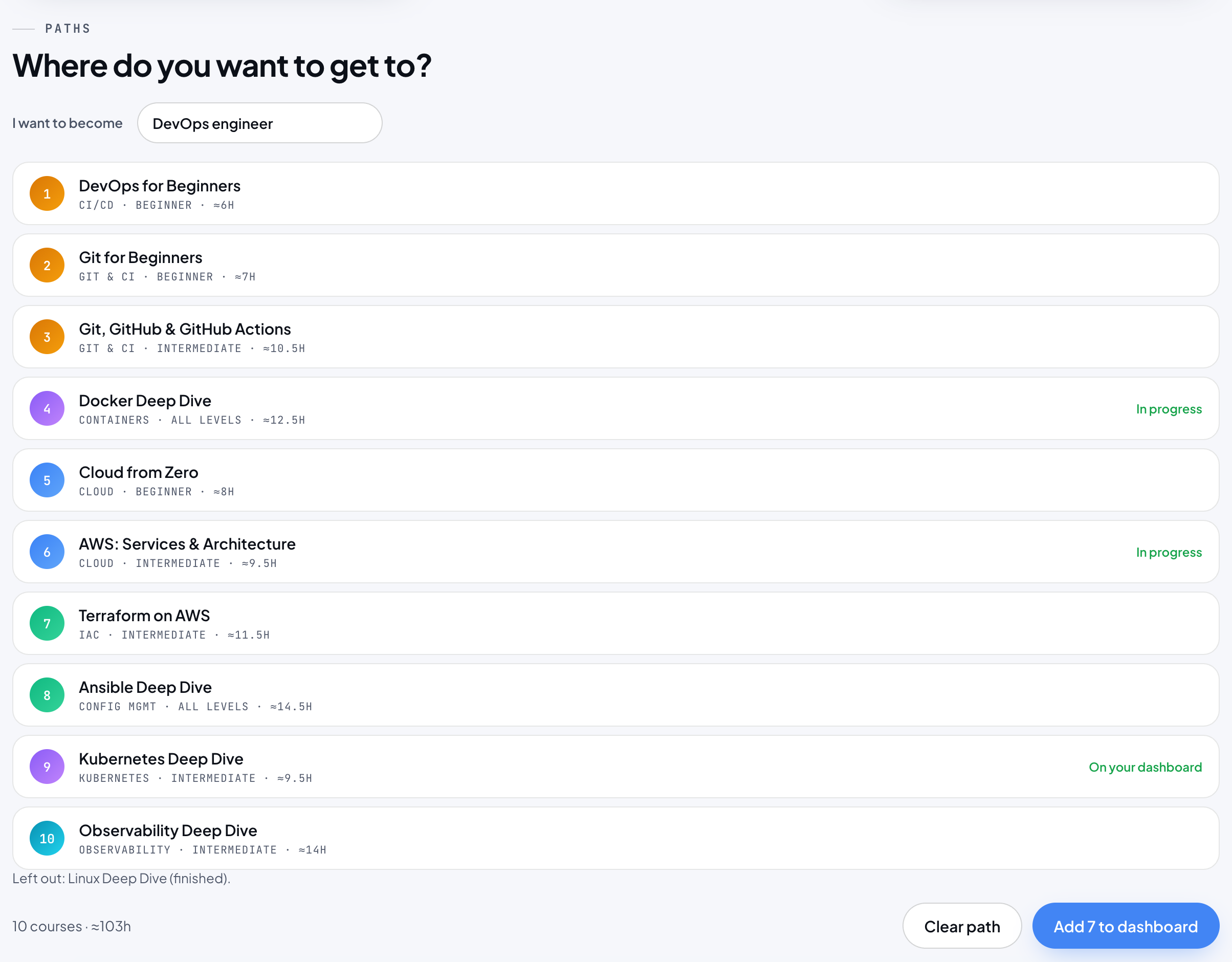
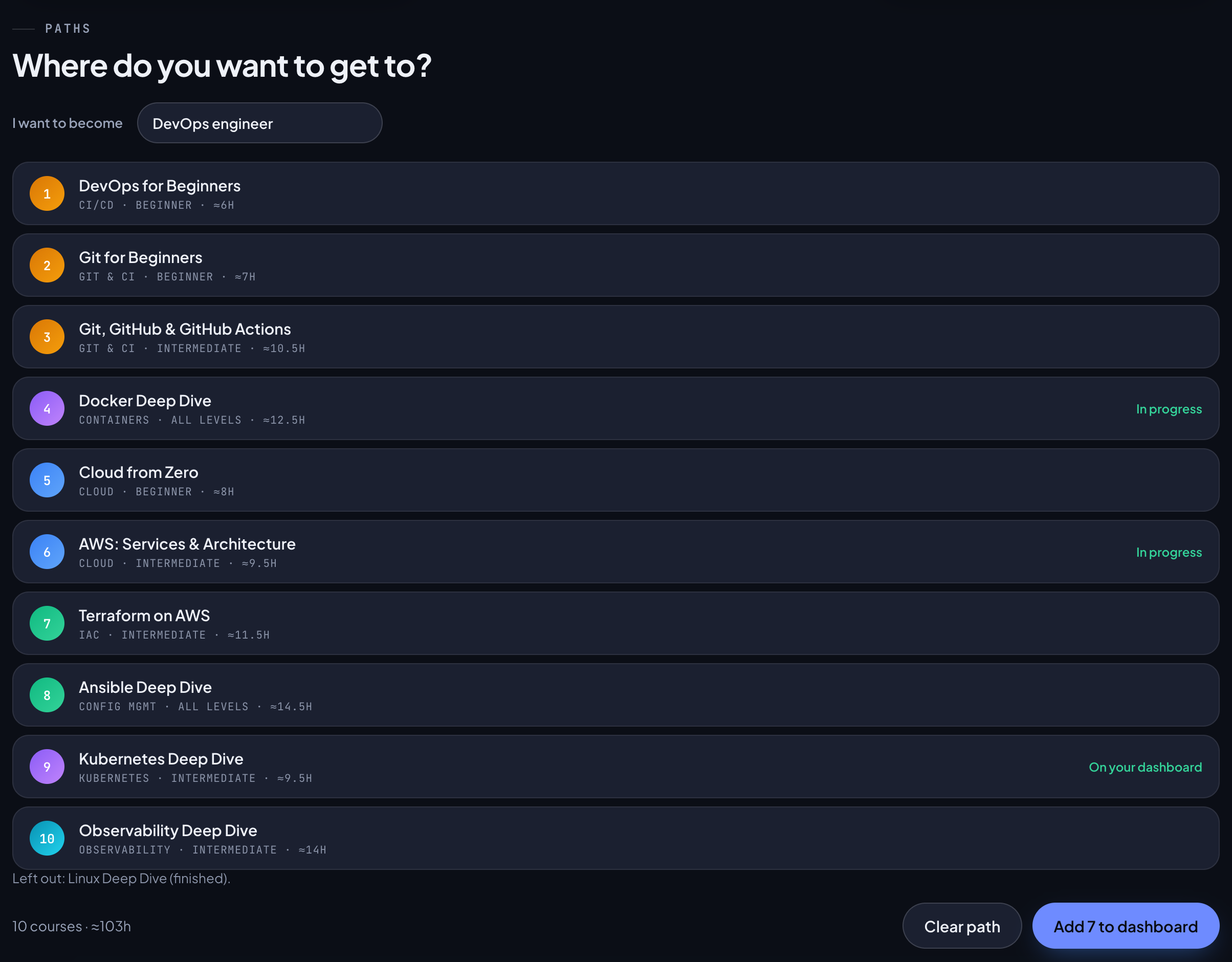
Paths, under the main columns, answers Where do you want to get to? You pick a goal, and it lists the courses that take you there, in the order to take them, fitted to your learning profile.
Without a learning profile it shows a short explanation and Set up your learning profile, which opens Settings, Learning profile.
Choosing a goal
Open the list next to I want to become and pick one:
- DevOps engineer, Cloud engineer, Platform / SRE, Security engineer, Backend developer, Frontend developer, QA engineer, Data & ML, AI engineer or Just exploring IT.
- I don't know: the goal whose courses cover the most of the interests in your learning profile is picked for you, and a note says which: Picked from your interests: followed by the goal. If none fits, it says None of the goals matches your interests yet and suggests adding interests in Settings.
Reading the path
- Each row is a course: its title, its topic and level, and its estimated hours, such as KUBERNETES · Intermediate · ≈9.5h. Click a row to open the course.
- In progress marks a course you have started; On your dashboard marks one already added.
- Before a course, the path adds the course it builds on, the same one its card names with Start with, unless your learning profile says you know the basics.
- Left out: lists what was dropped: courses you finished, marked (finished), and Beginner courses in a topic where you chose Some experience or Experienced, marked (you know the basics).
- The footer gives the total, such as 7 courses · ≈68h.
- If everything is covered, it says You have already covered everything on this path.
Which cloud
Goals with a cloud course use the first cloud you picked in your learning profile: AWS, Google Cloud or Azure. With none picked they use AWS, and a note says AWS chosen as the most popular cloud, with a link to Settings to change it. There is no Terraform course for Azure, so an Azure path uses Terraform on AWS.
Adding a path to your dashboard
- Pick a goal.
- Click Add all to dashboard, or Add 3 to dashboard when some of the courses are already there.
- The courses join Continue learning with Start course, and a message confirms how many were added. The path stays on screen, every course you had not started now marked On your dashboard, and the button reads All on your dashboard.
Clear path resets the goal list and removes the path. The goal you pick is not remembered: Paths starts empty each time the page loads. The courses you added stay on your dashboard.
All courses
At the bottom, All courses is the whole catalogue, with the same course cards as the home page. Click a card to open the course's Introduction. What a card shows: Reading a course card.
- Filter courses… narrows the cards as you type, matching course titles, topics, levels and descriptions. It finds courses only, not lessons; lesson search is on the home page for visitors who are signed out. With no match it says No courses match your filter.
- Sort orders the cards: Recommended, Most popular, Newest, Beginner first or A-Z. See Sorting for all but Recommended.
- A finished course carries a small medal in the corner of its card.
Recommended
Recommended exists only here, on the dashboard. It appears at the top of the Sort list once your learning profile has at least one interest, and becomes the order the page opens with, unless you have already picked another order on this visit.
- Courses in your interests come first. A course that matches more than one of them gets extra weight.
- Within that, each course's level is weighed against your level in its topic. With New to this, Beginner courses rise and Advanced ones sink. With Some experience, All Levels and Intermediate courses lead. With Experienced, Advanced and Intermediate courses lead and Beginner ones sink.
- Courses that tie are in Most popular order.
Change your interests and levels in Settings, Learning profile.
Free course of the month
If you do not have a membership, a banner above All courses names this month's free course: Free course in followed by the month, the course title, Every month, one full course is free for members. No card required., and the next month's course after Coming in. Free access opens the course. Members do not see the banner, and for them the free course loses its badge and its first place in Most popular. See Free course of the month.
Without a membership, a plan card follows All courses at the very bottom of the page, the one the free preview banner's Subscribe scrolls to. See Plans and billing.
Your dashboard in the apps
The iPhone and iPad app and the Android app split the website's dashboard across tabs:
- Dashboard tab: your courses, the same ones as on the website, with their bars, and Paths below them. There is no Resume card; tap a course to continue.
- Progress tab: the streak card, Activity and Achievements. See Progress in the apps.
- Courses tab: the catalogue.
- Removing a course: touch and hold its card, or on a phone swipe it to the right, then confirm with Remove. The question and what it keeps are the same as on the website.
When you start an app with courses on your dashboard, it opens on the Dashboard tab.
What you add or remove follows your account, so the website and the apps show the same courses. More on the apps in The apps.