 IT Playbook
Start here
Getting started
How to find a course, what a course card tells you, how a course is put together, what you can read for free, what signing in adds, and how to get through your first lesson.
The catalogue
Every course is listed under All courses on the home page. Courses in the top menu jumps there; on a phone it is in the menu behind the three-line button. Each course is a card; click anywhere on a card to open the course's Introduction.
Above the cards are two tools: a search box and a Sort menu. There are no topic or level filters. To narrow the list, type in the search box.
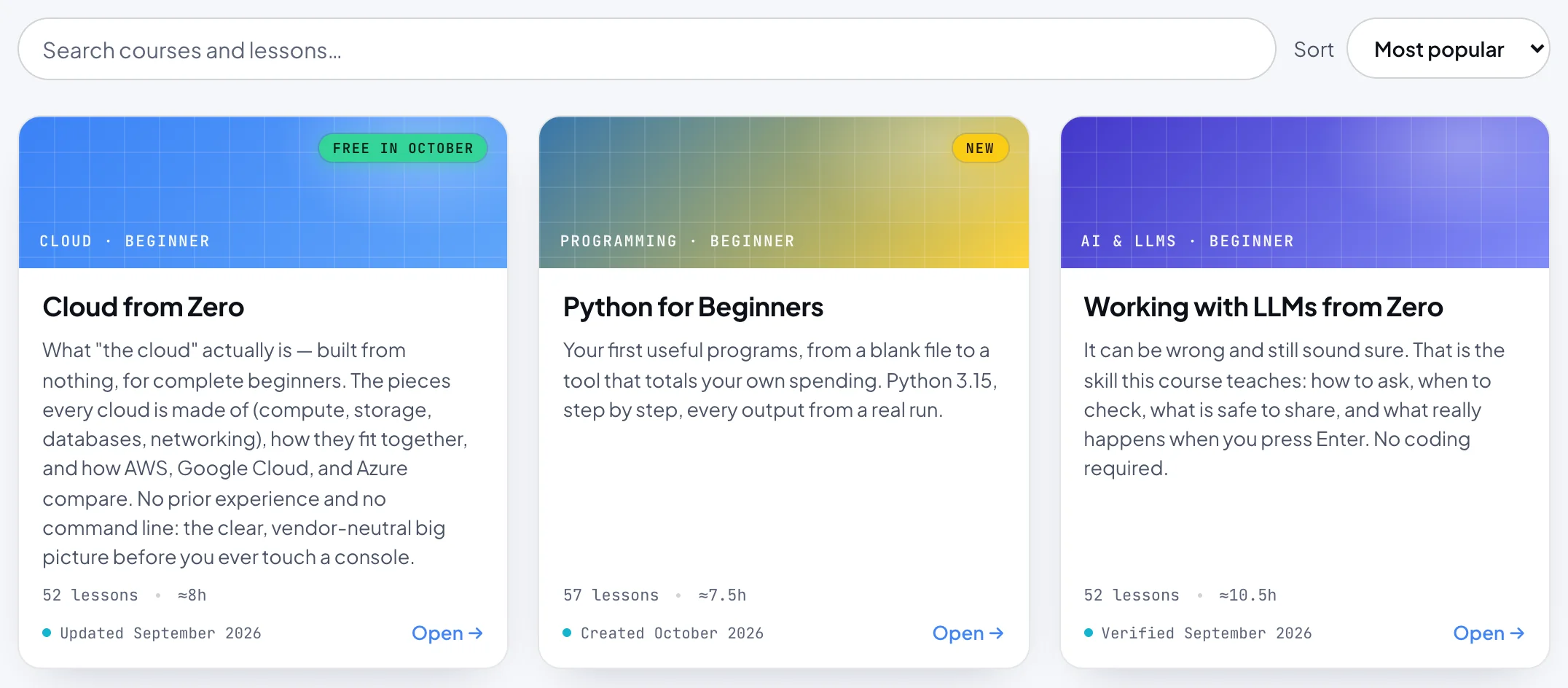
Search courses and lessons
The box reads Search courses and lessons…. It works at two levels at once:
- Courses. As you type, the grid keeps only the courses whose title, topic, level or description contain what you typed. If none do and no lesson matches either, it says No courses match your search.
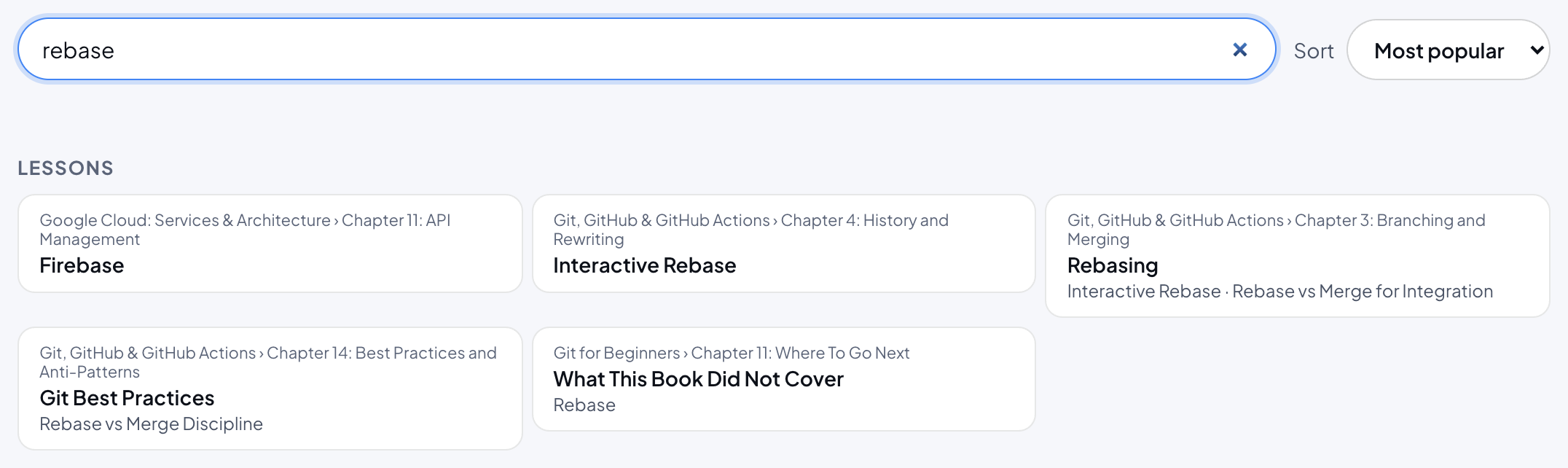
- Lessons. From the third character on, a Lessons list appears under the grid with up to 40 matching lessons and chapter overviews from every course. A lesson matches when each word you typed appears somewhere in its course, chapter, title or section headings, in any order, so git rebase finds a lesson called Rebasing in the Git course.
Each lesson in the list shows its course and chapter above its title. When the match was in a section heading rather than the title, up to three of those headings are shown under it, so you can see why the lesson is listed. Lessons that match without their section headings come first. Click one to open it.
Sorting
The Sort menu has four orders. The default is Most popular.
- Most popular: the courses the most people are taking. Until enough people are learning on the site for that count to mean something, it is our own ranking of the skills most in demand, with this month's free course at the top.
- Newest: the most recently written course first.
- Beginner first: Beginner courses, then Intermediate, then the courses marked All Levels. Within each level, the most popular course leads.
- A-Z: by title.
The dashboard's catalogue adds Recommended, which sorts by the topics and levels in your learning profile: see All courses on the dashboard.
Try it free
The Try it free button at the top of the home page opens a list titled Start learning, no account needed, with every course and its level. Pick one and its Introduction opens; the first chapter is free to read and hear without signing in. See all courses at the bottom closes the list and takes you to the catalogue. Close it with the cross in its corner, or by clicking outside it.
Reading a course card
From top to bottom, a card shows:
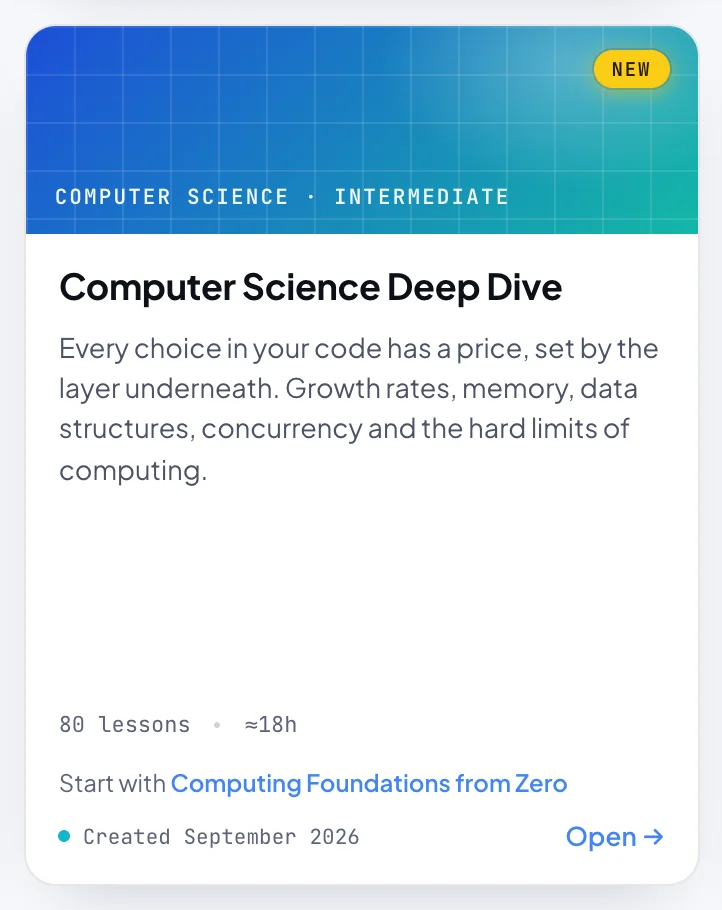
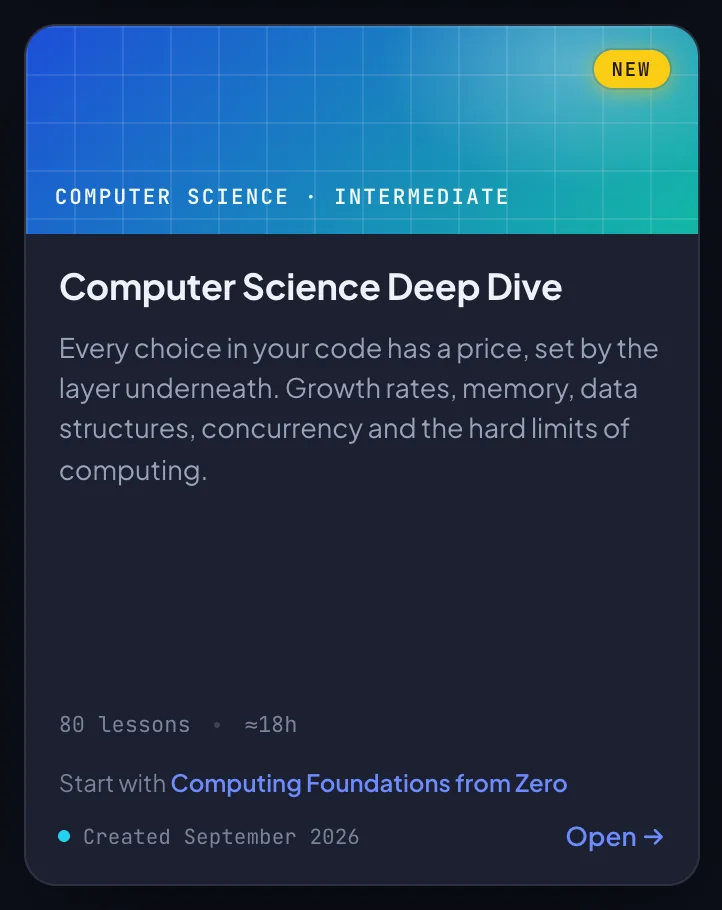
- The cap. A coloured band, one colour per topic, with the topic and level, such as CLOUD · BEGINNER. The levels are Beginner, Intermediate and All Levels.
- A badge in the cap's corner, on some cards. Free in October (with the current month) marks this month's free course; see Free course of the month. New marks a course released in the last 21 days. A card never carries both.
- The title and a short description.
- Lessons and hours, such as 77 lessons · ≈12.5h. The hours are the whole course: listening to every lesson at normal speed, plus the quizzes and the flashcard deck.
- Start with and a course name, on courses that build on another one. It names the course to take first if the subject is new to you; the course's Introduction lists all of them.
- The freshness chip at the bottom, with a month. Updated means our monthly check against the official documentation found something and the course was corrected that month. Verified means the check ran that month and found nothing to fix. Created means the course has not been through a check yet, and gives the month it was written.
On your dashboard the same cards also show a small medal in the cap once you have finished a course: see Medals.
How a course is built
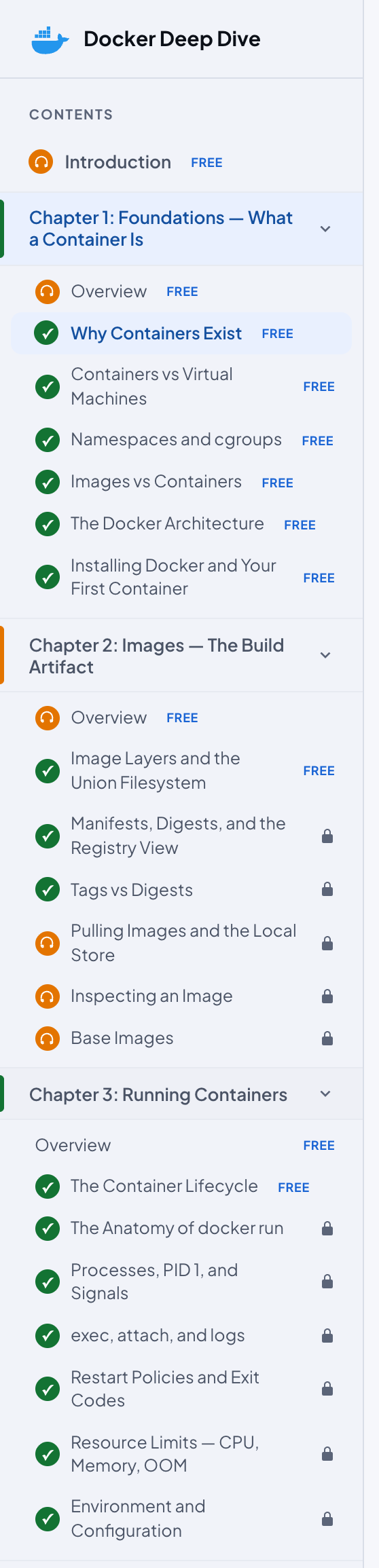
Every course has the same four kinds of page, in this order. The sidebar on the left of every course page lists them all.
- Introduction. The page titled Welcome, with the course name above it and chips such as ≈12.5 hours to complete and Knowledge check on every topic. Most introductions then have About This Course, Who This Is For, What You Should Already Know (in a few courses Prerequisites or What You Need to Know First), How the Course Is Built and a Chapter Map with a card for every chapter. In courses that build on another, that section ends with a line that starts New to this? Start with and names the courses to take first.
- Chapter Overview. Each chapter opens with one: the chapter's number and name, how many lessons it has, a short introduction, and a card for each lesson under Topics in This Chapter (Services in This Chapter in the AWS, Azure and Google Cloud courses).
- Lessons. The teaching pages. Each one carries its number in its header, such as Topic 07, and each ends with a short quiz, the Knowledge Check.
- Flashcards. The last page of every course: a trainer built from the course's glossary. See Flashcards.
The Introduction, the overviews and the lessons are all narrated, so you can read, listen, or both; on the Flashcards page the cards are read aloud. Only lessons have a quiz; the Introduction and the overviews do not. The parts of a lesson page are described in Lessons.
What is free
Without a membership, and without an account, you can read and hear these pages of every course:
- The Introduction.
- All of chapter 1: its Overview and every lesson.
- Every chapter's Overview.
- The first lesson of chapter 2 and the first lesson of chapter 3. CyberSecurity Deep Dive frees one more lesson in chapter 2.
The Flashcards page is not free. It opens with a membership, or in the free course of the month once you are signed in.
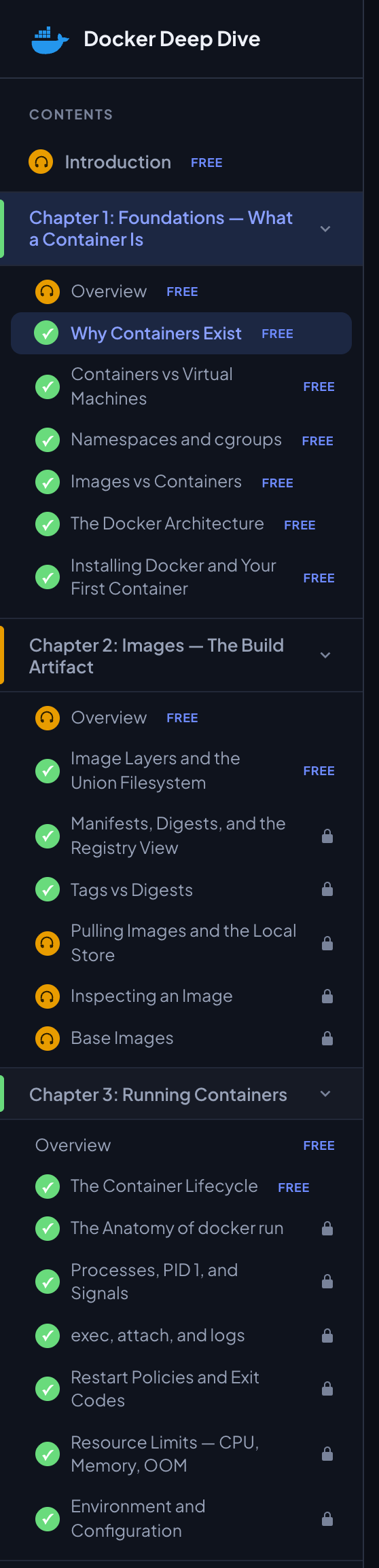
In the sidebar, free pages carry a small free tag and the others a lock. Opening a locked page shows a card over it that names the lesson and offers a way in, plus a free lesson from the same course: see Locked pages. Narration does not play on a locked page.
Free course of the month
Every month one beginner course is free in full, Flashcards included, for anyone signed in. No membership and no card are needed, only a free account.
- On the home page, a banner above All courses names it under Free course in October (with the current month), with Start learning for free. When next month's course is known, the banner adds a line such as Coming in November: and its name.
- Its card carries a Free in October badge.
- Signed out, the banner and the card take you to sign in first, then to the course.
- On the dashboard, signed-in accounts without a membership see the same banner, with Free access.
- On a locked page of that course, the card reads Free this month and asks you to sign in. Signed in, the whole course is open.
When the month ends, the rest of that course locks again and the next course takes its place. Your progress in it is kept. Members never see the banner or the badge, since every course is already theirs.
What a membership unlocks
One membership opens every page of every course, the Flashcards trainer in each of them, and every course added later. Narration, quizzes and progress tracking work the same on free and paid pages. Plans, prices and how to subscribe are in Plans and billing.
Signing in
You sign in with Google or with Apple. There are no passwords and no separate sign-up: the first time you sign in, your account is created. An account is free.
- Click Sign in at the top right of any page.
- On the page titled Welcome, choose Continue with Google or Continue with Apple.
- Finish in the Google or Apple window that opens. If your browser blocks pop-up windows, the whole page goes to Google or Apple instead and comes back.
- You land back on the page you started from, or on your dashboard if you started on the sign-in page itself.
Some buttons ask you to sign in where you are, for example on a locked lesson: a small Sign in window offers the same two buttons and Cancel. Use the same method you used before, and everything you have follows you.
Signing in adds:
- Your progress on every device: quiz ticks, what you have listened to in full, your flashcard schedule and your place in each course.
- The dashboard: where to resume, your daily goal, your streak and activity, medals and certificates.
- Your player, reading and flashcard settings on every device: see What follows your account.
- The free course of the month.
- The support form, for writing to us from the site.
You do not need an account to take a quiz or to listen. Passed quizzes and pages listened to in full get their marks in the sidebar either way, and your settings are kept, all in this browser only.
When you sign in, the page you are on is added to your account at once. Any other page you finished while signed out is added the next time you open it signed in. More in Progress without an account.
Adding Apple or Google later
An account can have both methods. Signed in, open Settings, and under Profile, Sign-in methods, click Add Google or Add Apple. Both then open the same account, with the same progress and membership, on the website and in the apps. See Settings, Profile.
Your first lesson
- Open a course from the catalogue, or from Try it free. It opens on the Introduction.
- The narration starts by itself and reads the page aloud. On a phone nothing plays until you touch the page: tap anywhere on it. Press Play in the bar at the bottom, or Space, to pause. See Starting and pausing.
- Click Next at the bottom of the page. It takes you to the chapter 1 Overview, and the next Next to the first lesson. You can also pick any lesson in the sidebar.
- Read, listen, or both. Click any paragraph to move the narration there. If a figure has sliders or buttons under it, it is live: try them. See Live figures.
- At the end of the lesson, answer the Knowledge Check. Get every question right and the lesson gets a green tick in the sidebar. If you miss one, click Try Again. See The Knowledge Check.
- Click Next for the next lesson.
If you would rather it never started by itself, switch off Autoplay. To be carried to the next page when you finish one, switch on Next lesson automatically.
Phone, tablet and computer
The website works in any current browser on a phone, a tablet or a computer, and there is nothing to install. On a phone the sidebar folds away behind the menu button at the top left, and the audio bar shows only Play and the settings button.
There is also an app for iPhone and iPad, and an Android app is coming to Google Play. The apps show the same courses, and they can download a course to read and hear offline. See Getting the apps.
Sign in with the same Google or Apple account everywhere, and your progress, settings, daily goal and streak follow you. A few things stay on each device, such as whether the sidebar is folded away: see What follows your account.