 IT Playbook
Learning
Flashcards
Every course ends with a flashcard trainer built from its glossary. This page covers a practice session from the first card to the last, the timer, answering aloud, every setting, and how the schedule decides what comes back when.
What the trainer is
Each course has one deck: every term in its glossary, with its definition. They are the same terms that are highlighted in the lessons. You see one side of a card, recall the other, turn it over and say honestly whether you knew it. A spaced-repetition schedule then decides when each card comes back: soon for the ones you miss, further out each time for the ones you know.
Knowing every card in the deck is one half of finishing a course; passing every quiz is the other. See Medals.
Opening the trainer
- In a course, Flashcards with a cards icon is the last page in the sidebar.
- On your dashboard, click a course's Flashcards row, or the cards button on its picture while the course still has cards to learn. See Your dashboard.
The trainer is part of the membership. It is also open in full in the free course of the month once you are signed in. Without either, the page shows the locked-page card instead: see What is free.
A practice session
A session starts as soon as the page opens; there is no Start button. It holds every card that is due today, in random order, followed by up to 20 cards you have never seen, also shuffled. Cards you know that are not due yet are left out: going over them again is the work spaced repetition saves you.
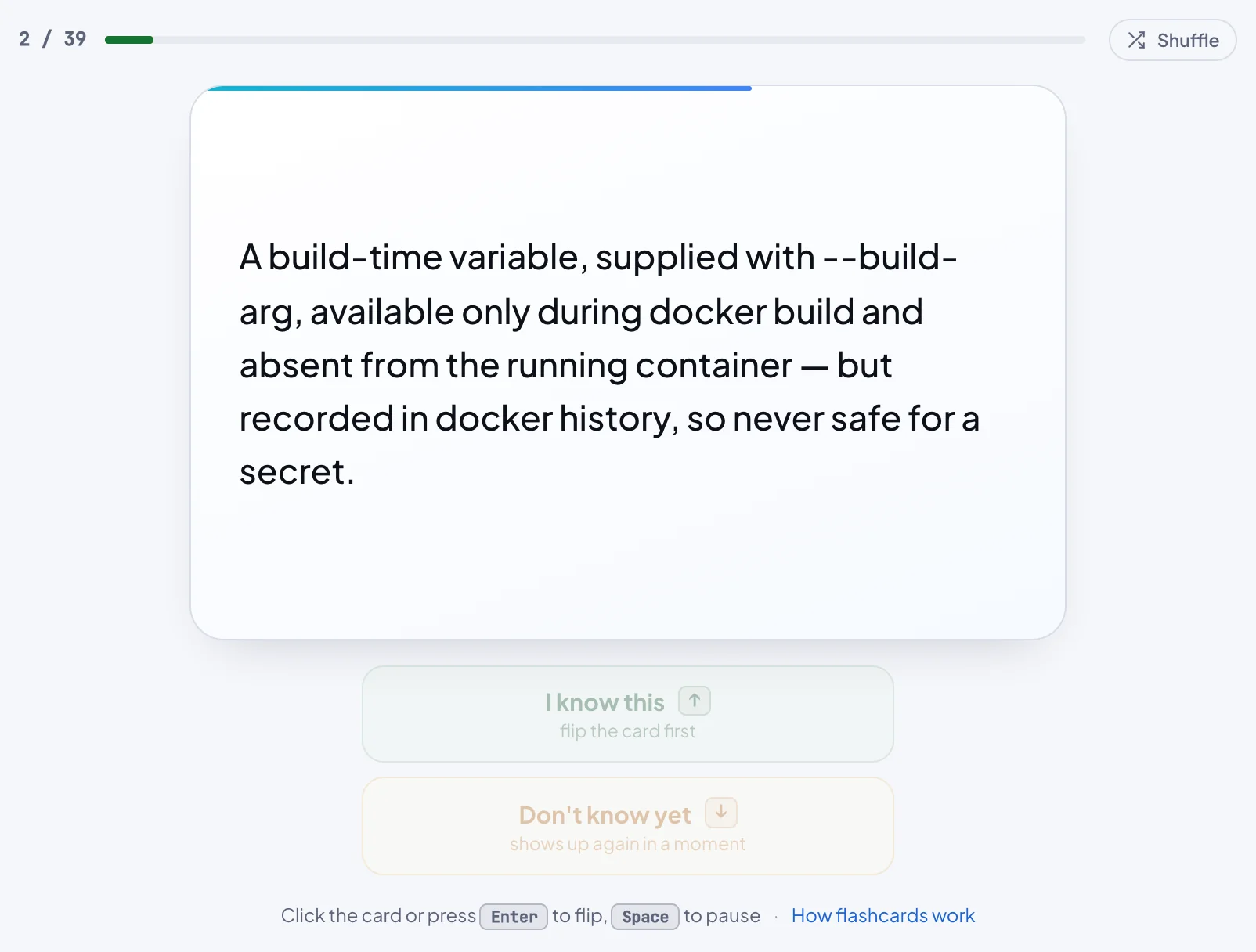
The card
By default the front shows the explanation and asks you for the term: change that with Ask me for. On the term side, other names for the term are listed under it, such as also: k8s. They are never shown on the question side of a card that asks for the term, since they would give the answer away.
Turning a card over
Click or tap the card, or press Enter. Both answer buttons stay off until the card has been turned over at least once, and I know this says flip the card first until then. Recall first, then check.
Grading yourself
- I know this or ↑: the card flies up. Under the button you see when it would come back, such as next review in 4 d or next review in 2 mo.
- Don't know yet or ↓: the card flies down and shows up again in a moment, two cards later in this session. It is also due again tomorrow.
- On a touch screen, swipe the card up or down. A short drag snaps back, and a tap turns it over.
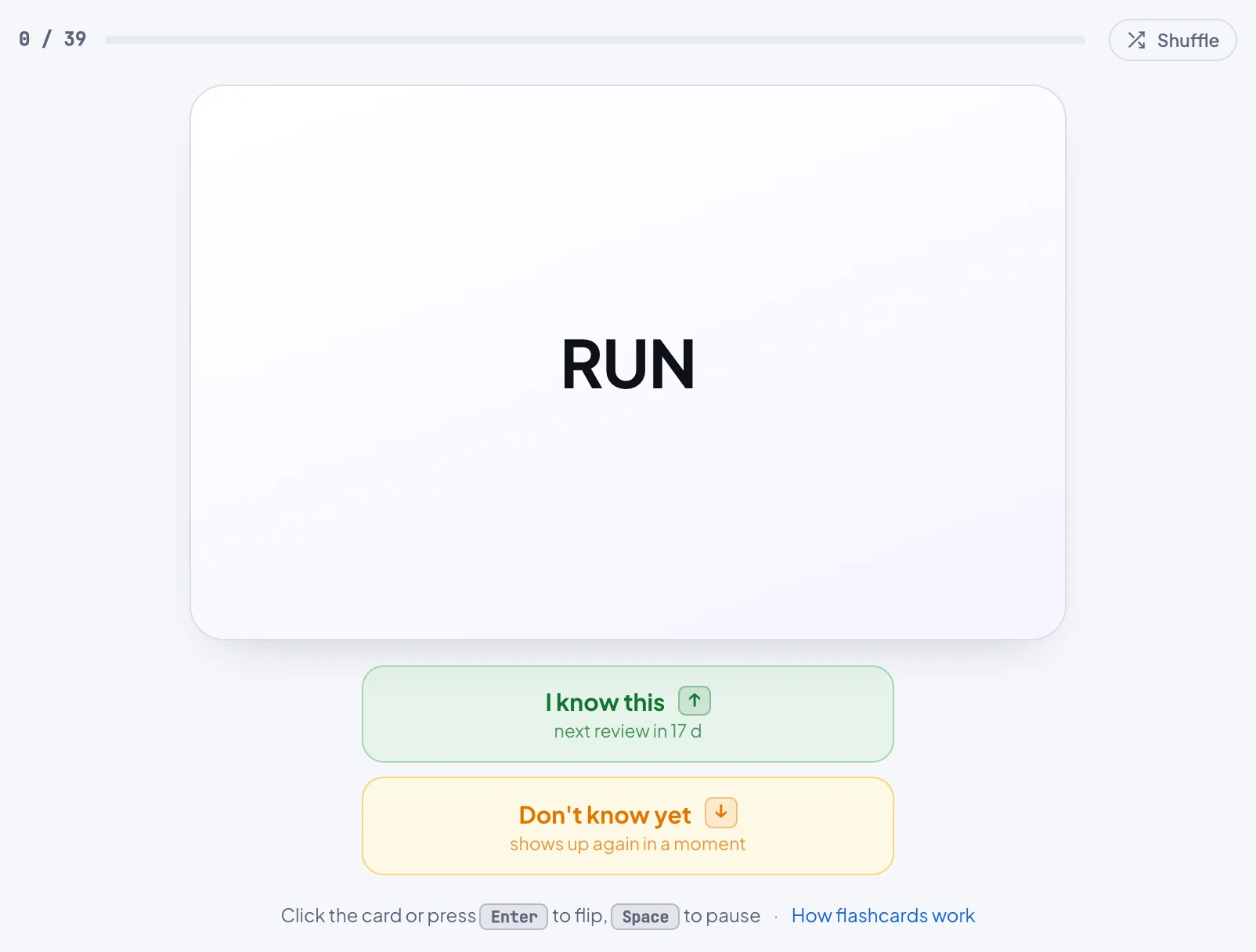
How far you are
Above the card, a counter such as 3 / 20 shows how many cards of this session you have answered at least once. The bar beside it fills amber for each card you answer and turns green for each card you clear. A card you missed stays amber until you get it right. The audio bar's readout shows the same count: Speed 1× · Cards 3 / 20.
Shuffle
Every session is dealt in random order already, but a card you miss comes back only two cards later, so a handful of stubborn cards can start to feel like a loop. Shuffle, beside the counter, re-deals the cards left in the session. It grades nothing and changes no schedule, the cards you have cleared stay cleared, and it does nothing with fewer than two cards left.
Time to answer
A thin line runs across the top of each card while you think. When it runs out with the card still face down, the card turns itself over and I know this is off for that card for the rest of the session: you did not recall it in time. Don't know yet still works. Shuffle does not lift the lock.
- The default is 10 seconds. The slider goes from 3 to 20 seconds; its far-left notch is No timeout, which never turns a card for you.
- The clock starts once the question side has been read aloud, or at once with Read cards off.
- Set it in the trainer's Player settings or in Settings, Flashcards. It follows your account.
Taking a break
Press Space, or Play in the audio bar. The countdown stops, the narrator and the microphone go quiet, and the card dims. Press it again to go on: the card is read again, and a card that is still face down gets its full time back.
If you have hidden the audio bar, it comes up while the session is paused, so Play is on screen, and goes down again when you go on. The bar stays hidden on your other pages; tap the handle above it to send it down sooner.
Cards read aloud
With Read cards on, the narrator reads the question side when a card appears and the answer when you turn it. Until you set it yourself, Read cards follows Autoplay, which is on by default. Cards are read in the course's own narration voices; Voice and Speed are the same settings as in the lessons, and [ ] change the speed here too.
On an iPhone the browser will not play sound before you touch the page, so the trainer says Press Play to start. If sound is blocked later, it pauses and says Sound was blocked. Press Play to go on.
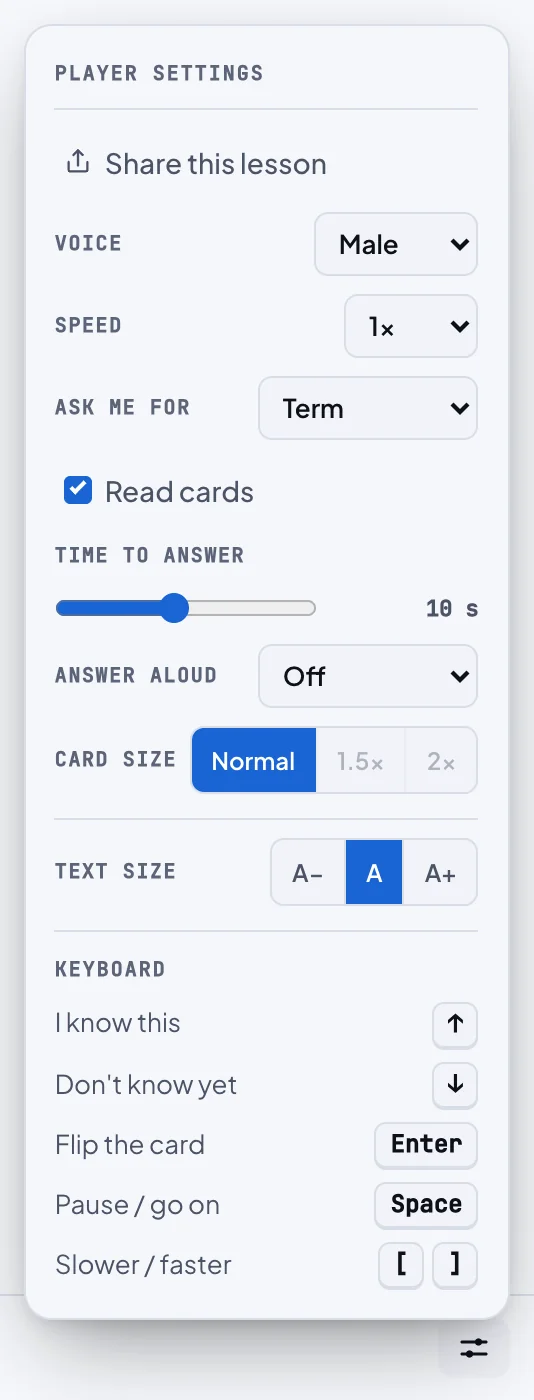
The settings button in the audio bar opens the trainer's Player settings. From top to bottom:
- Share this lesson
- Voice and Speed for the card narrator
- Ask me for: which side you are asked for
- Read cards: on or off
- Time to answer: the countdown
- Answer aloud: Off, Suggest or Hands-free, in browsers that can recognise speech
- Card size: Normal, 1.5x or 2x, on computers and tablets
- Text size: A−, A, A+
- Keyboard: the shortcuts
Ask me for
The setting is named for what a card asks you to produce, not for what it shows first.
- Term (the default): the card shows the explanation, and you name the term.
- Explanation: the card shows the term, and you explain it.
- Mixed: a coin flip for each card. The side is kept for the whole session, so a missed card comes back the same way round.
The schedule is per term, whichever way it was asked. Change the setting in the middle of a card and that card is dealt again, face down, the new way round, with no grade. It follows your account, so your phone and your laptop ask the same way.
Answer aloud
Instead of turning the card yourself, you can say the term into the microphone. It is off until you turn it on, because the browser has to ask for your microphone first.
Turning it on
- While it is off, the trainer offers it in one line under the answer buttons: Answer aloud, hands-free. One click asks for the microphone and starts. If you refuse, the line says Microphone blocked. Allow it for this site, then try again.
- × next to the offer hides it on this device.
- It is also in the trainer's Player settings and in Settings, Flashcards, Answer aloud: Off, Suggest or Hands-free. It follows your account.
How a card goes
- The question is read. The play button turns yellow with a microphone in it: it is listening, and the countdown runs. The line under the card says Listening… say the term and shows the words as it hears them.
- Say the term. The button flashes green and the card turns. Say something else, or nothing before the time runs out, and it flashes red and turns.
- After you stop speaking you have about two seconds to go on, so "blue... green deployment" counts as one answer.
- The line under the card shows what was heard, such as Heard: “container image”, or Heard nothing.
Words it understands
These count only when they are the whole answer, so a term that contains one of them is still taken as an answer. A one-word command waits a moment, in case it is the start of a term.
- Give up and turn the card: "I don't know", "don't know", "I do not know", "do not know", "no idea", "I have no idea", "no clue", "not sure", "I'm not sure", "I give up", "give up", "pass", "skip", "next", "no".
- Read the question again: "repeat", "repeat please", "please repeat", "repeat that", "repeat the question", "again", "say again", "say it again", "once more", "one more time", "what", "pardon", "sorry".
Suggest or Hands-free
- Suggest turns the card and rings the grade it heard. You still press the button.
- Hands-free grades the card for you and deals the next one: about a second after the answer has been read with Read cards on, 2.5 seconds with it off. A whole session can run without touching the screen.
- After a red verdict on something you did say, Hands-free waits 3 seconds and the line reads right after all? Tap I know this, so you can overrule a mishearing.
- Turning the card yourself while a verdict shows or a grade waits takes over from the microphone.
- In Hands-free, if nothing at all is heard five times in a row, the session pauses itself, so it does not run on after you have walked away. The line under the card reads Nothing heard 5 times. Tap Play to go on. on a phone or tablet, and Nothing heard 5 times. Press Space or Play to go on. on a computer. You lose nothing: each card before the pause was graded Don't know yet, so it comes back two cards later and again tomorrow. The card the session paused on is not graded and gets its full time again when you go on.
What it never holds against you
Speech recognition gets jargon wrong now and then, so a red verdict never takes away I know this. Only the countdown running out with nothing said does. With No timeout the microphone still listens for 10 seconds, and that locks nothing.
Only cards that ask for the term listen, because a spoken explanation cannot be checked reliably. With Ask me for: Explanation the microphone stays off and the setting is dimmed; with Mixed it listens on about half the cards.
Where it works
In browsers that can recognise speech: Chrome, Edge and Safari, on a computer or a phone. Firefox cannot, and the trainer does not offer it there. On an iPhone, every browser needs one tap on the page before it may play sound: press Play when the trainer asks.
Microphones and headphones
With more than one microphone connected, Settings, Flashcards, Microphone picks the one that listens. Chrome uses that choice; other browsers use the system default. The choice stays on this device.
Bluetooth headphones drop to call quality while their own microphone is on. After you answer through them, the trainer waits up to three seconds for the sound to come back before it reads on. Answering through another microphone avoids the wait.
Privacy
Your browser turns your speech into text: on your device where it can, otherwise through its own speech service (Google's in Chrome, Apple's in Safari). The page compares the text with the card and forgets it. IT Playbook never receives a recording or a transcript. See the privacy policy.
Card size
Normal, 1.5x or 2x makes the whole card bigger, text and all. It is offered on screens whose shorter side is at least 600 pixels, which means computers and tablets, not phones.
- The trainer shows the largest size, up to your choice, that fits the window. In a window too small for 2x you get 1.5x or Normal, and the bigger card comes back when the window grows.
- Sizes that cannot fit right now are greyed out; point at one and it says Does not fit this window.
- The choice stays on each device, so a big monitor and a laptop keep their own.
It is in the trainer's Player settings and in Settings, Flashcards, Card size.
When a session ends
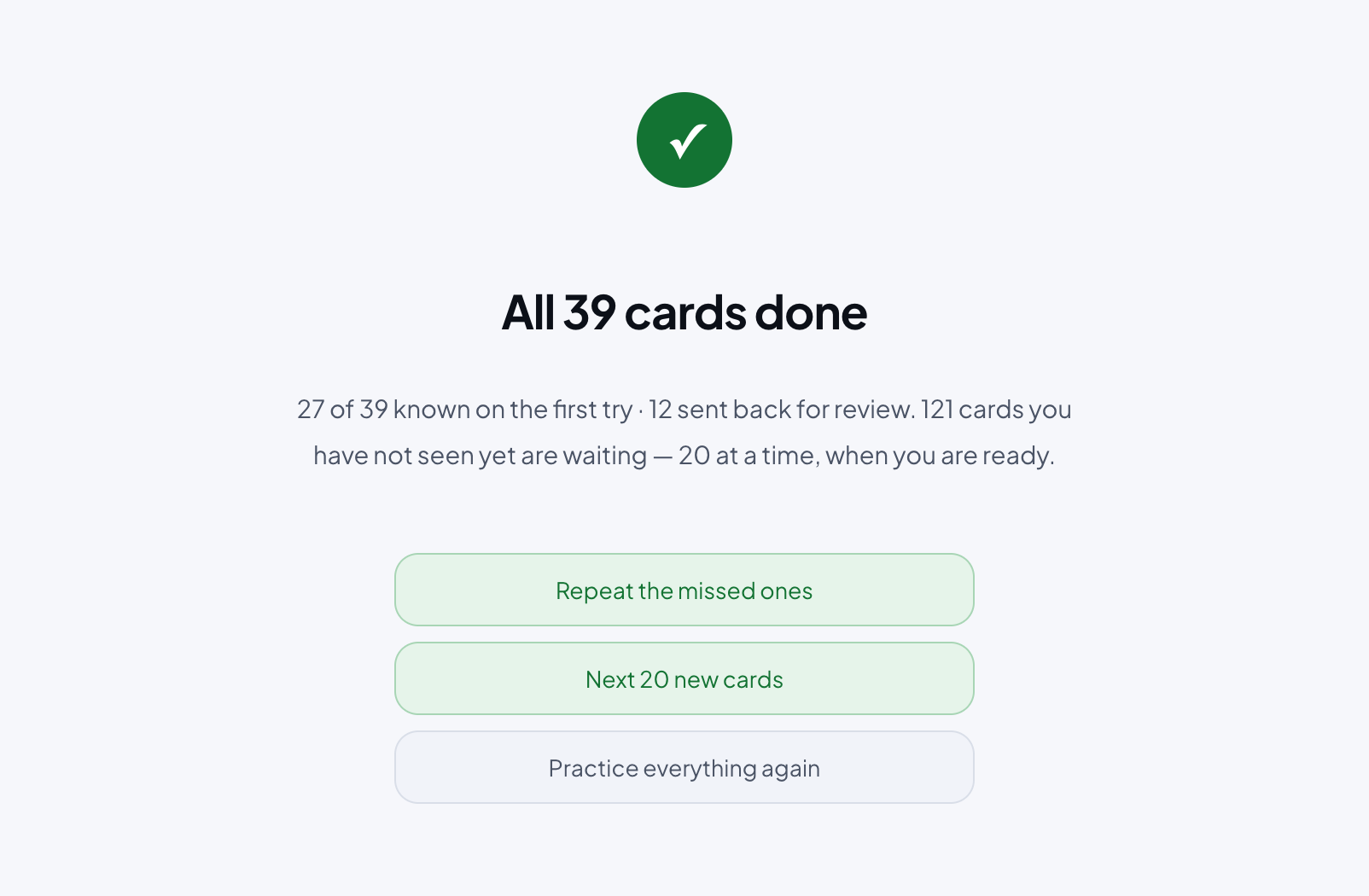
After the last card you see a summary: All 20 cards done, then how many you knew on the first try and how many were sent back for review. Below it, either how many new cards are still waiting, or how many days until the next review unlocks. Then up to three buttons:
- Repeat the missed ones: a new session of only the cards you missed. Shown when you missed any.
- Next 20 new cards: the next batch of never-seen cards, plus anything that has come due meanwhile. Shown while new cards are left; the number is smaller for the last batch.
- Practice everything again: the whole deck, shuffled.
If nothing is due and you have seen every card when you open the trainer, it says Nothing to review today, how many cards are scheduled ahead and when the next one is due, and offers Practice everything anyway.
How the schedule works
The deck is scheduled by FSRS (version 4.5), a spaced-repetition algorithm that Anki also offers. It keeps a memory model per card and brings the card back when your chance of still remembering it has fallen to about 90%.
- Two grades only: I know this and Don't know yet.
- A card you know moves further out each time: days, then weeks, then months.
- A card you miss is due again tomorrow, and comes back two cards later in the same session.
- A card counts as known now when your last answer was I know this and its next review is still in the future. On its due day it moves to to review, so your known count drops a little as memories fade on schedule, and a short session tops it back up.
Your deck in the sidebar and on the dashboard
Under Flashcards in the course sidebar, one thin bar shows the deck split three ways: green for cards known now, amber for cards to review, and the empty rest of the track for cards you have not seen yet. Hover over it for the numbers: Known now: 41 · To review: 12 · Not seen yet: 183. The bar appears once you have opened the trainer on that device.


- Dashboard: each course card has a Flashcards row, such as 41/236 known · 12 to review, or practice vocabulary before you start. Clicking the row opens the trainer. See Your dashboard.
- Daily goal: the second half of your daily goal counts the different cards you grade in a day, across all courses. The default is 10. See Daily goal.
- Medal: a course is finished when every quiz is passed and every card is known now. Once earned, the medal stays even when cards later come due. See Medals.
Keyboard and touch
- Enter Turn the card over
- ↑ I know this
- ↓ Don't know yet
- Space Pause or go on
- [ ] Card narration slower or faster
On a touch screen: tap the card to turn it, swipe it up for I know this and down for Don't know yet. The line under the buttons repeats the basics, Click the card or press Enter to flip, Space to pause on a computer or Tap the card to flip on a touch screen, with a How flashcards work link that opens the help in a new tab.
What follows your account
- Follow your account: Ask me for, Read cards, Time to answer, Answer aloud, and Voice and Speed.
- Stay on each device: Card size, the Microphone choice, and whether you dismissed the Answer aloud offer.
- The deck itself: signed in, your schedule syncs card by card, and the most recent review of a card wins. Your phone and your laptop practise one deck.
When something goes wrong
- Flashcards need the course glossary, which failed to load. Please try again later. The deck could not be fetched. Check your connection and reload.
- Microphone blocked. Allow it for this site to answer aloud. Allow the microphone in your browser's site settings, then turn Answer aloud on again.
- No microphone found. Connect one, or pick another in Settings, Flashcards, Microphone.
- This browser does not allow speech recognition here. Use Chrome, Edge or Safari.
- The speech service is unreachable. Answering by tap for now. The browser's speech service did not answer; grade with the buttons until it is back.
- Listening could not start. or Answer aloud could not load. Reload the page; the buttons keep working meanwhile.
Flashcards in the apps
The apps run the same trainer: the same cards, grades, schedule and Shuffle, and the deck syncs with the website. The differences:
- Settings: Ask me for, Read cards aloud, Time to answer and Answer aloud are in Settings, Flashcards. The Android app also has them in the reader's settings panel under the trainer, after Voice and Speed for the card narrator; on the iPhone and iPad they are in Settings only.
- Pausing: the play button on the reader bar pauses and goes on.
- Answer aloud: the iPhone, iPad and Android apps, with the play button as the microphone.
- Card size: website only.
More on the apps in The apps.