 IT Playbook
Learning
Live figures
Many figures in the courses are live: you move a slider, pick an option or press Play, and the figure works out what happens. This page shows how to spot one, how every control works with a mouse, a finger or the keyboard, and eight figures you can try right now on free pages.
What a live figure is
A plain diagram shows one moment: a cache with one hit rate, a cluster with three nodes, a loop that has already finished. A live figure lets you change the input and watch the consequence. Push the traffic up and see how long the servers take to catch up. Delete a pod and watch the cluster put it back. Pick a different input size and see which algorithm falls over first.
That is the point of them: the lesson tells you how something behaves, and the figure lets you check it for yourself, as many times as you like. Nothing you do in a figure is saved or counted towards your progress, so there is nothing to break.
How to recognise one
A live figure sits in a framed box with the figure's title at the top, the drawing in the middle, and its controls: sliders, rows of options, buttons, sometimes a box to type in. There is no badge or "interactive" label. If a figure has controls, it is live.
A live figure takes the place of the plain version of the same figure. The lesson reads the same either way: the live one only adds the controls.
The controls
Every live figure is built from the same few controls, so once you know them you know them all.
Sliders
A slider has its label on the left and its current value on the right, with its unit where it has one: 2 instances, n = 1,000, 50,000. Drag the handle with the mouse or your finger, or click anywhere on the track to jump there. The figure follows as you move.
From the keyboard, Tab to the slider, then use the arrow keys to move it one step at a time. Home and End jump to the lowest and highest value.
Option rows
A row of rounded options, with its label in front, chooses between a few cases: a scenario, a mode, a kind of input. One option in a row is pressed at a time, and it is highlighted. Click or tap another one to switch. From the keyboard, Tab to an option and press Enter.
Some rows look the same but are switches: each one turns a part of the figure on or off by itself, so several can be on at once. A label tells you which kind it is, and so does trying one.
Buttons
A button does one thing to the figure: take the next step, add a request, delete a pod, start again. Click or tap it, or Tab to it and press Enter. If the button you pressed goes away, as a Next button does on the last step, the keyboard focus moves to the nearest button still in the figure, so you can carry on without tabbing in from the top of the page.
Play and Pause
Figures that show a process over time have a Play button, sometimes named for what it plays: Run the loop, Play the hour. Press it and the figure takes its first step at once, then one step at a steady pace. While it runs the button turns into Pause: press it again to stop. Many of these figures stop by themselves when the process is over, and most stop when you take over with another control. Some also have Step or Next and Back buttons, to go one step at a time.
While the browser tab is hidden, a playing figure holds still and picks up where it was when you come back. The button keeps reading Pause in the meantime.
Boxes and menus
Some figures have a box to type a number or a few words into, or a drop-down menu. They work like any box or menu on the web. While you are typing in a box, Space and the arrow keys belong to the box, not to the narration.
Most controls hold the page still around you. When a figure's drawing or result grows taller as you change it, the page scrolls by the same amount, so the slider, option or button under your pointer or finger stays where it was.
Using the keyboard
Every control in a live figure can be reached and used from the keyboard. The narration keys still work on the page around it, and one of them, Space, needs a word of care.
- Tab Move to the next control, or the next diagram part with a note (Shift Tab goes back)
- Enter Press the option or button that has the focus
- ← → Move the slider that has the focus by one step
- Home End Move the slider that has the focus to its lowest or highest value
- Space Play or pause the narration, also when a figure's button has the focus
So to press a button or an option inside a figure, use Enter, not Space. Space plays or pauses the narration from anywhere on the page except a few places that own it: a box you are typing in, a slider, the audio bar's own buttons, a quiz answer and a highlighted term. With a slider focused, the arrow keys move the slider. Anywhere else they move the narration. All the narration keys are on Listening.
Figures and the narration
Clicking a paragraph moves the narration to it, but clicking a figure's control does not: sliders, options and buttons only change the figure. The narration keeps playing while you use a figure, so you can listen to the explanation and try it at the same time. To stop and experiment, press Space or the bar's Pause first.
With a screen reader
- A slider is announced with its label and its value as the figure shows it, unit included, for example "2 instances".
- Each option is announced as pressed or not pressed, and in most figures a row of options is a group named after its label.
- A Play button is announced as pressed while the figure runs.
- Every live figure reads out its result when it changes. Most wait until you stop moving: a drag or a held arrow key is announced once, when you let go, not at every step.
The drawing itself is a picture. The result line and the lesson text around the figure carry what it shows.
If a figure does not load, and in print
Under every live figure is the plain figure it replaces. If the live part cannot start, because a file did not arrive or the browser cannot run it, the plain figure simply stays where it is and the lesson reads as it should. When you print a lesson or save it as a PDF, the printout shows the plain figure too, since a slider means nothing on paper.
Notes on diagram parts
Plain diagrams have something to try as well. Many of their parts carry a short note: point at a part, or Tab to it, and a small bubble explains it. Every part with a note can be reached with Tab, so the notes are there from the keyboard too.
Figures fade in as you scroll to them, unless your device is set to reduce motion. See Figures and live figures on the Lessons page.
In the apps
Live figures work in the iPhone and iPad app and in the Android app, inside the lesson, the same way as on the website: drag a slider, tap an option, press Play. The keyboard notes on this page are about the website, where the audio bar listens for Space.
Try one
Each figure below is on a free page, so you can open it and try it with no account. Each one shows a different kind of control.
How many tokens is a document
Pick a document from the row of options, from 75 words up to a 90,000-word contract, or type your own word count into the box. The figure divides by 0.75 to estimate the tokens and lights one of three bands: paste it, start choosing, or choosing is the job. Controls: an option row and a box to type in.
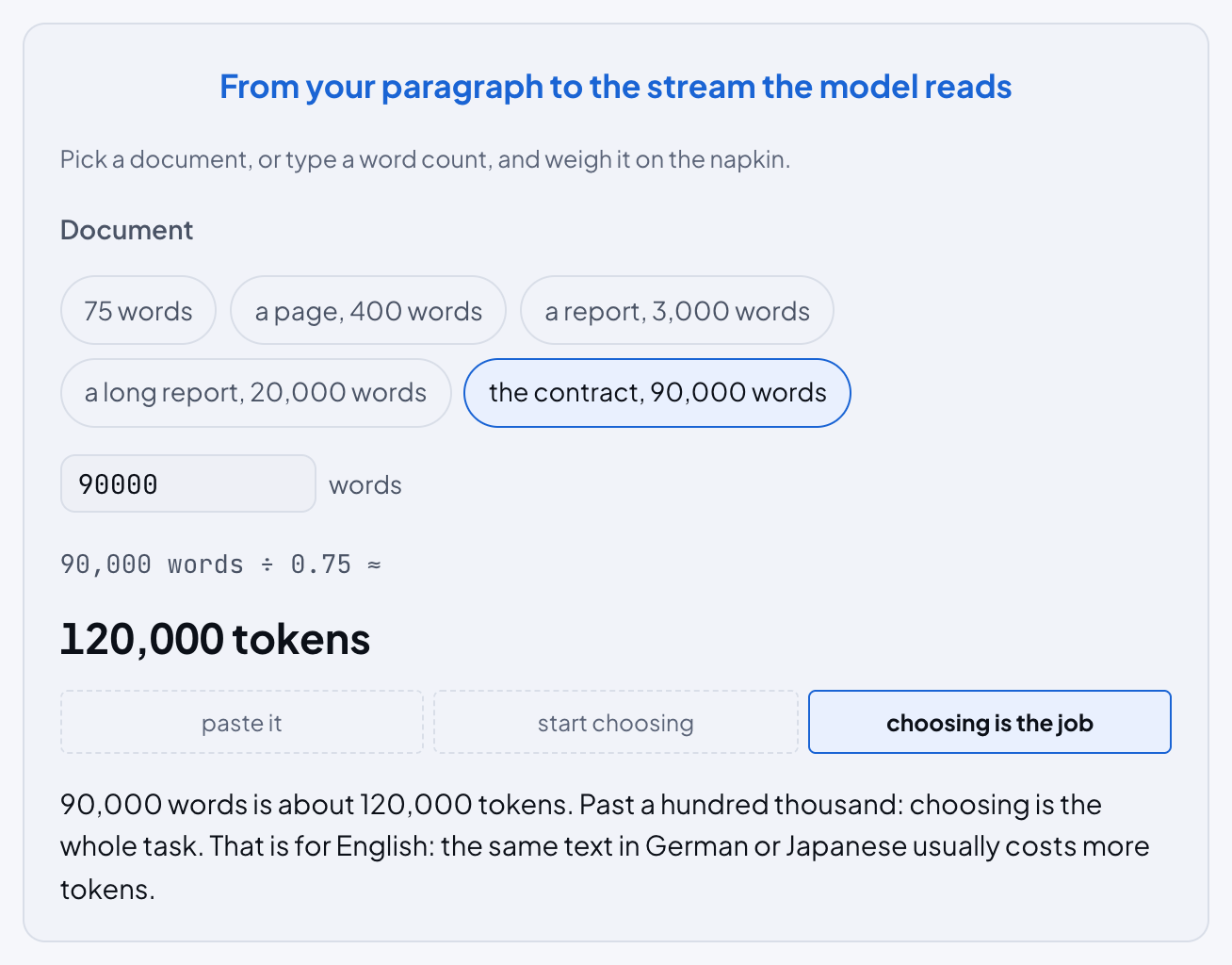
Try it: Tokens: How the Model Reads, in Working with LLMs from Zero.
Watch the growth classes pull apart
Drag Input size n from 10 to a billion and watch the number of steps and the running time of each growth class, in Python and in compiled code. The options above the table switch each class on or off. Anything that would outlast the universe turns red. Controls: a slider and a row of switches.
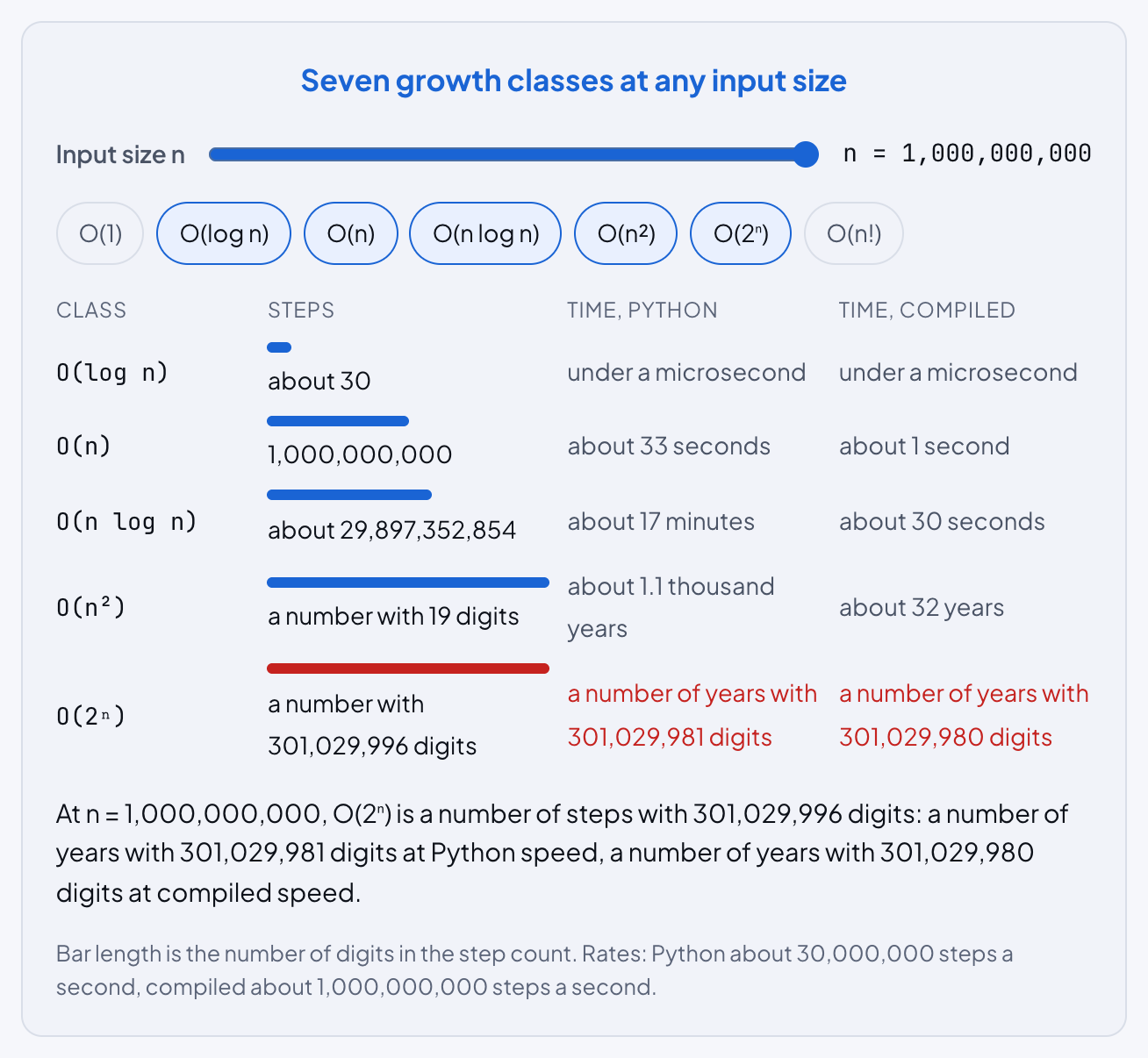
Try it: The Growth Classes, in Computer Science Deep Dive.
See where a deleted file's bytes go
A container image is a stack of layers with a writable layer on top. Press Edit /app/config.py or Delete /app/app.py and see which layer the change lands in, and why the image does not get any smaller. The option row switches between cleaning up in a second build step and in the same one. Controls: an option row and buttons.
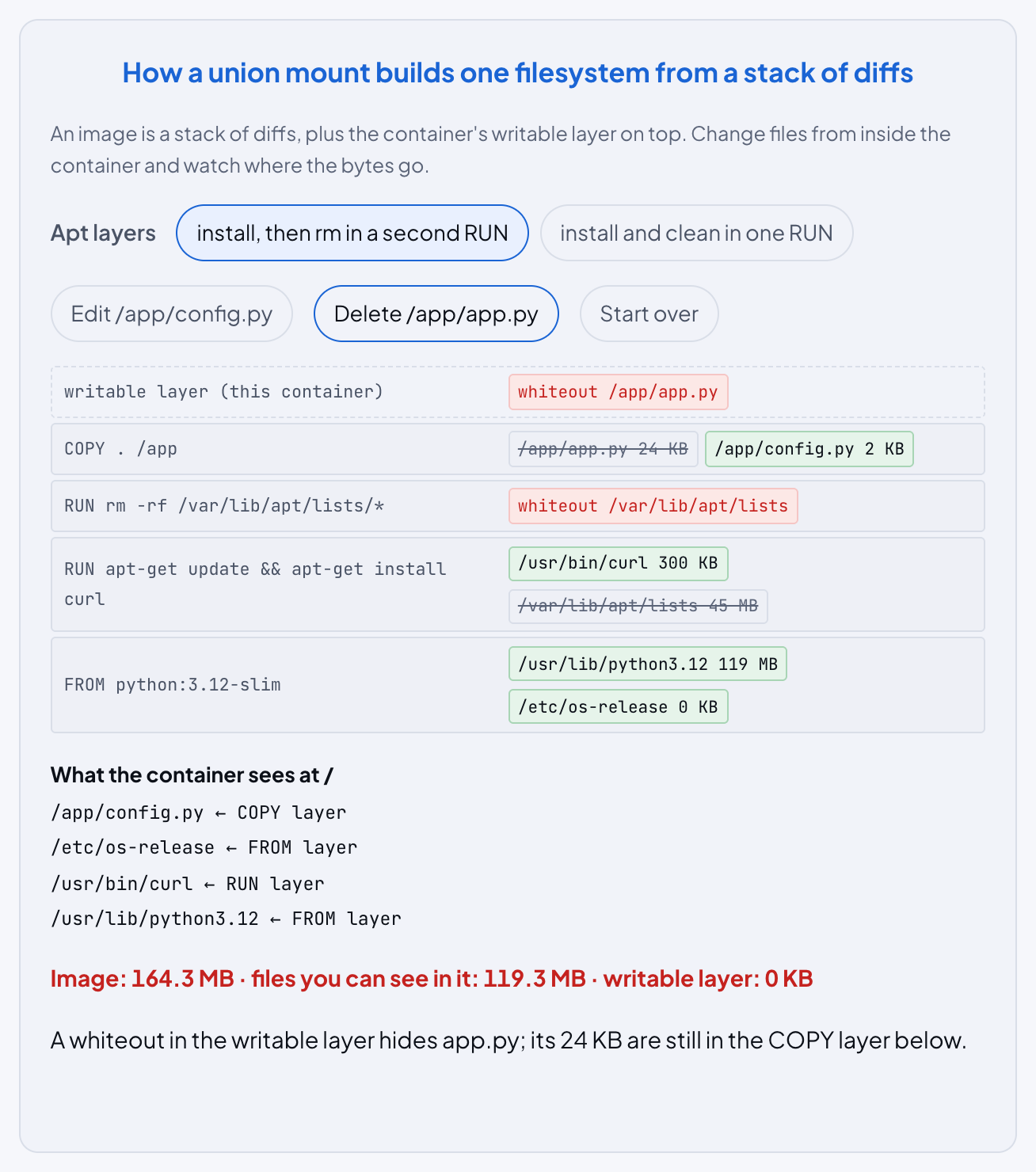
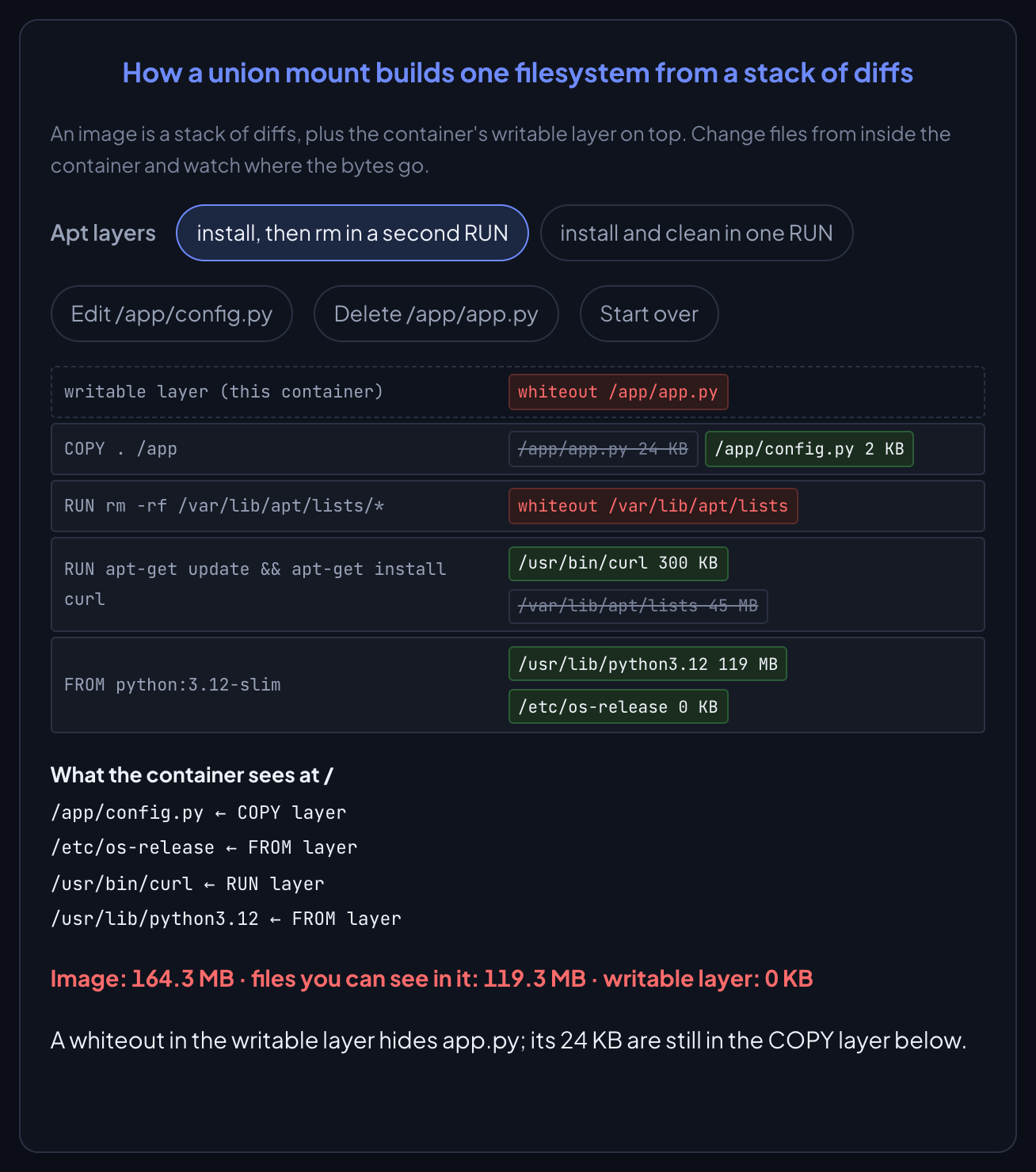
Try it: Image Layers and the Union Filesystem, in Docker Deep Dive.
Kill a Pod and watch it come back
Press Kill a Pod with the loop stopped, and nothing happens: nobody notices. Press Run the loop and the controller observes, compares, acts and starts a new Pod. Move Desired (replicas) and the loop closes that gap too. Step takes one phase at a time. Controls: a slider, Play and Pause, and buttons.
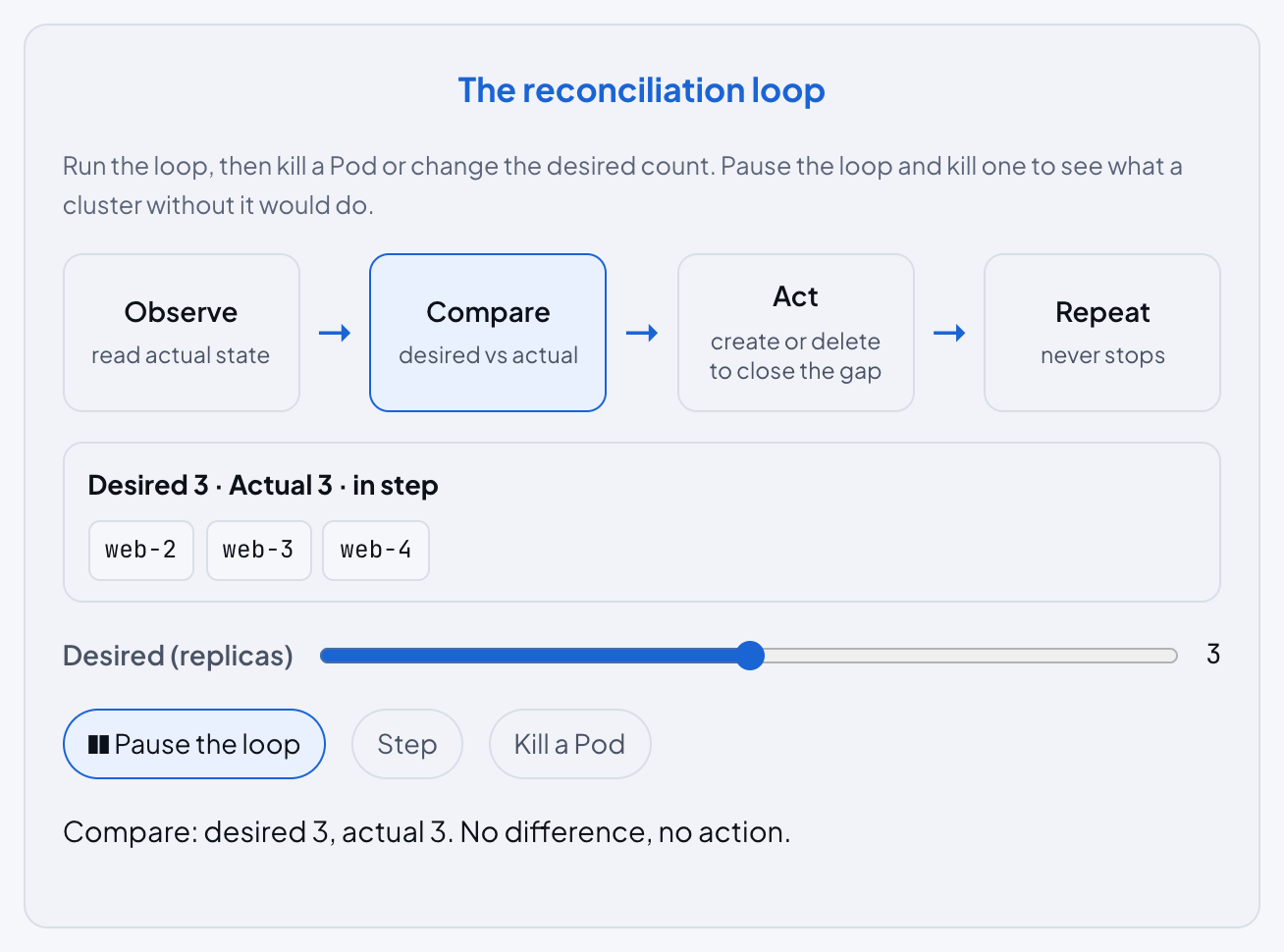
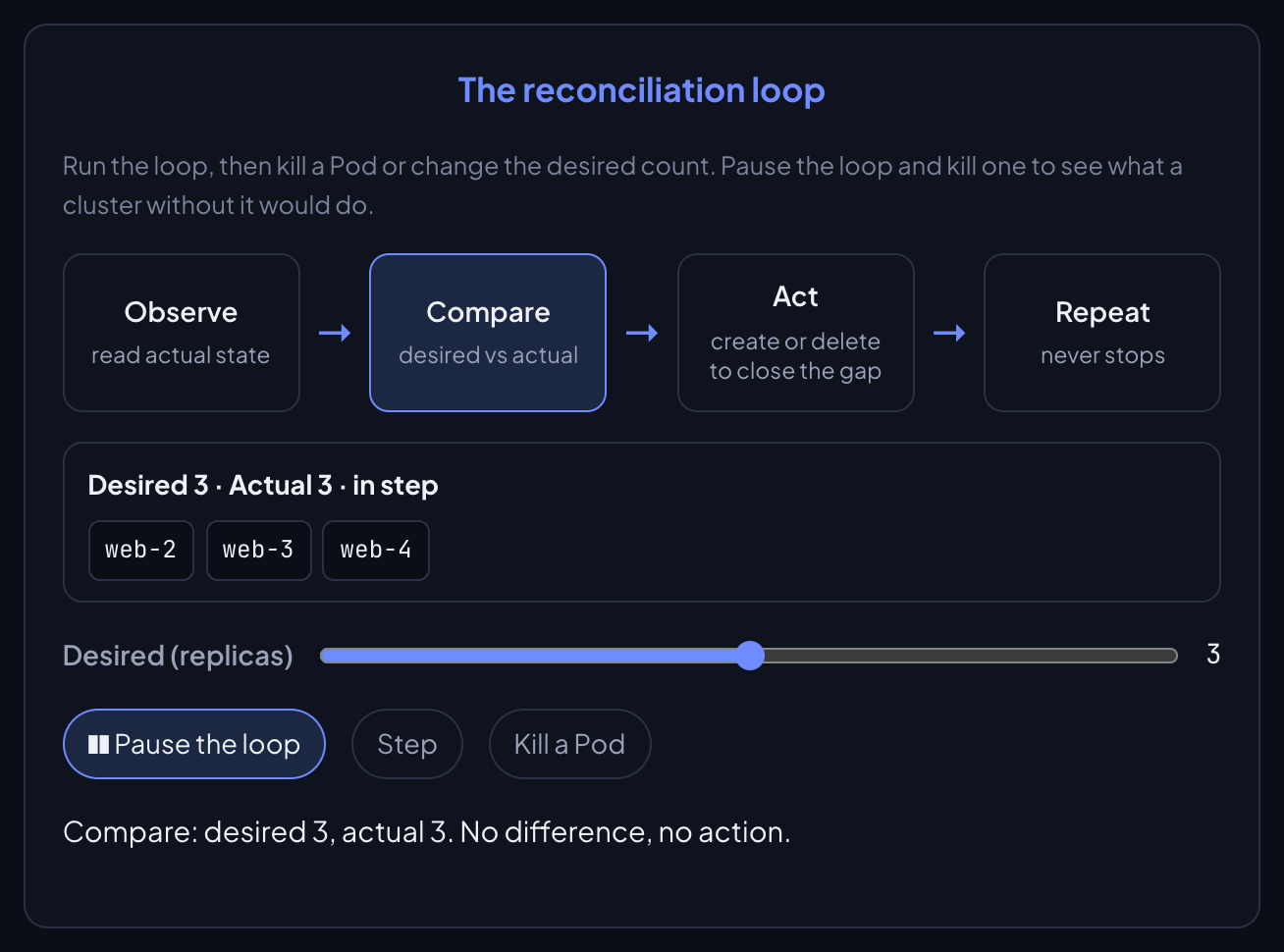
Try it: What Kubernetes Is, in Kubernetes Deep Dive.
Find out who gets which access
Type a file mode or pick one, choose who asks, and press Step or Play to watch the kernel walk owner, group and other and stop at the first match. Tap the owner or the group in the file line to change it, or switch single bits. The two Try buttons set up the surprising cases. Controls: a box to type in, option rows, switches, and Step, Back and Play.
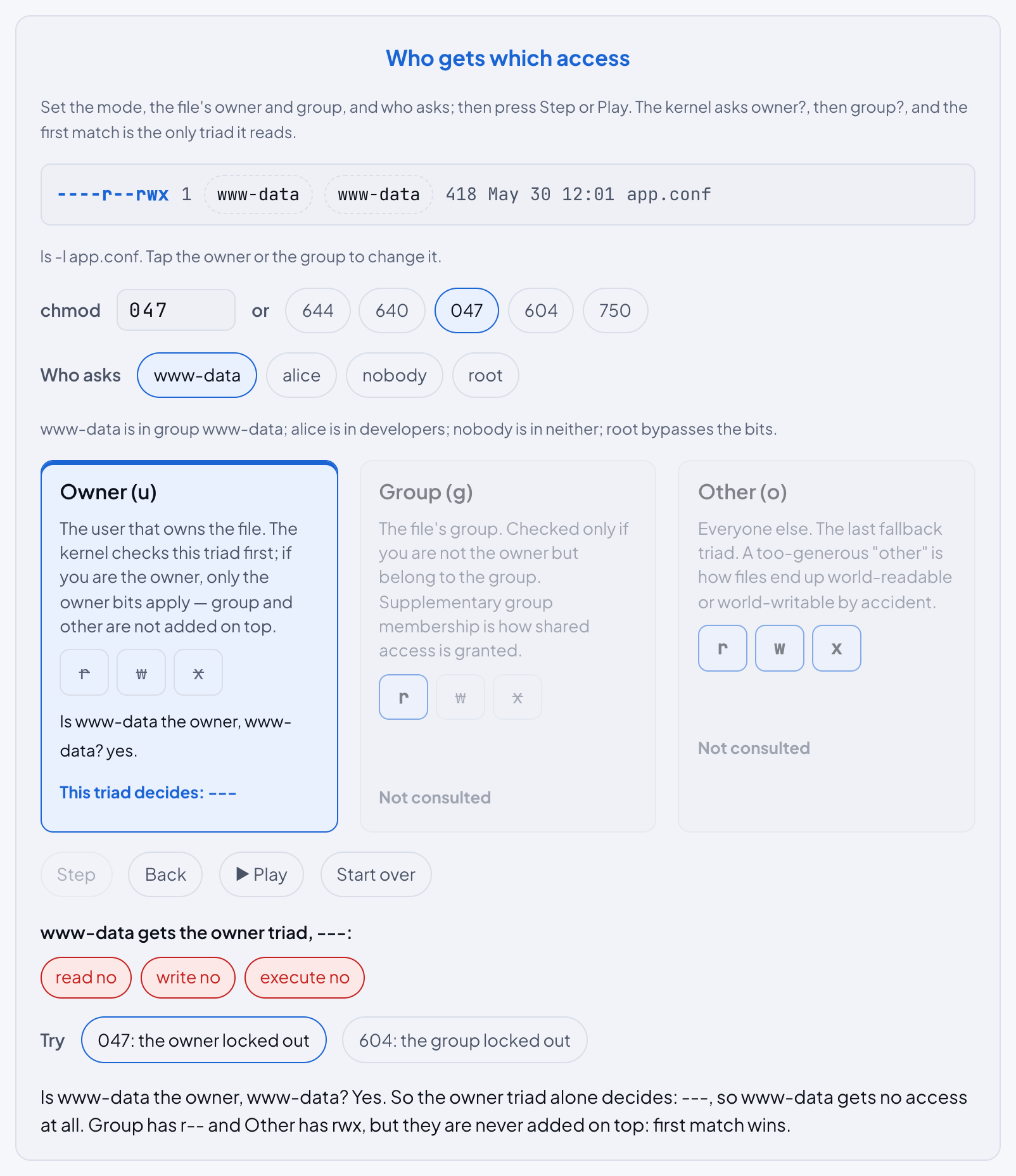
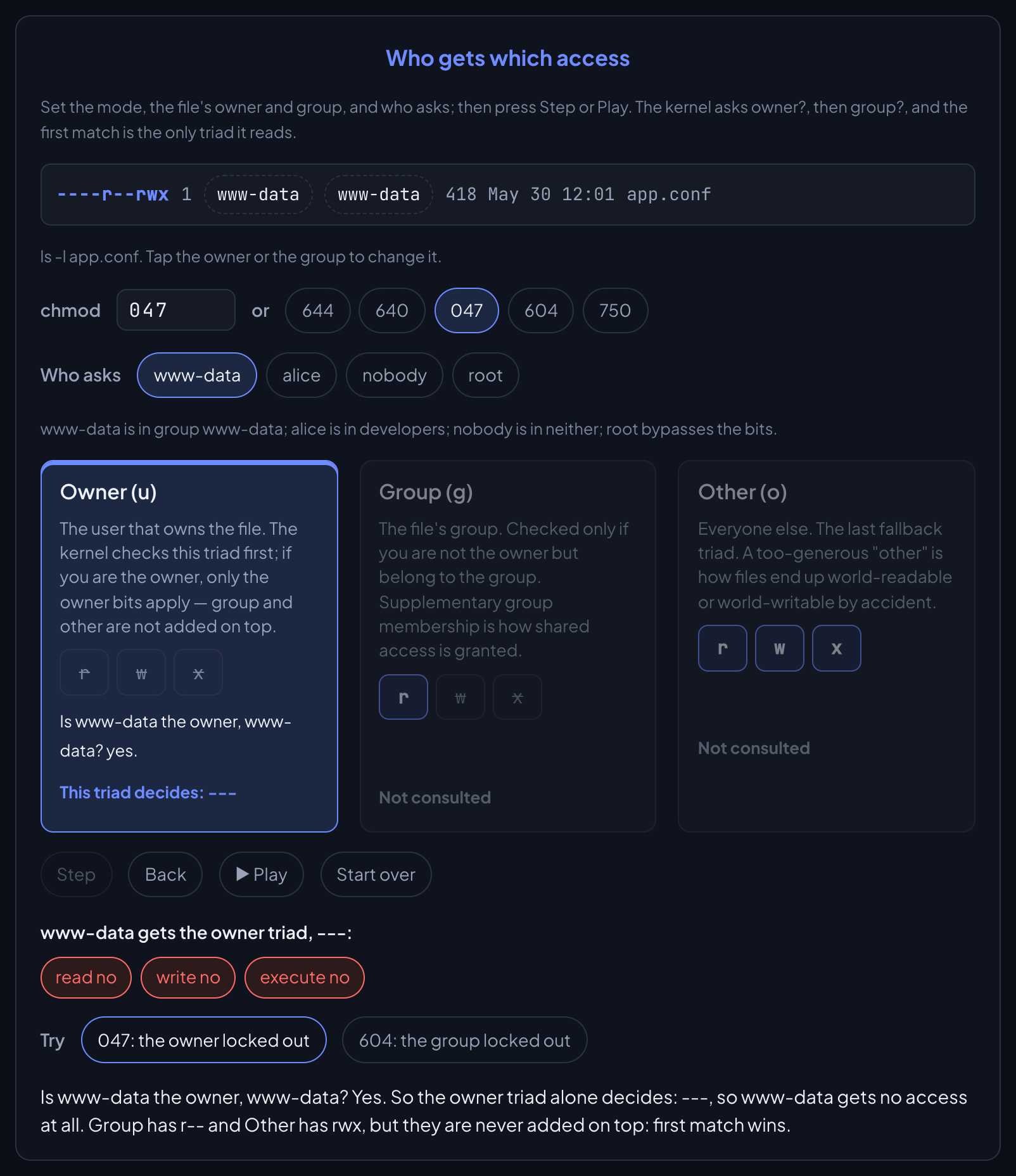
Try it: Users, Groups, and Permissions, the chapter 5 Overview of Linux Deep Dive.
Multiply a metric into a billion series
Switch labels on and off, change how many values each has, and see the number of time series multiply. The user_id slider adds one unbounded label to whatever you built, which is how one metric ends up costing terabytes of memory. Controls: four sliders, switches and option rows.
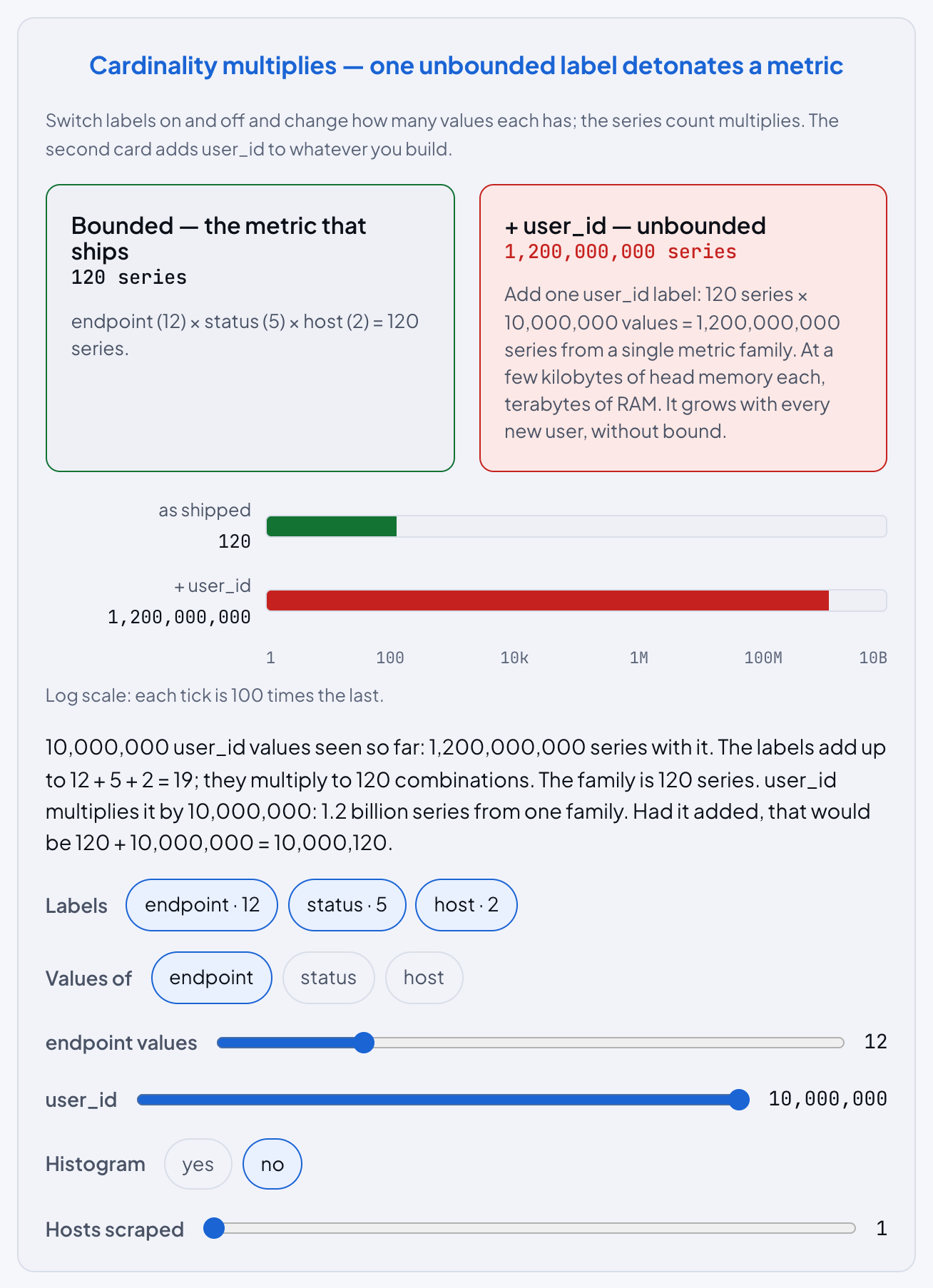
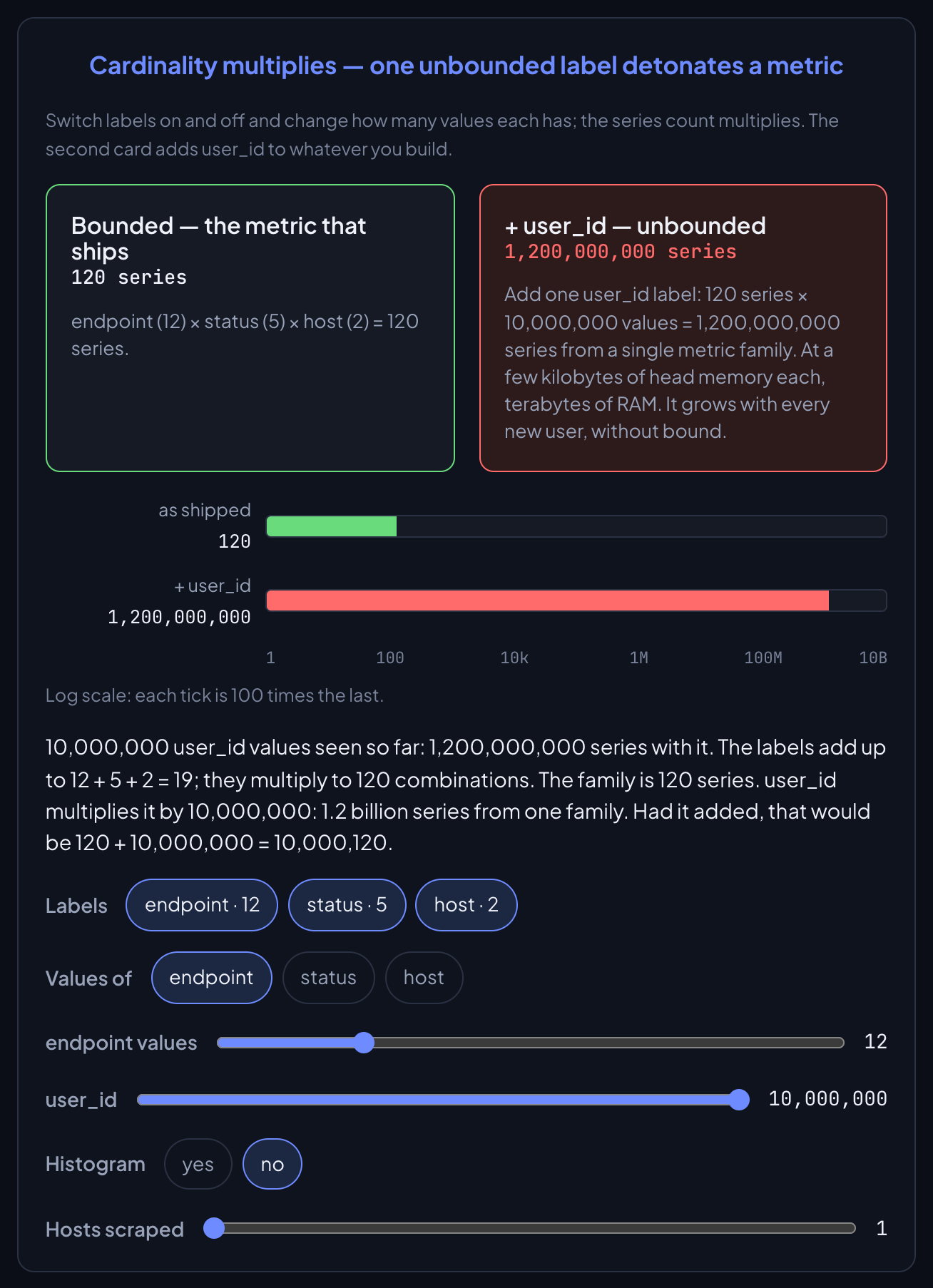
Try it: The Three Costs, in Observability Deep Dive.
Step through an agent's loop
Press Next turn, or Play, and follow one support ticket through an agent: every turn sends the whole list of messages to the model and adds what came back, until the model stops asking for tools. Back goes one turn back. Controls: buttons, and Play and Pause.
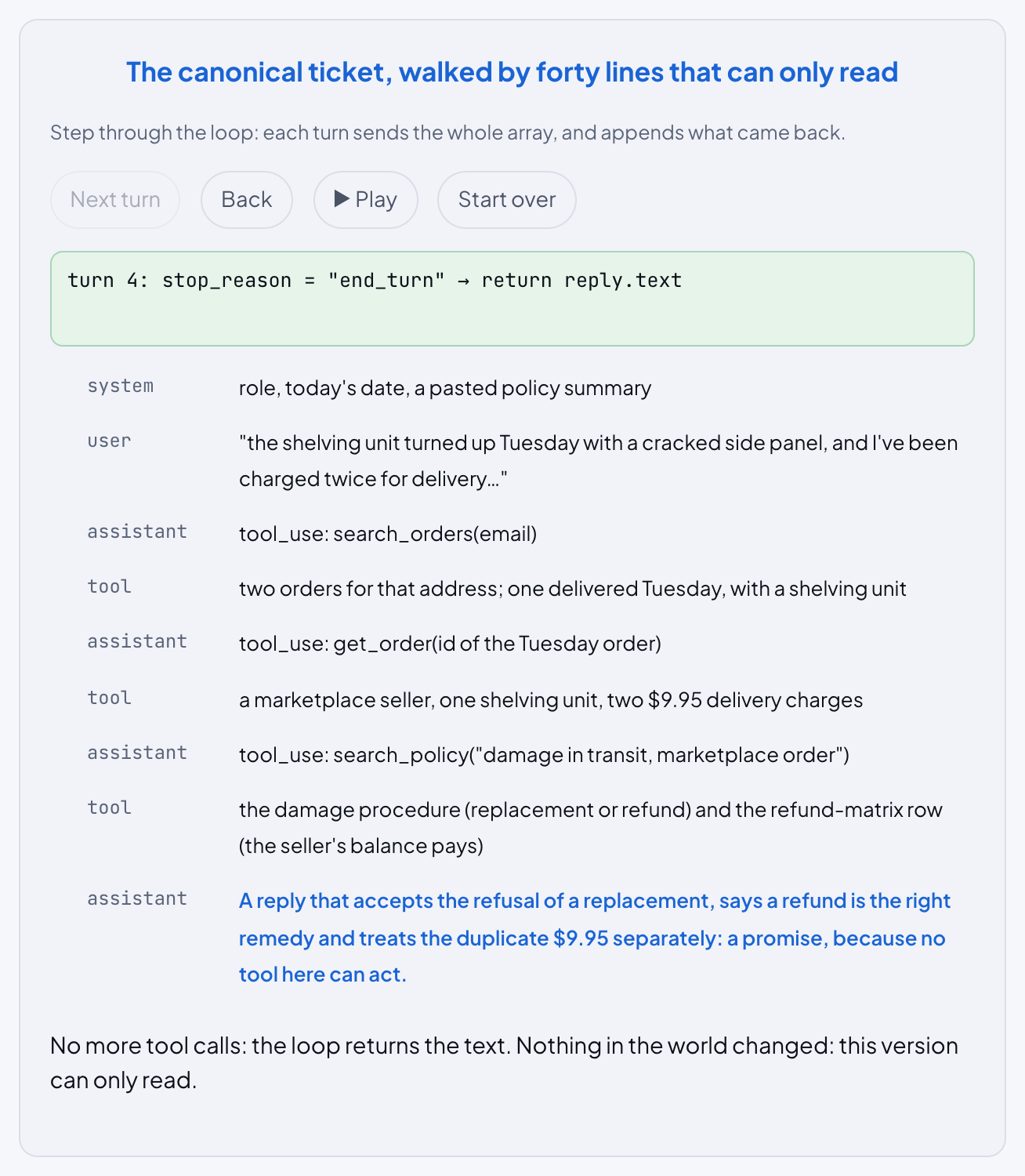
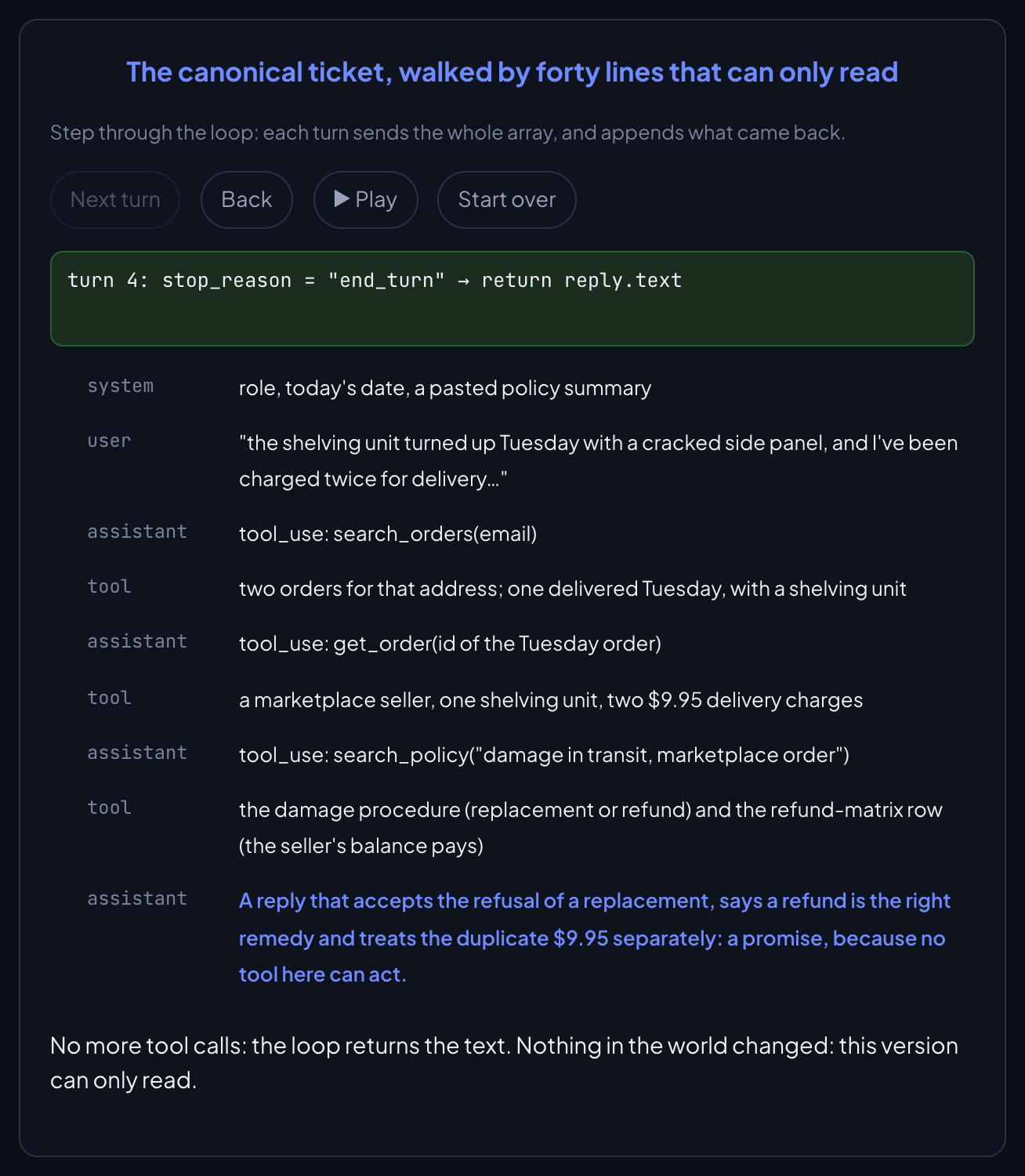
Try it: The Forty-Line Agent, in Agentic AI from Scratch.
Play an hour of traffic
Set the Minimum capacity and how long a new server takes to start serving, then press Play the hour. Traffic jumps at minute 10, and the chart shows in red every minute the servers were short. Push the minimum to 7 and the whole spike fits, whatever the start time, but you pay for seven servers through the quiet minutes too. Controls: a slider, an option row, and Play.
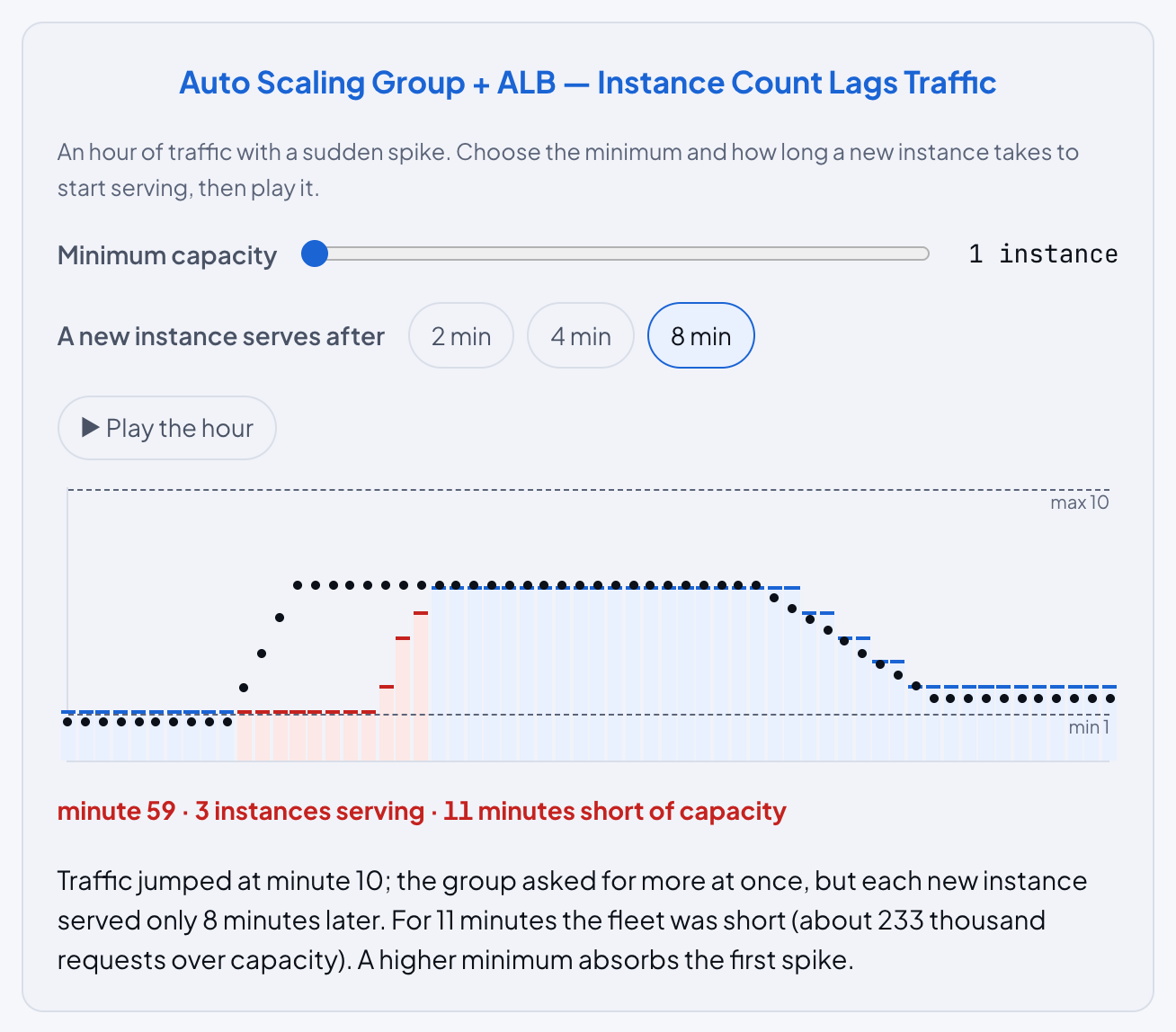
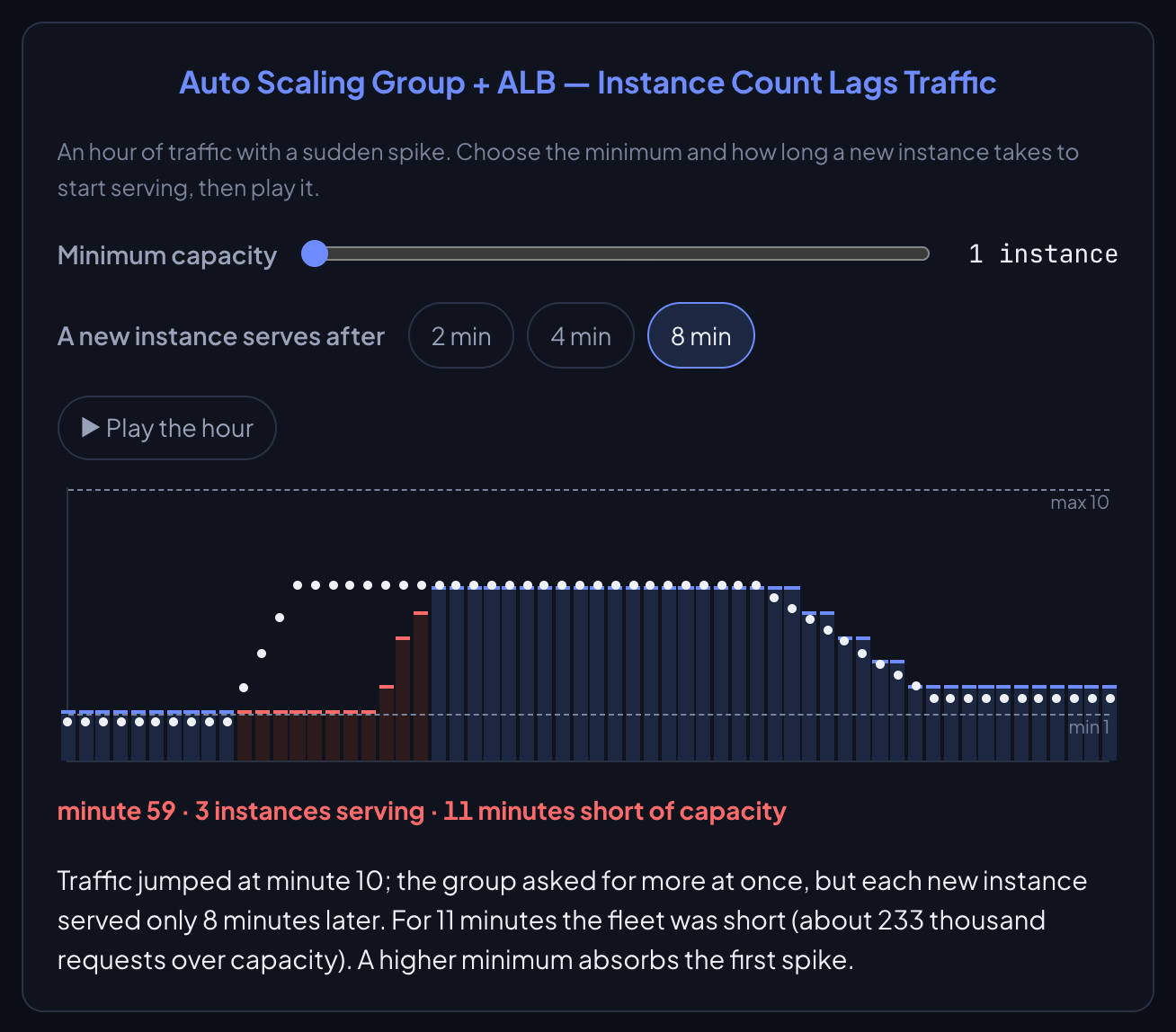
Try it: Amazon EC2, in AWS: Services & Architecture.